


Website embeds
Web embeds let you place Apollos content directly on your church website — content feeds, search, and a full giving experience — so visitors can browse sermons, find content, and give without downloading the app.
How it works
An embed is a small snippet of code you (or whoever manages your website) paste into a page. Apollos Admin generates the exact snippet for each embed under Apps → Web Embeds, and the embeds work on any website platform — WordPress, Squarespace, Wix, Webflow, or custom HTML — anywhere you can add a custom script.
There are three main embed types:
- Feed embed — displays any content feed from Admin on your website, similar to what members see in the app. Great for sermon archives, blog sections, or resource libraries.
- Search embed — adds a search bar that searches across your Apollos content, so visitors can find sermons and articles without leaving your site.
- Giving embed — adds your full giving experience: one-time and recurring gifts, giving history, and recurring gift management. Configured under Giving → Web Embed.
Note: the search embed can also search your own website's pages alongside your Apollos content and events — that capability is available on the Max plan.
Embeds are components for your existing website, not a replacement for it — use them to surface Apollos features alongside your site's own pages.
Churches moving recurring donors to Apollos Giving can also show a migration prompt on their website. The prompt guides donors through sign-in or account claiming and can include a Learn More link configured by your church. See Migrate donors to Apollos.
Set up a feed or search embed
Apps → Web Embeds is a two-step page.
Step 1: install the script tag
Copy the snippet under Install the Apollos Script Tag snippet and paste it at the end of your site's HTML, right before the closing </body> tag. It only needs to be there once per page — every embed on that page uses the same snippet.
Step 2: add an embed
Under Add embeds to your website there are two cards:
- Search — click Setup. The Embed Search window opens. Pick a Default Feed (what visitors see before they type anything), then copy the code under Embed Code and paste it into your page where you want the search bar to appear. The code stays greyed out until you've picked a feed.
- Feed — click Go to feeds. Feed embeds are set up from the feed itself: open the feed you want on the Feeds page and use its Share action to get the code.
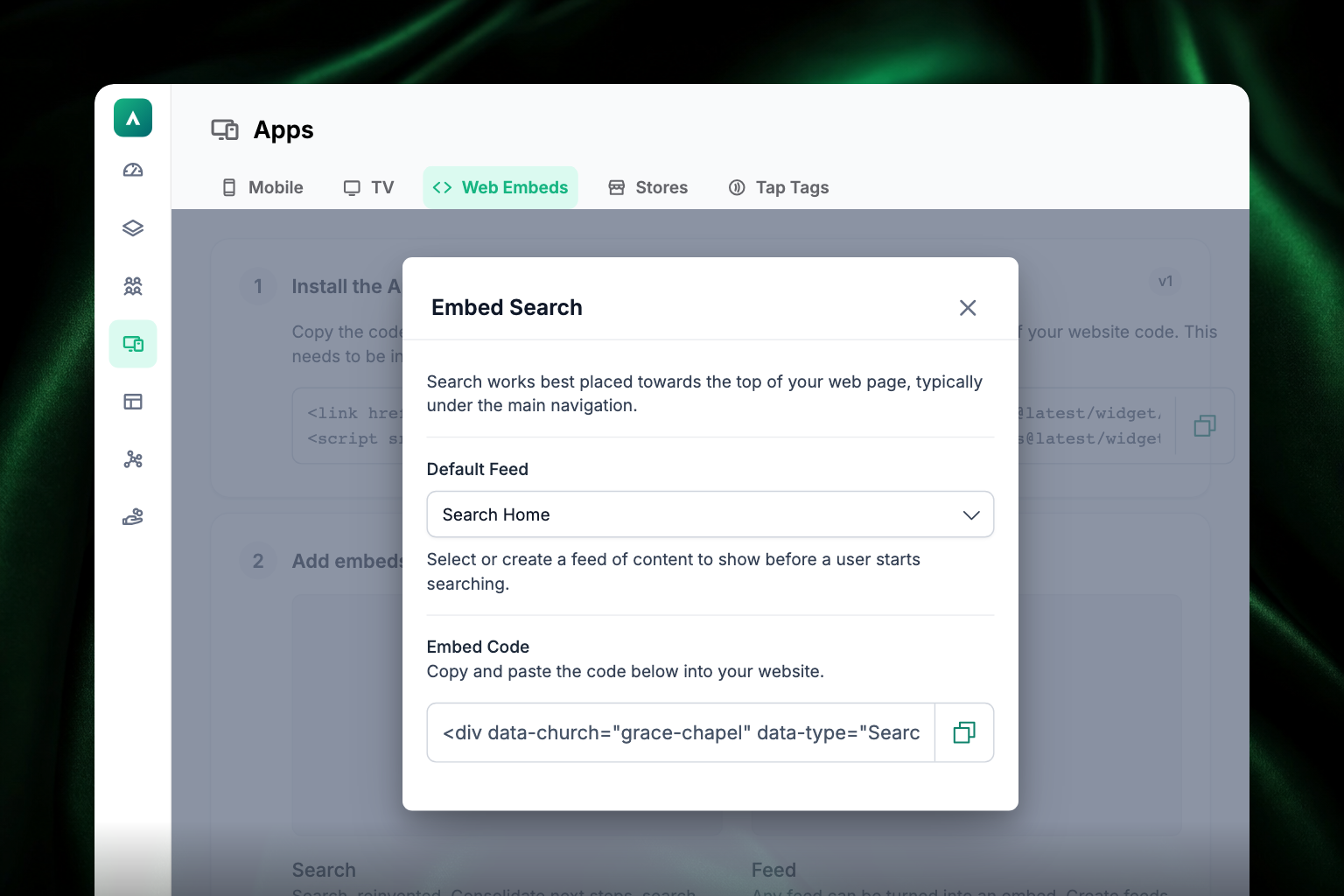
A few tips:
- Always use the snippet Admin generates. It includes the correct version of the embed code for your church — hand-edited or copied-from-elsewhere snippets can break when versions change.
- Paste the script tag once per page, just before
</body>, even if you place several embeds on the same page. - Choose a theme for each inline embed. New embeds use the light theme by default. Choose the theme that gives the best contrast with the page where the embed appears.
- For website search, include the pages you want visitors to find. Apollos can crawl large church sites and add page text to search results, but private, blocked, or unpublished pages are not searchable.
Choose what happens when a visitor opens content
When a visitor taps an item in an embedded feed, you have three options for how the content displays:
- Open on Apollos web (default, easiest) — the visitor is taken to your church's Apollos web experience.
- Open on a page of your site — create a page on your website (for example,
/apollos) with an embed that displays the content, keeping visitors on your site. - Open in a pop-up — the content opens in an overlay on top of the current page.
Options 2 and 3 look nearly identical to the visitor; the difference is whether the content fills a section of your page or appears in an overlay.
Within an inline feed card, links to your church's content open in the parent content view. External links open separately so visitors do not lose their place on your website.
Set up the giving embed
The giving embed is configured separately under Giving → Web Embed in Admin, which generates a script for your site. Add the script once, globally, so it's available on every page of your website. It loads in the background and won't slow your pages down.
Once installed, the embed can work two ways at the same time:
Turn your existing links into giving overlays
Any link on your site that points to your church's Apollos giving page (for example, a "Give Now" button) automatically opens in an overlay instead of navigating visitors away from your site:
<a href="https://apollos.com/your-church-slug/give">Give Now</a>
<a href="https://apollos.com/your-church-slug/give/history">Giving History</a>
Your church slug is the part of your Apollos web address after apollos.com/ — for example, first-church.
Place the giving form directly on a page
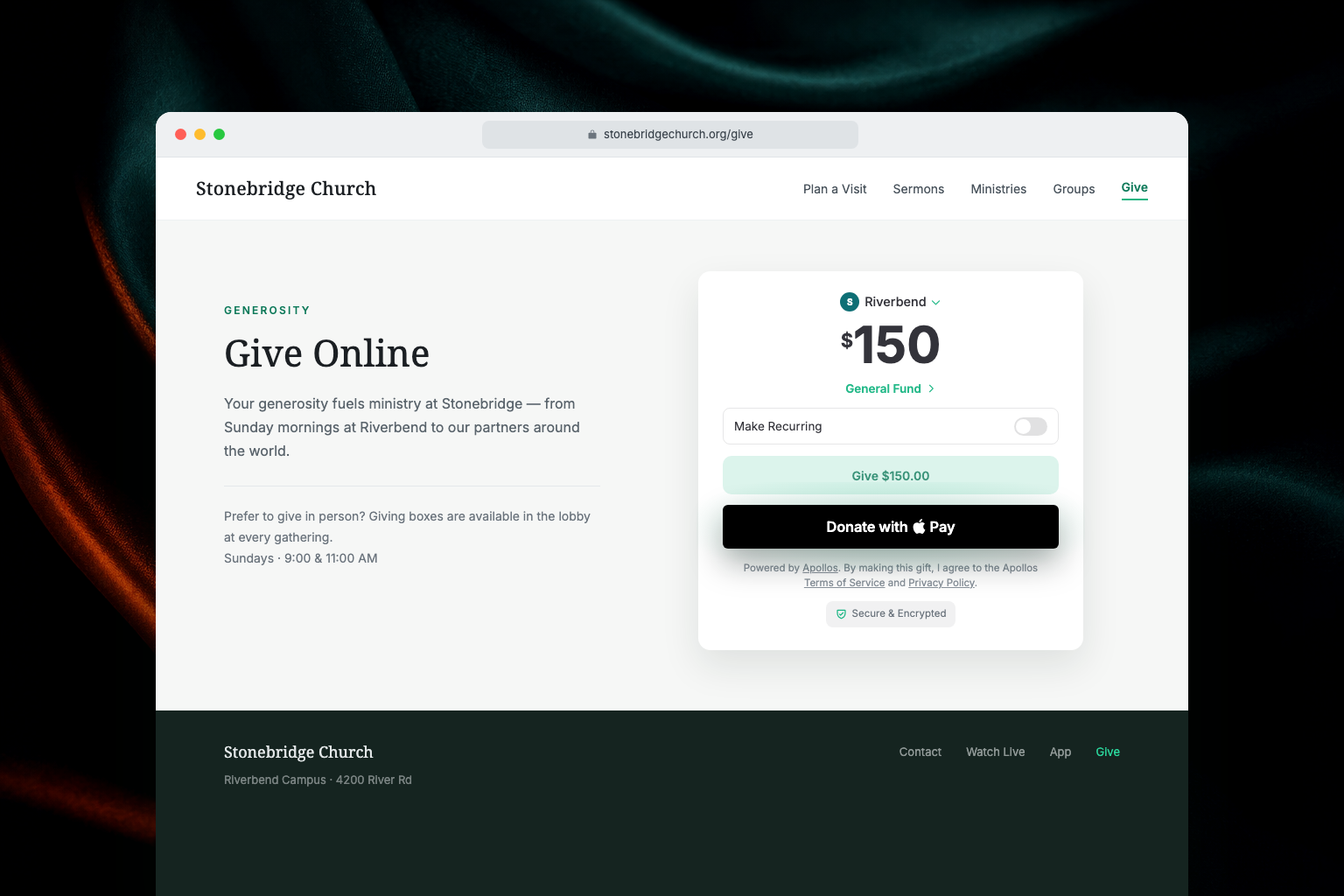
For a dedicated giving page, embed the form inline so it appears right in the page:
<iframe
  src="https://apollos.com/your-church-slug/give"
  style="width: 100%; min-height: 440px; border: none; border-radius: 16px;"
  title="Give"
  allow="payment *"
></iframe>
The form shows a loading placeholder, then fades in and automatically sizes itself to fit. When a visitor proceeds to payment, a secure overlay opens for the payment step and closes when the gift completes.
Pre-select a campus or fund
Add parameters to any give link or inline form to pre-fill the form — useful for campaign pages like "Give to the Building Fund":
https://apollos.com/your-church-slug/give?campus=Downtown&fund=Building%20FundThe campus and fund values match your campus and fund names (use %20 in place of spaces). For the payment options members can use — cards, bank transfer, Apple Pay, and more — see Payment methods.
Test your embeds
After adding embeds, test them on the live page (not just a preview):
- Confirm each embed renders and loads content.
- Confirm older Search and Feature Feed snippets still show the current Ask Bar or inline feed. Existing feed choices and labels should carry forward.
- Click through a feed item to verify the display behavior you chose.
- For the giving embed, run a small test gift end to end.
- Test on both desktop and mobile browsers.
Troubleshooting
Do I still need to enable these features in Organization Profile?
Link embeds, Web Embeds, eligible Webview tabs, the new editor, and polls are generally available. Their former Organization Profile switches have been removed.
Why isn't my embed showing up on the page?
Confirm the snippet was pasted exactly as Admin generated it and that the script actually loads on the published page (some website builders strip custom code from previews or cache old versions — republish and hard-refresh). If you copied the snippet long ago, regenerate it in Admin to get the current version.
Why are website pages missing from search?
Make sure the pages are public, published, and reachable from your website. Very large sites can take longer to finish updating, but the search update should continue until the full sweep completes. If pages are still missing after the next update, contact Apollos support with example page links.
Why did my embed break after I deleted a feed?
Feeds can be used in many places — mobile tabs, TV, Tap tags, and web embeds. Admin warns you when a feed is used elsewhere, but it can't always see external websites. Before deleting a feed, check your website for embeds that display it, and point them at another feed first. See Feeds: building your app's home screen.
Why isn't the giving form accepting payments?
Run a test gift on the live, published page rather than a preview environment — payment processing requires the real page. If the problem persists on the live page, contact Apollos support. See also Giving troubleshooting.
What happens for visitors with JavaScript disabled?
Giving links simply navigate to your church's Apollos web giving page instead of opening an overlay, and inline forms still load — visitors can give either way.