


Personalization: tags & audiences
Personalization shows each member the content most relevant to them — their campus, their season of life, the ministries they care about — so your app feels personal instead of one-size-fits-all.
How it works
Apollos personalizes content in three ways. All three can work together in the same feed.
1. Campus-based personalization
Content tagged with a campus only shows to members of that campus. If an event is tagged for Campus A and Campus B, someone at Campus C won't see it. This is ideal for multi-site churches with campus-specific announcements, events, or series.
Members choose their campus when they create an account (and it can sync from your church management system). Campus personalization works whether your campuses come from Rock or are managed in Apollos — the campus name on the content just has to match the campus name exactly.
2. Persona-based personalization
Persona tags describe who a member is — "New Believer," "Volunteer," "Parent," "Student." Tag content with a persona, and only members who match it see that content. Persona matching can be driven by data views in your church management system (for example, Rock) or by tags assigned directly in Admin.
3. Following-based personalization
Members see content from the people, ministries, and topics they follow. This layer is member-driven: if someone follows your worship ministry or a pastor, related content surfaces in their feed. Your job is mostly to encourage members to follow the ministries they want updates from.
The golden rule: content with no tags shows to everyone. Only tagged content gets filtered. That's by design — leave churchwide announcements untagged, and tag the content that should be targeted.
Create and manage tags
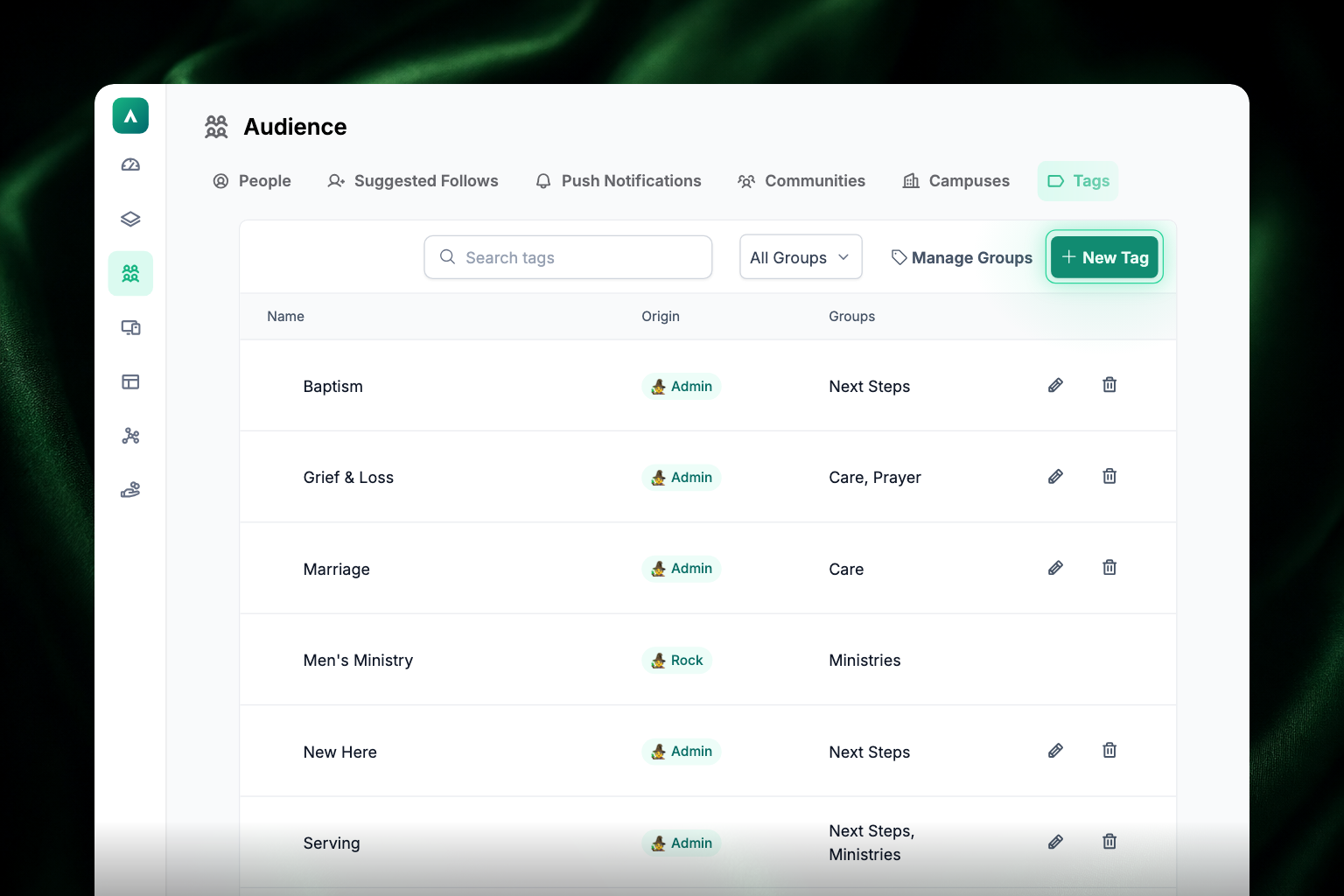
Tags live in Admin under Audience → Tags. Tags can be created in Apollos or sync in from your church management system (each tag shows its origin).
- Go to Audience → Tags.
- Click New Tag, give it a clear, descriptive name, and click Save.
For the rest of the Audience section (People, Communities, Campuses), see Audience: manage your people.
Tag content
When creating or editing a content item, use the Tags field in the right-side panel to apply tags. See Create, edit, publish & unpublish content.
Tag people
- Go to Audience → People and search for the member by name, email, or phone number.
- Click the member to open their profile.
- Click the box under Tags, select the tags to link to them, and click Save.
Members will then see content tagged with their tags in personalized feed sections.
Use personalization in feeds
Personalization comes to life in your feeds:
- Personalized Content List sections automatically show content matching a member's tags.
- At Your Campus sections show campus-tagged content to the right campuses.
- Tag List sections give members a row of tags to filter content themselves.
- Campus personalization can be toggled on content list and event sections when editing the section.
- Recommended and Milestones templates use tags or data views to target and track members.
When building a feed section, you can preview personalization behavior in edit mode before saving.
Best practices
- Tag consistently — agree on a naming convention and stick to it. Campus names and persona labels must match exactly to work.
- Don't over-tag — content with too many persona tags ends up visible to nearly everyone, defeating the purpose.
- Leave general content untagged — untagged content shows to all members, which is exactly right for churchwide announcements.
- Audit regularly — remove outdated tags and keep your church management system's data views current.
- Teach following — show your congregation how to follow ministries and leaders so the following layer can do its work.
Troubleshooting
Why does everyone see the same content in a personalized section?
Two common causes: the content items have no tags (untagged content shows to everyone), or members don't have tags assigned to their profiles. Tag the content that should be targeted, and check a sample member's tags under Audience → People.
Why don't campus members see campus-tagged content?
The campus name on the content doesn't exactly match the campus name on the member. Check spelling and capitalization on both sides.
Why isn't a persona tag filtering anything?
Make sure the member's tags actually match the content's tags — compare them side by side. If personas come from your church management system, confirm the data view is set up and the sync is current; see How data sync works.