


Launchpad: preview and launch your apps
The Launchpad is your mission control for getting your mobile and TV apps live — preview them on real devices, work through the setup guide, and request your release, all from one panel in Admin.
How it works
The Launchpad lives behind the small green rocket icon in the lower-left corner of Admin. Click it and the Launchpad panel opens on the right side of the screen.
At the top of the panel are a Mobile tab and a TV tab. They switch only the preview at the top of the panel — the QR code for phones, the pairing code for TVs. Everything below the preview is shared: one Setup Guides heading with the Mobile and TV Apps Guide, and one Tools heading with Release Manager. Both tabs show the same two cards, and the guide covers mobile and TV together.
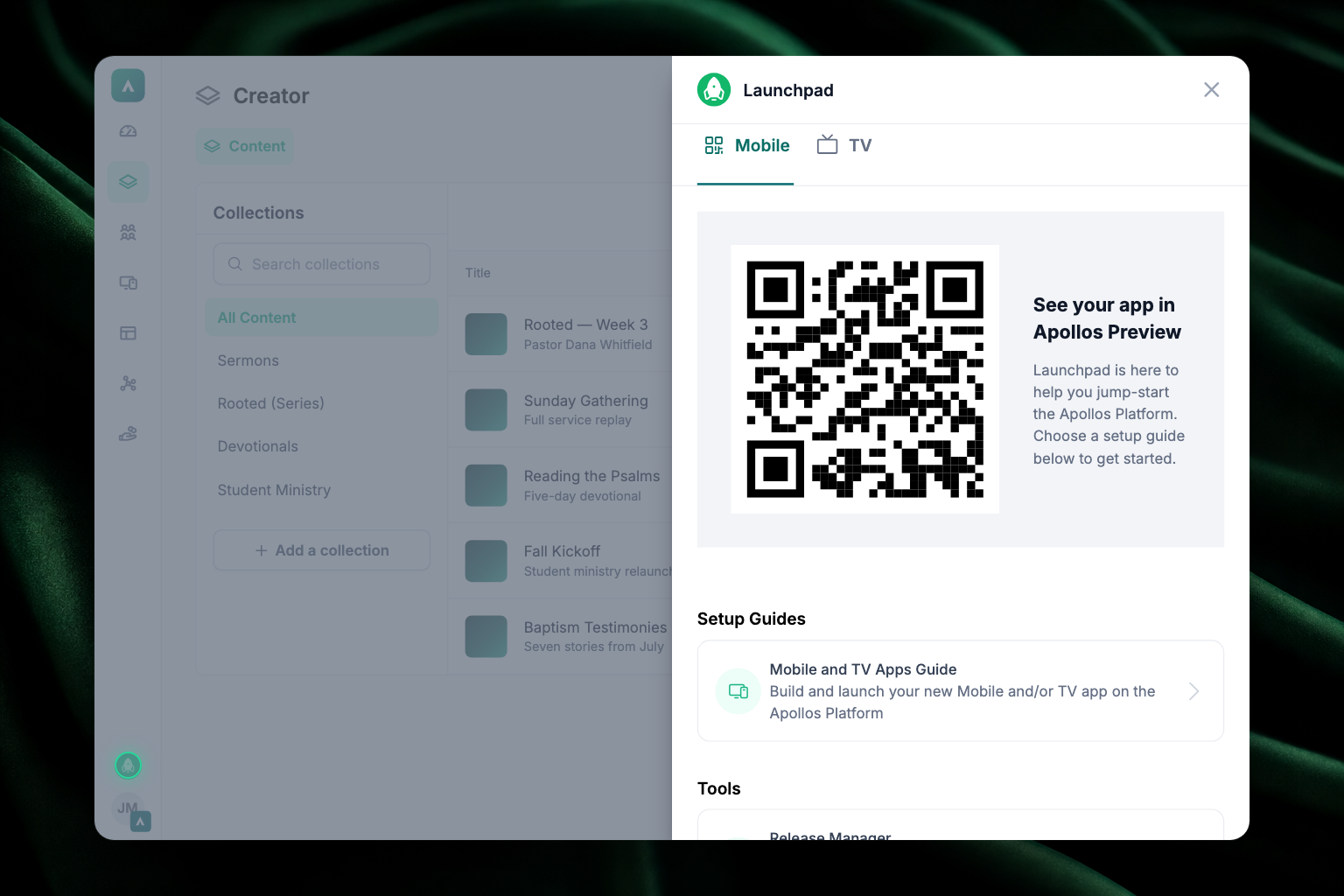
Preview your mobile app
You can see your real app — your branding, your content, your feeds — on your own phone before it's ever in the app stores.
- Download the Apollos Preview app from the Apple App Store.
- Open the Launchpad in Admin and click the Mobile tab.
- Open Apollos Preview on your phone — it will prompt you to scan a QR code.
- Scan the QR code at the top of the Launchpad panel, under the heading See your app in Apollos Preview. You'll be taken to a demo version of your app.
Use the preview to verify content, feeds, branding, and features before submitting to the app stores — and share it with your team for feedback.
Preview your TV app
- Download the Apollos Preview TV app from your TV platform's app store.
- Open the Launchpad in Admin and click the TV tab.
- Open Apollos Preview TV — it will prompt you for a password.
- Enter the code shown at the top of the TV tab — it appears as a row of tiles, one character each. You can now interact with your TV app demo.
Work through the setup guide
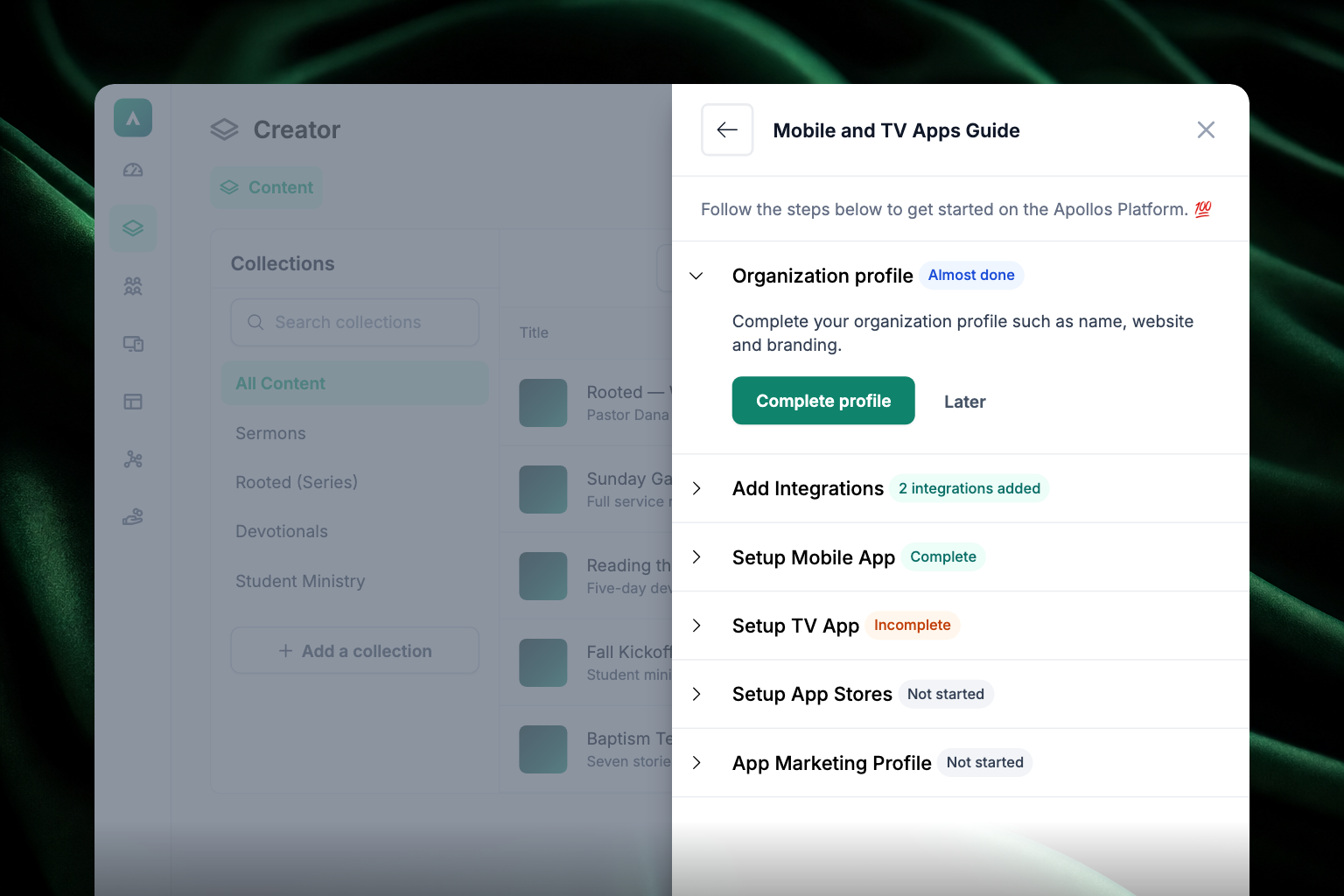
Below the preview, under Setup Guides, click the Mobile and TV Apps Guide card. It opens a checklist that walks you through everything needed before release. Each step shows a status badge — Not started, Incomplete, Almost done, or Complete — and expands to reveal a description and a button. Later collapses a step without losing your place.
- Organization profile — complete your church's name, website, and branding. See Set up your organization profile & branding.
- Add Integrations — connect third-party services so your videos, articles, and people data flow into the app. See Integrations overview. This step is marked Optional for some churches.
- Setup Mobile App — configure your app's tabs and choose which feeds appear. See Mobile app.
- Setup TV App — choose the feed your TV app displays. See TV apps.
- Setup App Stores — connect your app store accounts so Apollos can release on your behalf. The guide walks you through each store, then Apollos takes care of the rest.
- App Marketing Profile — write the name, descriptions, keywords, and screenshots that appear in your store listings. See App store listings.
You'll see between four and six steps depending on what your church has: the Mobile step only appears if you have a mobile app, and the TV step only if you have a TV app.
Request your release
- In the Launchpad, under Tools, click Release Manager.
- The screen reminds you to finish the setup guide first — make sure every step is complete.
- Follow the prompts to request your release.
Once you've requested a release, the Apollos team submits your apps to the stores and reaches out with updates on the progress of your release. The release flow is the same for mobile and TV apps.
Troubleshooting
Why is my preview app missing content or showing the wrong branding?
The preview shows your live Admin configuration. If something looks wrong, check that your content is published, your feeds are set up under Apps, and your Organization Profile changes were saved. Then close and reopen the preview.
Is there an Apollos Preview app for Android?
The Apollos Preview app is linked from the Launchpad panel — use the link there for your platform. The Apple version is available here.
What happens after I request a release?
The Apollos team takes over: they submit your apps to each store and keep you updated as the stores review them. You don't need to do anything in the store consoles yourself.