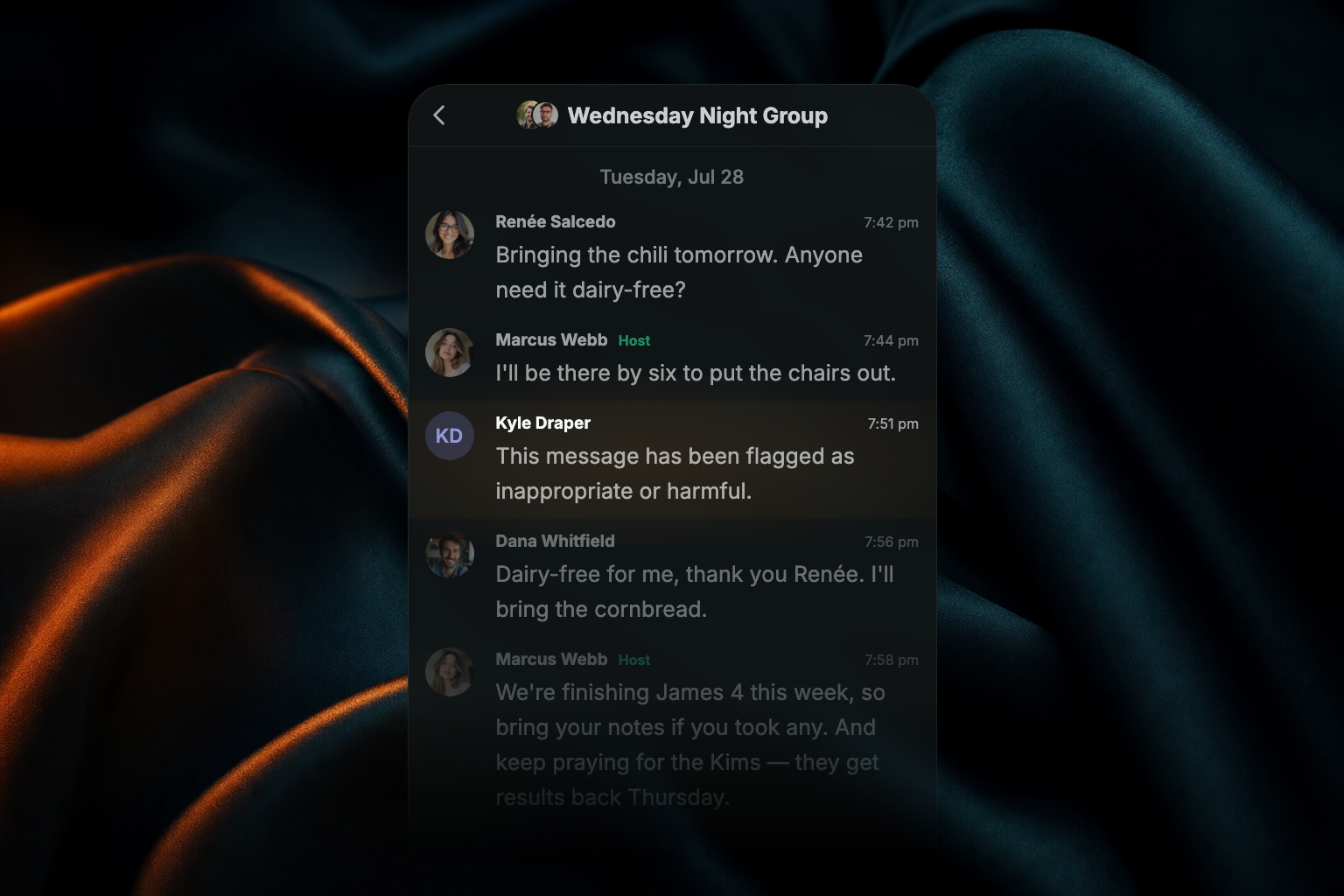
Chat & moderation
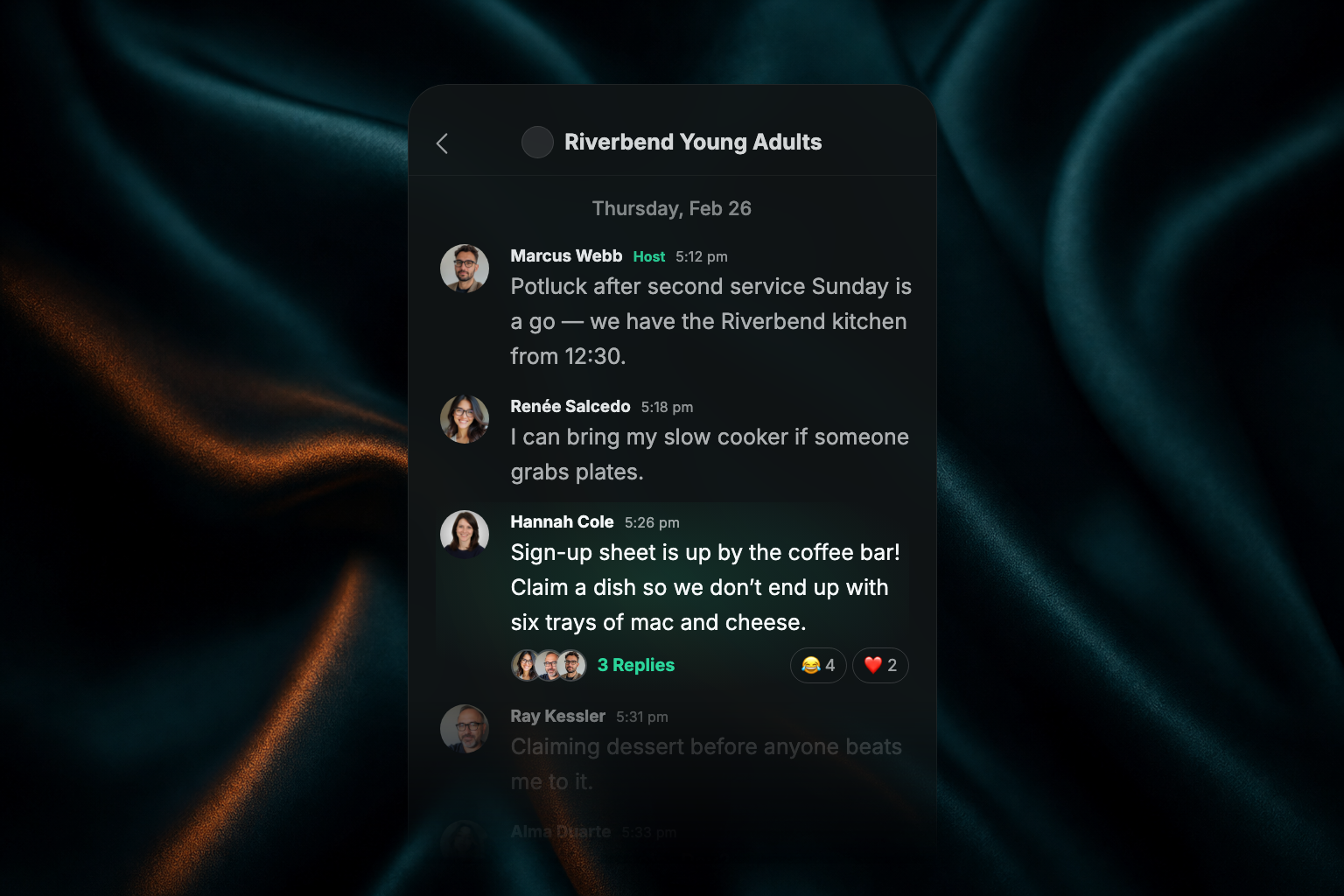
Chat gives your members real-time messaging inside your app — one-on-one conversations, group chats, and a built-in chat for every community. Members can send messages, share files, and react with emoji; hosts and admins get moderation tools to keep every conversation safe.
How it works
There are three kinds of conversations:
| Type | Description |
|---|---|
| Direct message | A private one-on-one conversation between two people. Created automatically the first time one member messages another — messaging the same person again always reopens the same conversation. |
| Group chat | A conversation with three or more people. The person who creates the group becomes its host and can invite others. |
| Community chat | The chat built into a community. Members join it automatically when they join the community, and leave it when they leave the community. Each community has exactly one chat. |
Messages are delivered instantly to everyone in the conversation who's online. Members who are offline get a push notification instead (depending on their notification settings — see below), so they know there's a new message waiting.
Roles and permissions
Everyone in a conversation is either a regular member or a host. In community chats, the community's hosts are automatically chat hosts — there's nothing to assign separately. In group chats, the creator is the host.
| Action | Member | Host |
|---|---|---|
| Read and send messages | Yes | Yes |
| React to messages | Yes | Yes |
| Delete their own messages | Yes | Yes |
| Delete other people's messages | No | Yes |
| Clear (hide) reported messages | No | Yes |
| Remove or ban members | No | Yes |
| Invite new people | No | Yes |
| Assign roles | No | Yes |
Member chat settings
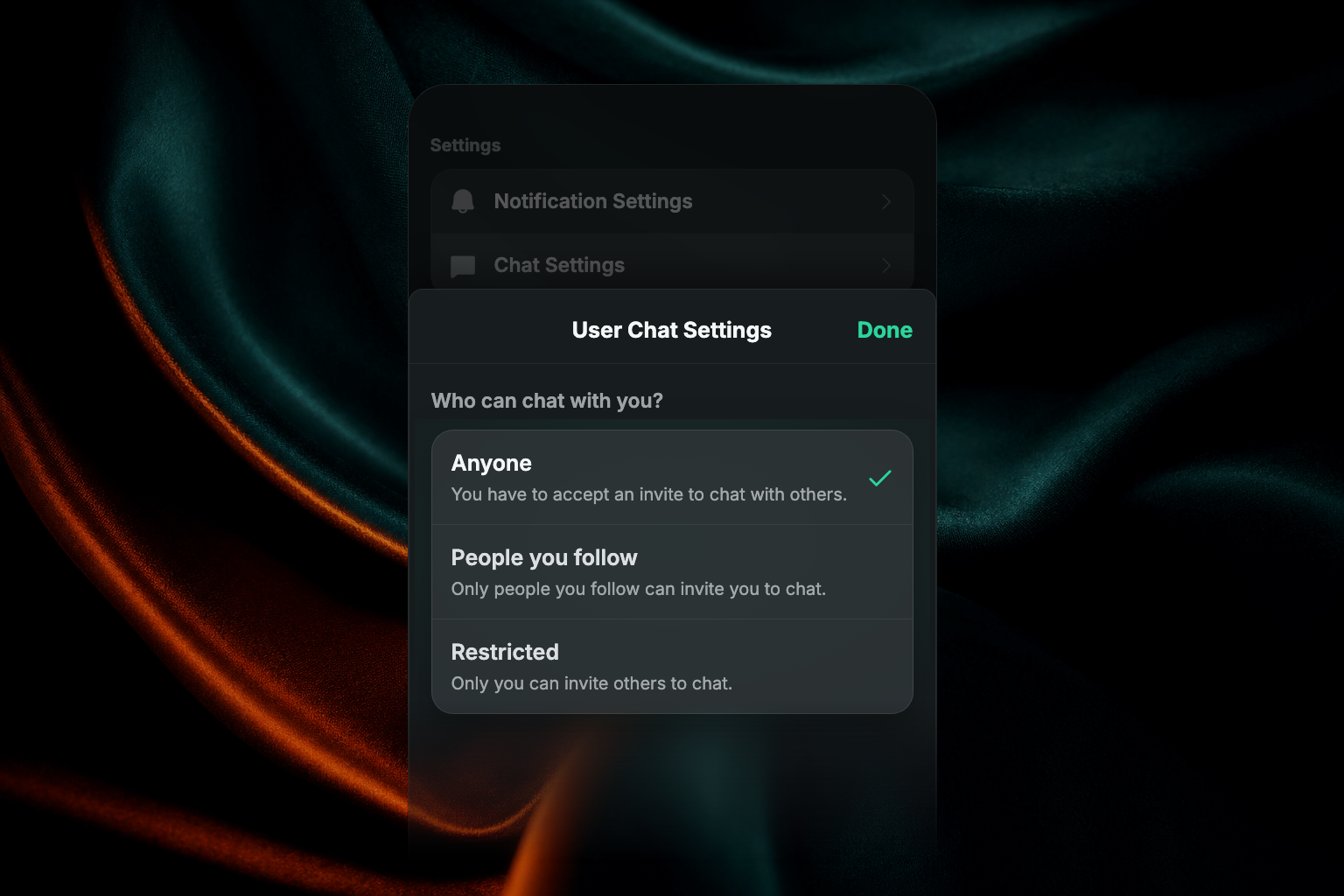
Each member controls who can start conversations with them. There are three levels:
| Setting | What it means |
|---|---|
| Anyone | Anyone in the app can invite this member to a chat. This is the default. |
| Only people I follow | Only people this member follows can message them. Messages from strangers are blocked. |
| Restricted | Nobody can start a conversation with this member — only they can start new chats. |
Media attachments in a new direct or group chat are available only when every selected recipient is a confirmed follower of the sender. Image attachments must be 5 MB or smaller.
Members also choose how they're notified, per conversation:
| Setting | When they get notified |
|---|---|
| All messages | A push notification for every new message |
| Only mentions | Only when someone @mentions them by name |
| Nothing | No push notifications from this conversation (they still see messages when they open the app) |
Both settings are managed by the member in the app — they aren't configurable from Admin.
Protecting minors
Direct and group chat invites are blocked for members under 18 and for members without a birthdate on their profile, since their age can't be verified. Community chats are exempt — minors can still participate there, because hosts control who joins the community in the first place.
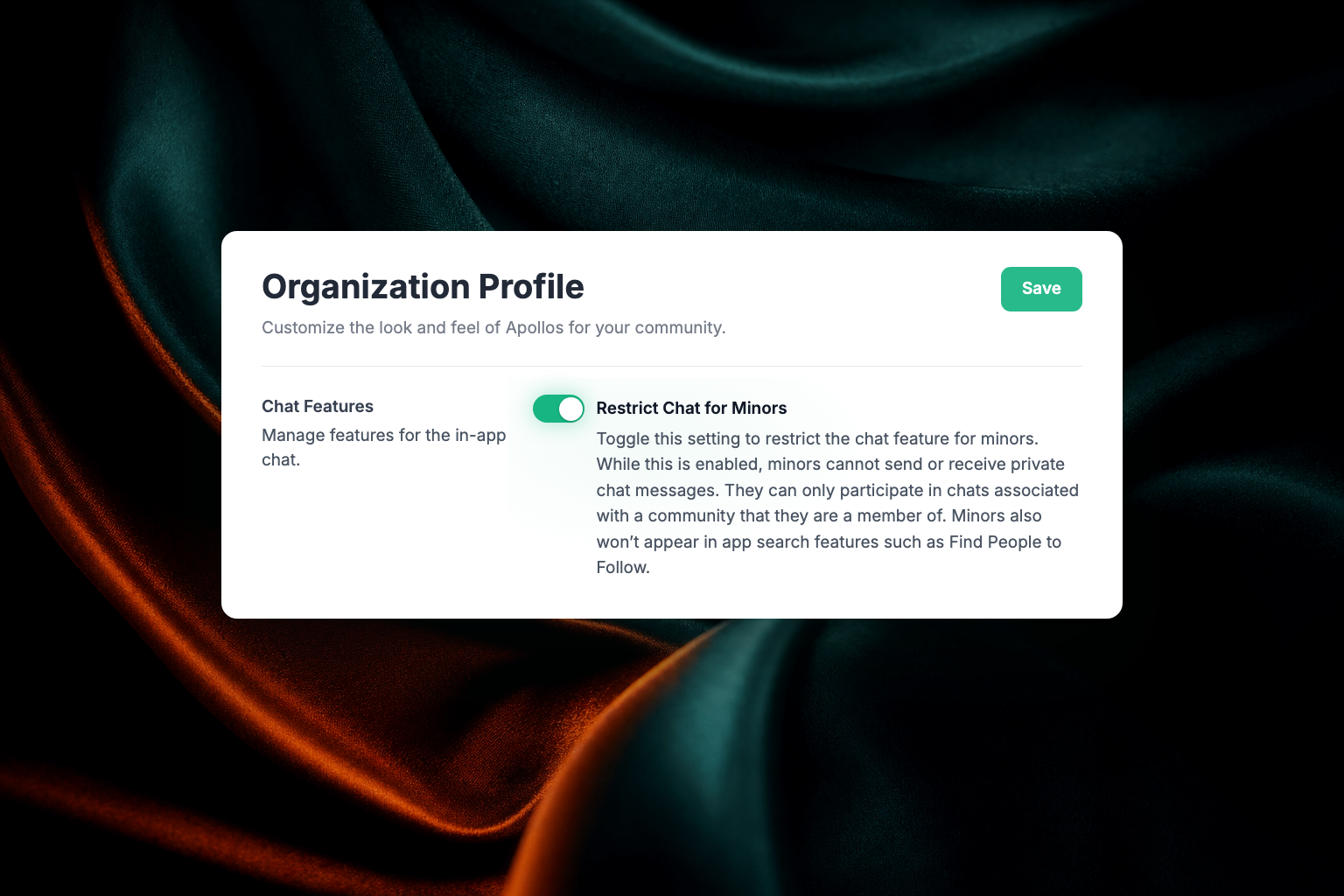
Restrict chat for minors
Your church has one chat setting in Admin, and it applies to the whole app rather than to a single community:
- In Admin, open your profile menu and choose Organization Profile.
- Scroll to Chat Features.
- Turn on Restrict Chat for Minors and save.
While it's on, minors can't send or receive private chat messages. They can only take part in the chat of a community they belong to, and they won't appear in app search features such as Find People to Follow.
There is no way to turn chat off for one community while leaving the community itself active. Every community has exactly one chat, and it's on for the community's members. If you need an announcement-only space, use a feed or a content collection instead of a community — see Feeds.
Moderate a conversation
Hosts have several tools, from lightest to heaviest touch:
Delete a message
Removes a message from view. Hosts can delete anyone's message; members can delete their own. Deleted messages are hidden, not destroyed — they're preserved for record-keeping, and a deletion can be restored if it was a mistake or is reversed on review.
Clear a reported message
Clearing hides a message that's been reported, for everyone in the conversation, immediately. A message must have at least one report before it can be cleared — if nobody has reported it yet, use Delete instead. A cleared message can be reported again later if needed.
Ban a member from a conversation
When a host bans someone (with a stated reason), their content is hidden from the conversation without silencing reports about that content:
- They can still read the conversation history.
- They cannot send new messages or take any other action.
Banning is reversible — a host can unban them at any time. For most situations, banning is the right "remove this person" action.
Shadow ban (severe cases)
For severe or repeated abuse across the app, a member can be shadow-banned: their content stops appearing in feeds and prayer lists for everyone else, but they aren't notified — from their perspective the app works normally. Contact Apollos support to request a shadow ban.
Handle a reported message
Any member can report a message they find inappropriate by tapping Report on the message. Member reports are the primary way problem content gets surfaced. Here's what happens:
- Apollos support is emailed (support@apollos.app) with the message content, who reported it, the conversation it came from, and a link to the reported member's profile in Admin.
- Every host in that conversation gets a push notification so they can act right away.
- The message is flagged so hosts and moderators can see it's been reported.
Repeated messages may also be flagged automatically as spam. An additional review can flag the message for moderation without removing it automatically.
From there, a host (or the support team) reviews and takes action — clear the message, delete it, or ban the sender.
Common scenarios:
- Spam in a community chat: a member reports it, the host gets the push notification, opens the chat, and deletes the message. Repeat offenders get banned.
- Inappropriate content: a host clears the message immediately to hide it from everyone, then support reviews whether a ban is warranted.
- A member disputes a ban: check who banned them and the stated reason. If it was a mistake, any host can unban them; if it was justified, communicate the reason.
Best practices
- Set expectations early. Have hosts post a welcome message or Host Message that outlines community guidelines.
- Use Unlisted visibility for sensitive groups (grief support, counseling) to control who can access the chat — see Communities & groups.
- Assign multiple hosts to active communities so moderation coverage is consistent.
- Use a feed instead of a community when you only want to broadcast — every community comes with an open chat.
- Watch engagement metrics to spot communities that need more host attention — see Engagement metrics.
Troubleshooting
Why is a member asked to verify a phone number before joining a chat?
Members verify a phone number once before they can view or send messages in community chat. It keeps conversations tied to a real person at your church. If a member is stuck on that step, have them re-enter their number and watch for the text message with their code.
Why is a member asked for a birthdate before joining a chat?
Chat needs a birthdate on the member's profile so the protections for minors can be applied. A member without one is asked to add it before they join. They can add it in their profile in the app, or it can sync from your church management system.
A member was added back to a synced group — why can't they chat?
They should be able to. When someone is re-added or reactivated in a synced group, they regain access to that community's chat and their host or member role updates on the next sync — you don't need to delete and recreate the community. Allow up to an hour for the sync, then ask them to close and reopen the app.
Why can't a member send messages?
- Are they banned from the conversation? Banned members can read but not send. A host can unban them.
- Have them close and reopen the chat (or restart the app). Chat access refreshes periodically; a restart forces a fresh connection and fixes most "it suddenly stopped working" cases.
- Did they accept the chat invite? If they were invited but never accepted, they can't send messages yet.
- Was this a synced community? If the member was removed from the group in your church management system, they're removed from the linked chat too. Add them back there if they should have access.
- If nobody at your church can send messages at all, the chat service may need configuration — contact Apollos support.
Why don't other members see a message that was sent?
- Check internet connections on both ends — real-time delivery requires both members to be online.
- Is the recipient actually in the conversation? They may need to be invited or join the community first.
- Was the message cleared or deleted by a host? If so, it's hidden on purpose.
- If none of those explain it, contact Apollos support.
Why is a chat invite blocked?
- Check the recipient's chat preference. If it's "Only people I follow," they must follow the sender first. If it's "Restricted," nobody can invite them — only they can start chats.
- Is the recipient under 18 or missing a birthdate? Invites to members under 18 — or members with no birthdate on their profile — are blocked for direct and group chats. Adding a birthdate to the profile resolves the no-birthdate case. Minors can still participate through community chats.
- Is this a community chat? There's no invite step for community chats — members join automatically when they join the community. If someone's missing from a community chat, check that they're an active member of the community.
Why isn't a member getting push notifications for chat messages?
- Check their notification setting for that conversation. "Only mentions" means no notification unless they're @mentioned; "Nothing" means the conversation is muted. They can change this in the app.
- Were they online in the app? Members actively using the app see messages in real time and may not get a push.
- Are they still a member of the synced community? Members removed from a synced community no longer receive that community chat's notifications.
- Check the general notification checklist — device permissions, app settings, registration — in Push notifications & messaging.
Why can't a host moderate (clear, ban, or delete)?
- Confirm they're actually a host in that conversation. In community chats, they need to be a host of the community itself; another host can promote them.
- Have them restart the app to refresh their permissions.
- For clearing specifically: a message must have at least one report before it can be cleared. If it hasn't been reported, use Delete instead.
A message was reported — why don't hosts see anything?
- Confirm it was actually reported (someone tapped Report on the message), not just noticed.
- Check whether support@apollos.app received the report email. If the email arrived, the report went through — the host may need to open that specific conversation to see the flagged message.
- Check the hosts' push notification setup — if their devices aren't receiving notifications generally, the report alert won't arrive either. See Push notifications & messaging.
- Still nothing? Contact Apollos support.
Why don't I see the media attachment button?
Media attachments appear in a new direct or group chat only when every selected recipient is a confirmed follower. If one selected person is not a follower, the attachment button is hidden.
Why can't a member send an image in chat?
Chat image attachments must be 5 MB or smaller. Ask the member to choose a smaller image or reduce the file size, then send it again.
What happens after a message is flagged automatically?
Flagged chat messages may receive an additional context review before any moderation decision is trusted. That review looks at recent conversation context and records the result for the Apollos team. It does not automatically clear, delete, or ban anyone.