


Giving administration & reports
The Giving section of Admin is where you watch donations come in, track payouts to your bank, download financial reports, and manage funds. This page tours each tab and the day-to-day admin tasks.
How it works
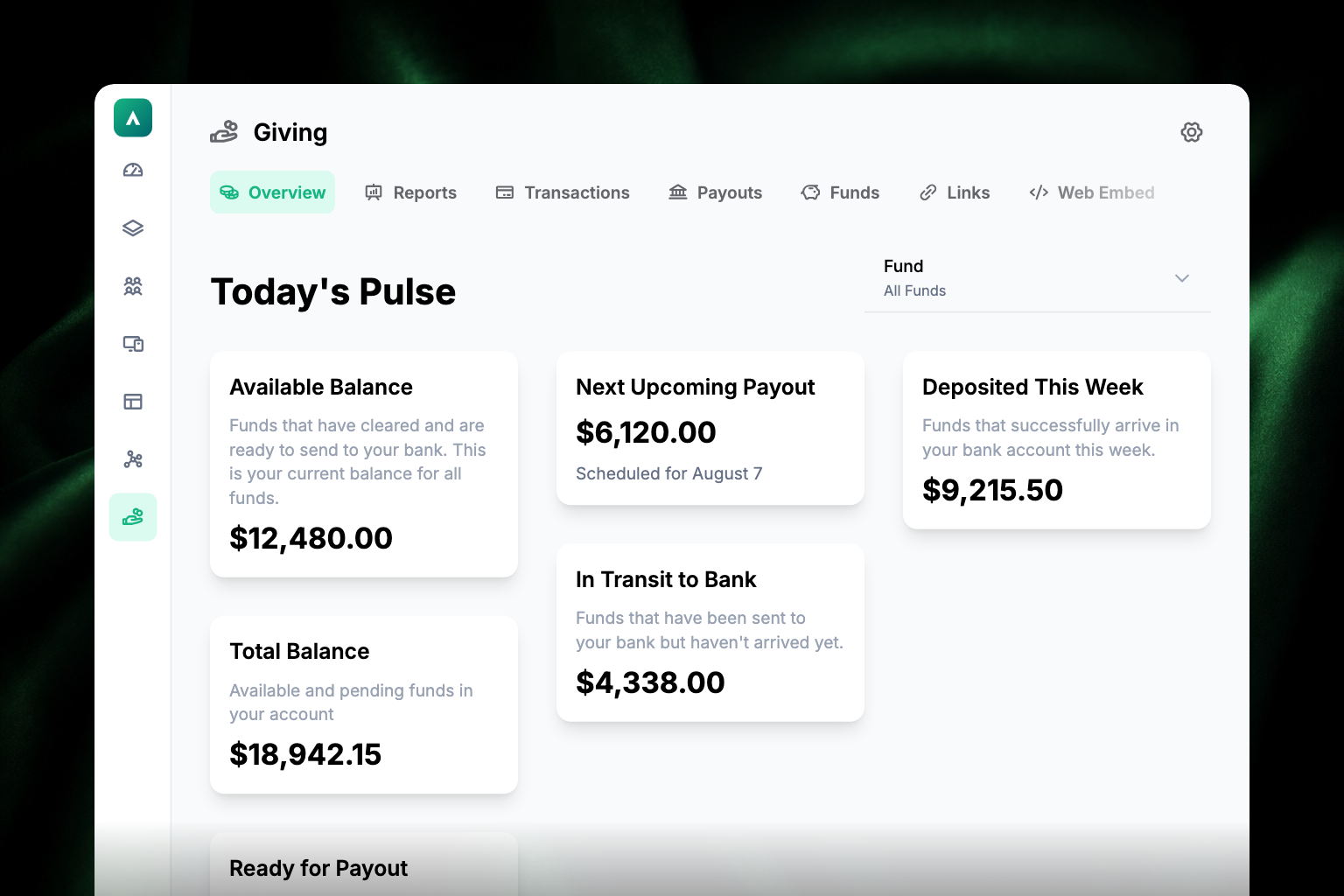
Once your Stripe account is connected (see Set up giving), the Giving section in Admin shows these tabs:
| Tab | What it's for |
|---|---|
| Overview | A summary of your giving, including the balance cards |
| Reports | Download financial reports for a date range |
| Transactions | Browse and search every donation |
| Recurring | Review and edit recurring gifts |
| Payouts | Track deposits to your church's bank account |
| Funds | Create and manage donation funds |
| Links | Manage shareable giving links and QR code links |
| Web Embed | Generate the giving form for your website |
| Migration | Move recurring donors over from a previous provider |
The section also includes a balance dashboard showing your real-time financial picture: available balance, funds in transit to your bank, amounts ready for payout, and deposits this week.
Who can see what
Access to the Giving section is role-based:
- Organization Admins and Giving Admins can see Overview when their role includes the Giving Overview permission.
- Other team members see only the tabs they've been granted specific giving permissions for — for example, a bookkeeper might have access to Reports and Transactions but not Funds. Permissions are granular, down to individual report types.
To adjust a team member's giving permissions, see Invite your team & roles. Migration needs the migration permission on top of an Organization Admin or Giving Admin role — ask your Apollos contact if you need it.
Browse transactions
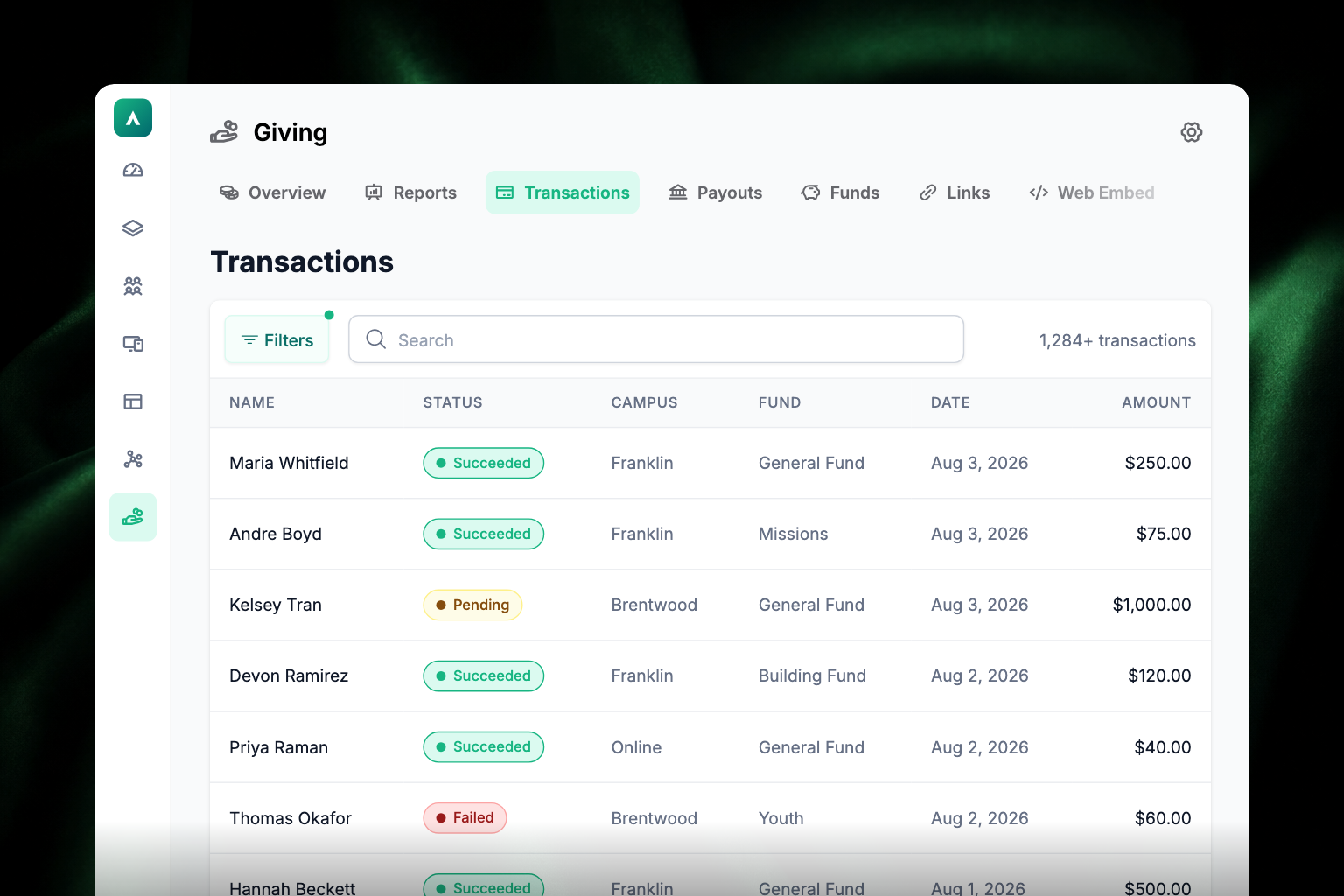
The Transactions tab shows every donation, with search and filtering by status and date range. Each transaction shows the amount, fund, payment method, and status. By default, the tab opens to the last 7 days so large giving histories load quickly; you can widen the date range or choose all time when you need more history. You can also export transactions to CSV from here.
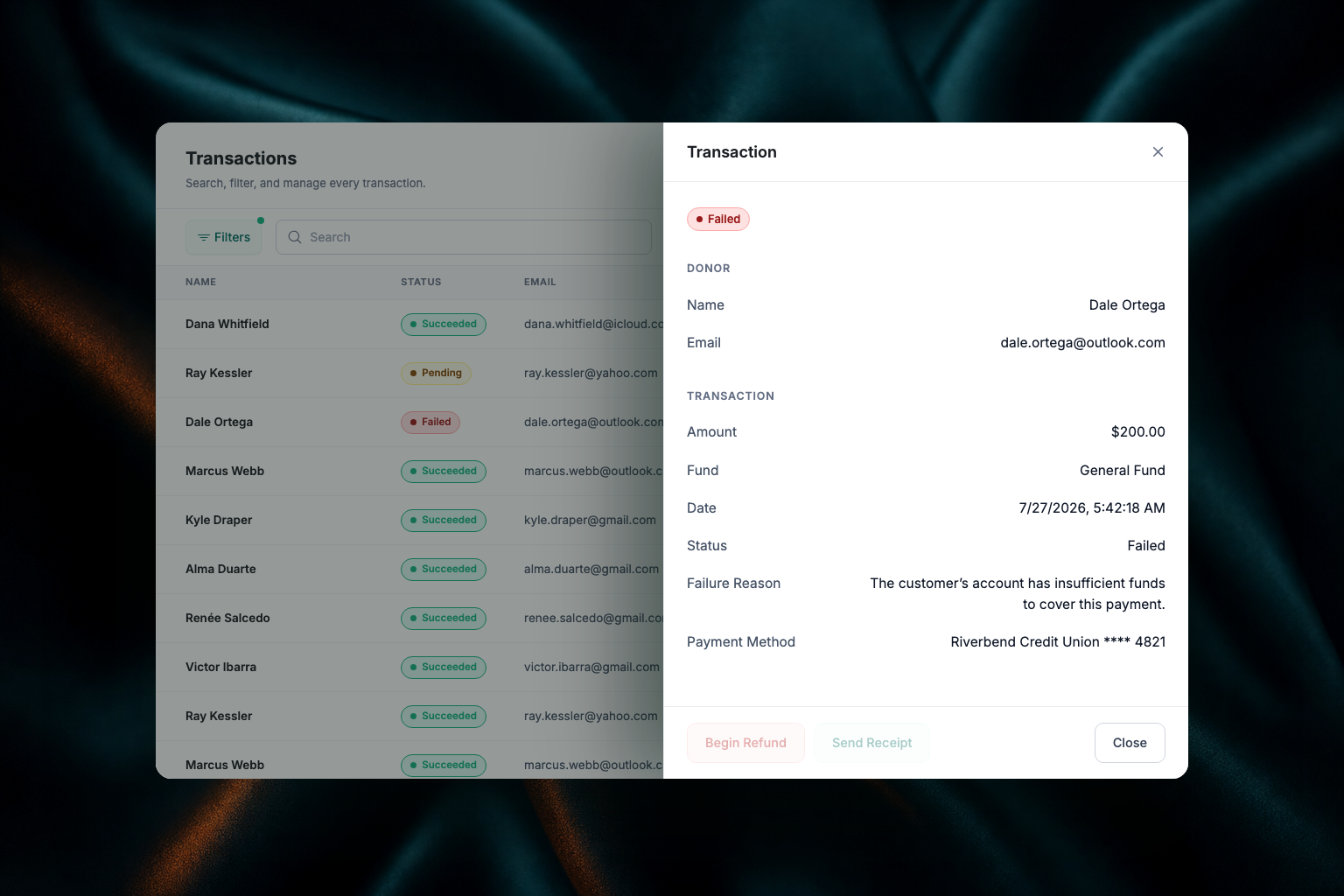
Open a transaction's detail drawer to review more information. Failed gifts show the failure reason when one is available, and refunded gifts show the refund reason when one was provided.
The statuses you'll see:
- Succeeded — the gift processed normally. This is the only status shown until you change the filter.
- Pending — the gift is still settling. Normal for bank-account (ACH) gifts, which take 3–5 business days.
- Failed — the payment didn't go through (declined card, insufficient funds, etc.).
- Refunded — the full amount was returned to the donor.
- Partially Refunded — part of the gift was returned. This one appears on transactions but isn't a filter option.
Download a report
Go to Giving → Reports.
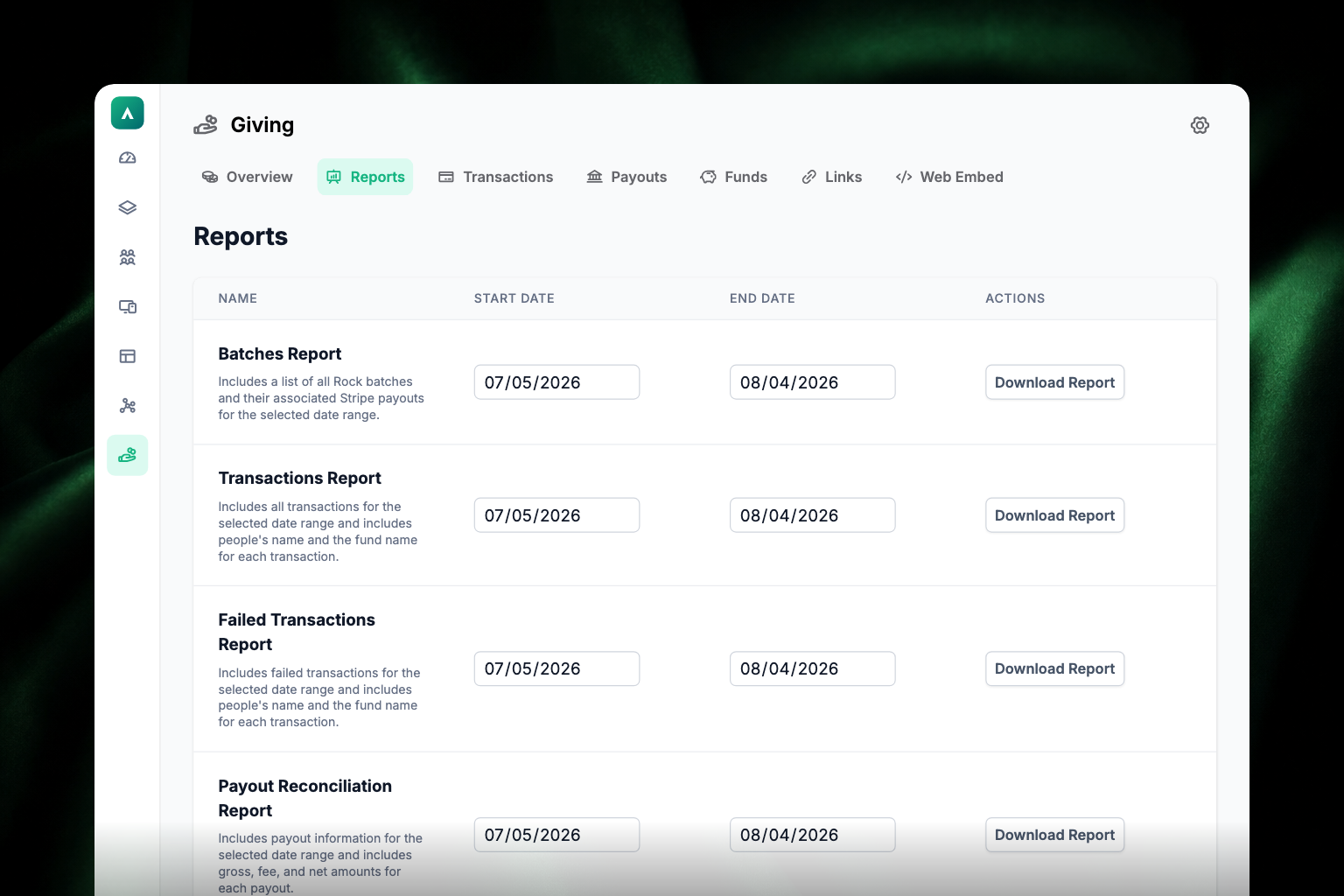
Pick the report you need:
Report What it contains Batches Report Your Rock batches with the Stripe payouts they line up with, for accounting reconciliation Transactions Report All transactions in the date range, with each giver's name and the fund Failed Transactions Report Failed transactions in the date range, with names and funds, for following up on payment issues Payout Reconciliation Report Each payout with its gross, fee, and net amounts Choose a start and end date. Each report has its own pair of date fields, and they start at the last 30 days.
Click Download Report. Large reports are generated in the background. Brief status-check interruptions are retried automatically, and the download starts when the report is ready.
Track payouts
The Payouts tab shows every deposit to your church's bank account: the amount, the date, and the status. Standard payouts take about 2 business days to arrive after they're initiated. Payout schedules and the destination bank account are managed in your church's own Stripe dashboard.
To reconcile a deposit against individual donations, use the Payout Reconciliation Report.
Manage funds
The Funds tab is the full management interface for your donation funds — create, edit, delete, reorder, and associate funds with campuses. For the details, see Set up giving.
Manage recurring gifts
Admins with recurring-giving access can review recurring gifts in Admin and edit supported active gifts when needed. Supported edits include amount, active fund, frequency, and next payment date. Older unsupported cadences may show fewer edit options.
Recurring gift charges still appear in Giving → Transactions, and recurring activity is included in downloadable reports.
When you open a recurring gift's detail sheet, the Transactions section shows that gift's invoice history with status, transaction ID, date, and total. Statuses include paid, retrying, failed, and void.
For migrated recurring gifts, the campus shown in Admin and reports follows the gift's own campus-scoped fund when one is available. If the fund is not campus-specific, Apollos uses the donor's home campus.
Issue a refund
You can refund a gift without leaving Admin:
- Go to Giving → Transactions and find the gift.
- Open it to see its details.
- Click Begin Refund.
- Choose a reason — Duplicate, Fraudulent, Requested by customer, or Other — and confirm.
The refund goes to Stripe straight away, and Apollos syncs it to Rock RMS (or your ChMS) so your records stay accurate. Chargebacks and disputes sync the same way.
Refunds issued directly in your church's Stripe dashboard work too — Apollos picks those up automatically.
Card refunds typically take 5–10 business days to appear on the donor's statement; bank-account refunds can take longer.
Troubleshooting
Why don't I see Apple Pay gifts when I filter by Card?
You should — filtering Giving → Transactions by Card includes Apple Pay and Google Pay gifts, because those gifts are funded by a card. To see how a particular gift was given, check the payment method shown on the transaction itself.
Can I export our Pushpay transactions?
Yes, if your church is moving to Apollos Giving from Pushpay. In Giving → Reports, choose the Pushpay export, pick a date range, and download it. It's the quickest way to reconcile gifts still going through Pushpay against gifts already in Apollos. See Migrate donors to Apollos.
Why can't I refund an older bank-account gift?
Bank-account (ACH) gifts can only be refunded within 180 days of the gift. After that the refund option isn't available. For an older gift, talk to your Apollos representative before promising the donor anything.
Why is my report download spinning forever?
Reports for large date ranges take time to generate — they run in the background and download when ready. Brief status-check interruptions are retried automatically. If the report still never completes, try a shorter date range. If even small ranges fail, sign out and back in, and check that your role includes report permissions.
Why is the report empty or missing transactions?
Check the date range. Reports start on the last 30 days, and the Transactions tab starts on the last 7 days — so a gift from two months ago won't appear until you widen the range. Failed and pending gifts don't appear in the Transactions Report; use the Failed Transactions Report for declined payments.
Why hasn't our payout arrived?
Check the Payouts tab (or your Stripe dashboard) for the payout's status:
- In transit — on its way; standard transfers take about 2 business days.
- Paid — Stripe sent the funds. Bank posting can take 1–2 more business days; beyond 3, your church should contact its bank.
- Failed — the bank rejected the deposit, usually because the bank account details are wrong or the account was closed. Update the bank account in your Stripe dashboard.
- No payout scheduled — confirm you have an available balance, a valid bank account connected, and automatic payouts enabled in Stripe.
Why can't a team member see the Giving section (or a specific tab)?
Their role doesn't include giving permissions, or giving is not set up for the church yet. Everyone needs permission for the Giving area they are trying to open, including Giving Overview for the Overview tab. Individual tabs and report types are controlled separately, so a team member may see some tabs and not others. Staff with limited access land on a Giving page they can use instead of a restricted page. Giving Admins with only report permissions can still open the Reports tab. See Invite your team & roles.
How do donors get year-end giving statements?
Apollos doesn't generate year-end (tax) statements itself. Every gift made through Apollos syncs to your ChMS (such as Rock RMS), so generate annual contribution statements there the same way you do for other giving. If your church doesn't use a ChMS, contact Apollos support and we'll help you export the records you need.