


Set up giving
To start receiving gifts through Apollos, you connect your church's Stripe account, set up your donation funds, and turn giving on in your app. This page walks through each step.
How it works
Apollos uses Stripe Connect to process all donations. During setup, your church creates its own Stripe account (or connects an existing one) through a guided onboarding flow in Admin. Once Stripe approves your account, the full giving section unlocks in Admin and giving goes live for your members.
Your Stripe account moves through four stages during setup:
| Stage | What it means | What to do |
|---|---|---|
| Default | No Stripe account yet | Start the onboarding process in Admin |
| Onboarding | Account created, but setup is incomplete | Follow Stripe's prompts to provide banking and business details |
| Pending | Setup complete — Stripe is reviewing your information | Nothing. Review typically takes 1–2 business days |
| Complete | Fully operational | Giving is live in your app and Admin |
Only churches with a Complete status see the full giving section in Admin (Transactions, Payouts, Reports, Funds, and more). Until then, Admin shows the onboarding flow.
Connect your Stripe account
- In Admin, open Giving.
- Click to start the Stripe onboarding flow.
- Follow the prompts to provide your church's business details, tax information, and the bank account where payouts should be deposited.
- Submit for review. Stripe typically completes its review within 1–2 business days.
- When your status shows Complete, giving is live.
If your account stays in Pending for more than a few business days, Stripe may need additional documentation — check your Stripe dashboard or reach out to your Apollos contact.
Create a fund
Funds let members choose where their gift goes. Manage them in Admin at Giving → Funds.
Go to Giving → Funds.
Click Create.
Fill in the fund details:
Field What it does Name The fund's internal name Display name The name members see in the app (if different from the name) Display order Position in the fund list — lower numbers appear first Fund type The fund's category (e.g., General, Missions). Choose "Other" to enter a custom type Click Create to save the fund.
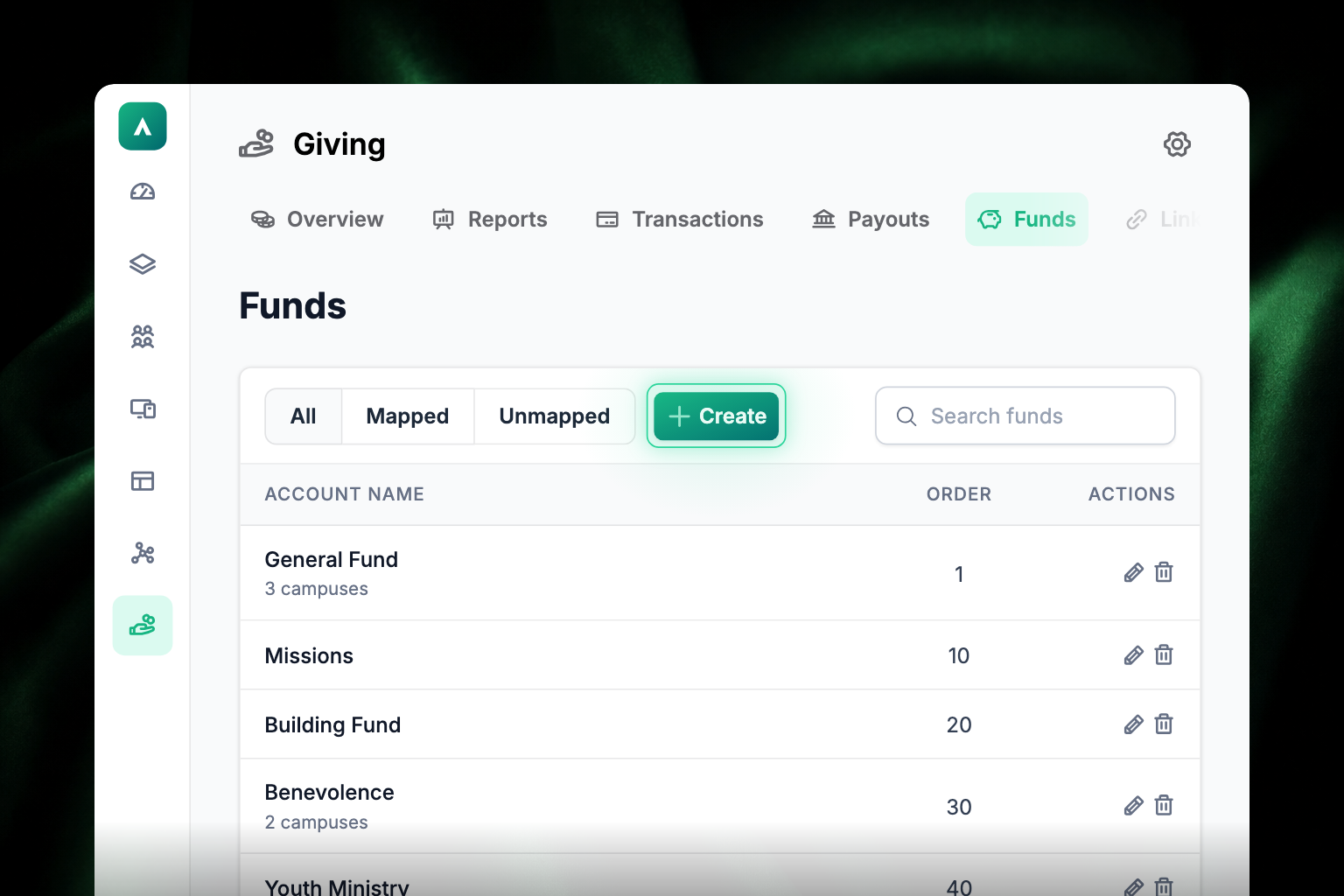
A few things to know about funds:
- Parent/child hierarchy — funds can be nested. For example, "Missions" as a parent with "Local Missions" and "International Missions" as children.
- Campus-specific funds — when you edit a fund, you can associate it with specific campuses. Members at those campuses see the fund; members at other campuses don't.
- ChMS mapping — each fund is linked to the matching fund in Rock RMS, Ministry Platform, or your ChMS, so gifts sync to the right place in your records. For Ministry Platform, one-time card donations also use campus mapping when they sync. If gifts are landing in the wrong fund in your ChMS, the fund mapping is the first thing to check — see Giving troubleshooting.
- Historical sync — if your church uses a connected ChMS, you can trigger a sync from the Funds tab to reconcile fund data from your ChMS.
- Ministry Platform sync — once Ministry Platform giving is configured, gifts, recurring gifts, and refunds sync into Ministry Platform. Giving records arrive nightly. See CCB & Ministry Platform.
Enable giving in your app
Giving is enabled per church by your Apollos team. Once your Stripe account is Complete and your funds are set up, confirm with your Apollos contact that giving is turned on for your app. The Give experience then appears for members in the app.
You can also extend giving beyond the app:
- Website — add a giving form to your church website. See Website embeds.
- Tap tags — let people give by tapping their phone on a physical tag. See Tap to give.
Troubleshooting
Where do our funds come from if we use Ministry Platform?
Your Ministry Platform Programs sync into Apollos as donation funds, so the funds members see match what your finance team already maintains. Add or rename Programs in Ministry Platform and the change reaches Apollos on the next sync. See CCB & Ministry Platform.
Why don't I see the Giving section in Admin?
Giving has to be enabled for your church. If you expect to see it and don't, contact your Apollos representative to confirm giving is turned on. Also check your role — team members need giving permissions assigned to see giving tabs. See Giving administration & reports.
Why is my Stripe account stuck in Pending?
Stripe's review typically takes 1–2 business days. If it's been longer, Stripe may need more documentation from your church — sign in to your Stripe dashboard to check for any outstanding requests.
Why don't members see a fund I just created?
Check the fund's campus associations — if the fund is tied to specific campuses, only members at those campuses see it. Also check the display name and display order to make sure it appears where you expect in the list.