


Daily Habits
Daily Habits gives your members a daily rhythm in your app: practicing gratitude, praying for others, and reading scripture — every day, with streaks and history that build consistency over time.
How it works
Most church apps get opened on Sunday. Daily Habits is how yours gets opened on Tuesday. Each day, members are invited into three short practices — writing down something they're grateful for, praying for others in your congregation, and reading the day's scripture or devotional — all in a couple of minutes, all in your app.
The power is in the repetition. Members who complete their habits build a streak, and the app keeps a history of their gratitudes and prayers they can look back on. That daily touchpoint is what turns your app from a Sunday-only tool into part of members' everyday spiritual lives — and it gives your church a natural, low-pressure way to stay connected to people all week long.
Your main job as an admin is supplying the reading: a steady cadence of daily content — your church's own reading plan — that the Daily Habits experience draws from. Members handle the rest. The experience lives in your app's Daily tab; see Mobile app for how to add and configure that tab.
What's included
- Three daily habits — gratitude, praying for others, and scripture reading.
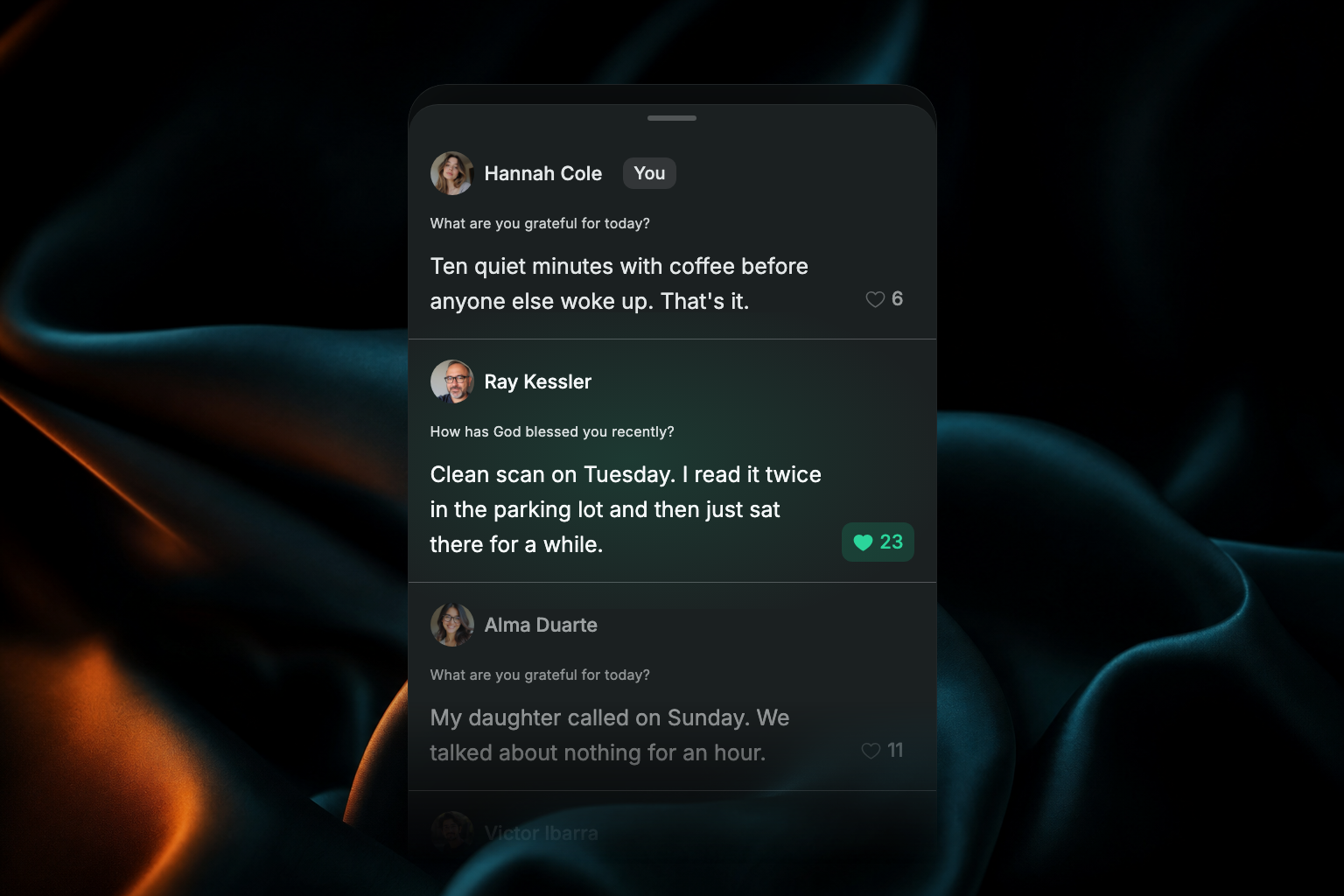
- Member streaks & history — members build a streak by completing their habits each day, and can revisit their past gratitudes and prayers.
- Sharing to communities — members can share their prayers and gratitudes with their communities, turning a private practice into mutual encouragement.
- Prayer notifications — members can be notified when someone prays for their request. See Prayer.
Set up your reading plan
The main setup task is building your church's custom reading plan — the daily content members read as part of their habits. Under the hood it's regular content: you create it in the Content section of Admin, file it into a collection, and schedule it with publish dates. What makes it a reading plan is the rhythm — one item per day, every day.
Create the reading plan collection
- Open the Content section in Admin.
- At the bottom of the Collections panel, click Add a collection and create one for your reading plan (for example, "Daily Reflections").
- File every daily item into this collection so the Daily Habits experience can pull from it.
Create a day's reading
- From the Content page, click Create from blank (or use Creator AI — more on that below).
- Add a cover image, or media if the day's content is a video or audio piece (HLS streaming URL, YouTube link, or MP3 URL).
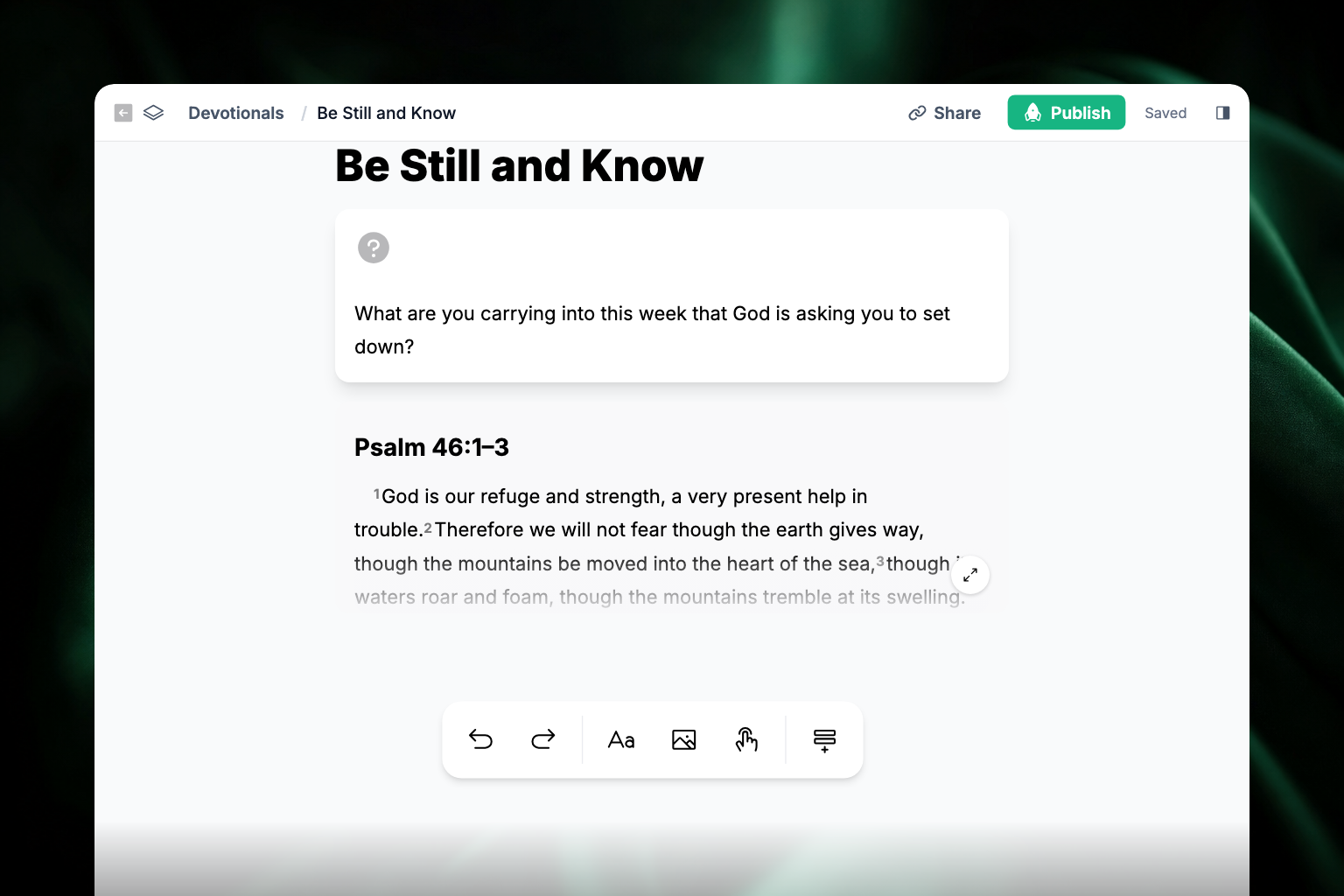
- Add a title and write the body. Daily readings shine with a few specific blocks (type / at the start of a line to insert them):
- Scripture — a formatted Bible passage block. Every passage starts collapsed at a fixed height with a fade at the bottom; short ones look complete because they fit, and members expand longer ones.
- Question — a reflection question for the day. (The / menu lists it as Question Block; the toolbar at the bottom of the editor calls it Question.)
- Quote — an emphasized quotation or verse.
- In the right-side panel, set the Publish date to the morning the content should appear, add Tags, write or generate a Summary, and toggle Enable User Discussions on under Engagement if you want members to discuss the day's content.
- Under Related content, link the item as a child of your reading plan collection.
- Click Publish.
For the full editor reference — every block, cover and media options, publish settings — see Create, edit, publish & unpublish content.
Schedule a week (or month) at a time
The publish date is what makes a reading plan sustainable: write a batch in one sitting, then schedule each item for a different morning.
- Create each day's item as above.
- Set each item's Publish date to its day — Monday's item to Monday at 6 AM, Tuesday's to Tuesday at 6 AM, and so on.
- Use the Scheduled filter on the Content page to review what's queued up.
Each item goes live automatically at its time. You can also set an Expire date if a day's content should disappear afterward.
Generate readings with Creator AI
Writing a daily reflection every day takes time. Creator AI can do the heavy lifting:
- The Daily Reflection suggestion in the prompt box generates a single day's reflection from a topic.
- With the v2 switch on, the Plan and Daily content types generate a whole multi-day run — for example, "a 7-day devotional plan about gratitude" — as a series of swipeable guides, with daily, weekly, or monthly recurrence.
See Creator AI for the full guide.
Customize the experience
On the Max plan, you can make Daily Habits feel fully your own:
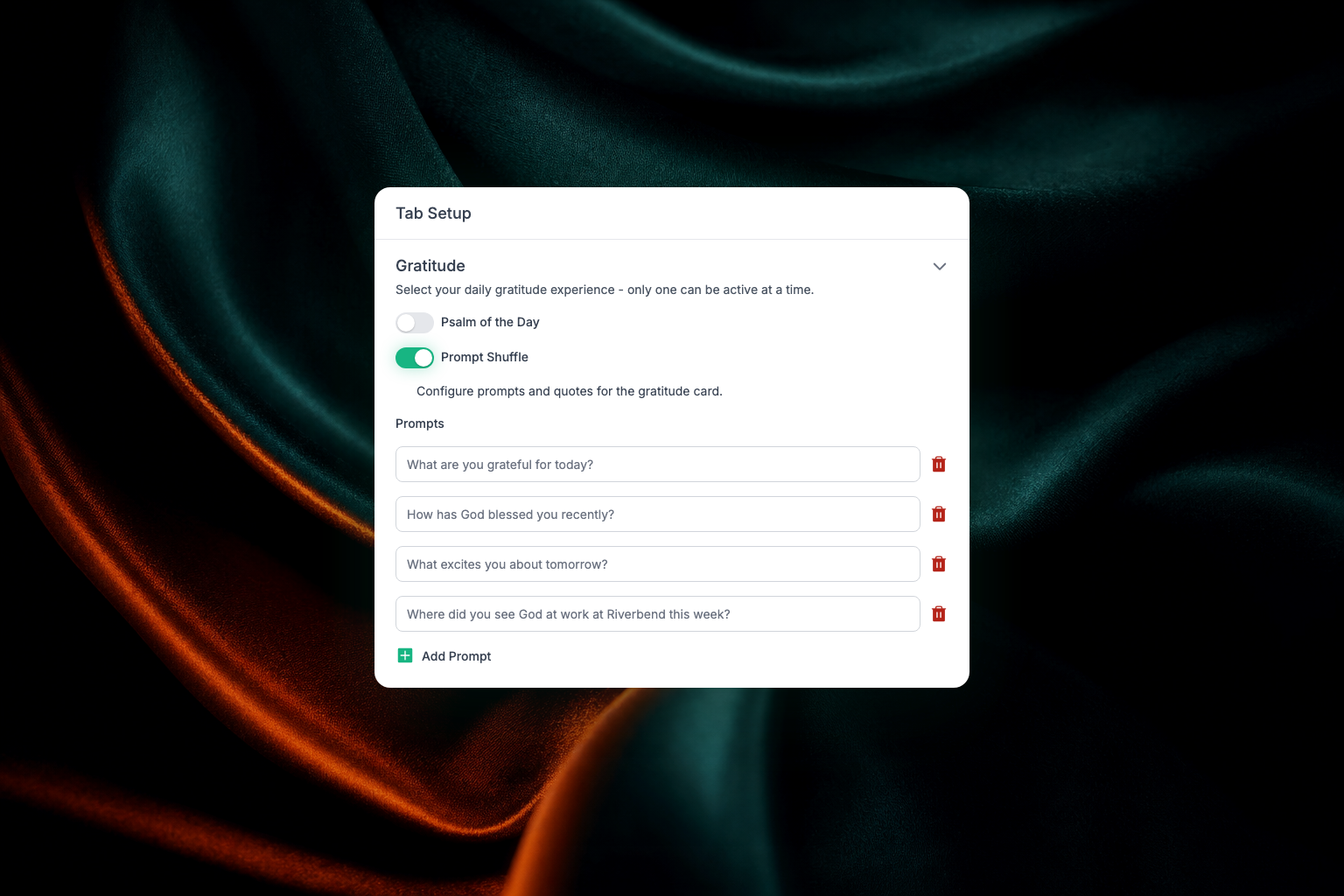
- Custom gratitude quotes & prompts — replace the default prompts with your church's own questions ("What are you grateful for today?", "How has today inspired you?") and add quotes that encourage members.
- Custom habit language — adjust the wording of the habits to match your church's voice.
Troubleshooting
Why does Daily Reflect have a new icon?
Daily Reflect has its own icon so members don't mistake it for prayer. Nothing about the content, the practice, or streaks changes — only the icon members tap.
Why didn't today's content appear in the app?
Check three things on the item: it's Published (not Draft), its publish date/time has passed, and it's filed in the collection your Daily Habits experience uses. See Content troubleshooting for the full checklist.
Why is yesterday's content still showing?
If you want each day's content to be replaced rather than accumulate, set an Expire date on each item, or check how your feed section is configured — see Feeds.
Why isn't a member's streak counting?
Streaks are tracked for signed-in members. Make sure the member is signed in; for the member-side experience, see Sharing content, streaks & habits.