


Recurring giving
Recurring giving lets members set up a gift once and have it repeat automatically on the schedule they choose. This page explains the available frequencies, how the 1st-and-15th schedule works, what happens when a member cancels, and how recurring gifts show up in Admin and your church management system.
How it works
For recurring gifts made with Apple Pay, the management link uses the destination configured for your church, so members return to the correct church experience.
When a member sets up a recurring gift, Apollos creates an automatic charging schedule with Stripe. From then on, Stripe charges the member's saved payment method on each scheduled date — the member doesn't need to do anything. Each charge appears in Giving → Transactions in Admin and syncs to Rock RMS (or your ChMS) like any other gift. The recurring schedule itself also syncs to Rock as a scheduled transaction.
Members manage their own recurring gifts in the app: they can set one up, edit supported gift details, change the payment method, or cancel it. Admins with recurring-giving access can also edit supported gifts in Admin. When each scheduled gift processes, the member receives an email confirming it went through. When a gift is edited, the member receives a separate update email — see Giving emails.
Some churches have recurring giving disabled. When it is disabled, members see only one-time giving options and do not see Manage Recurring in the app.
Available frequencies
| Frequency | When the member is charged |
|---|---|
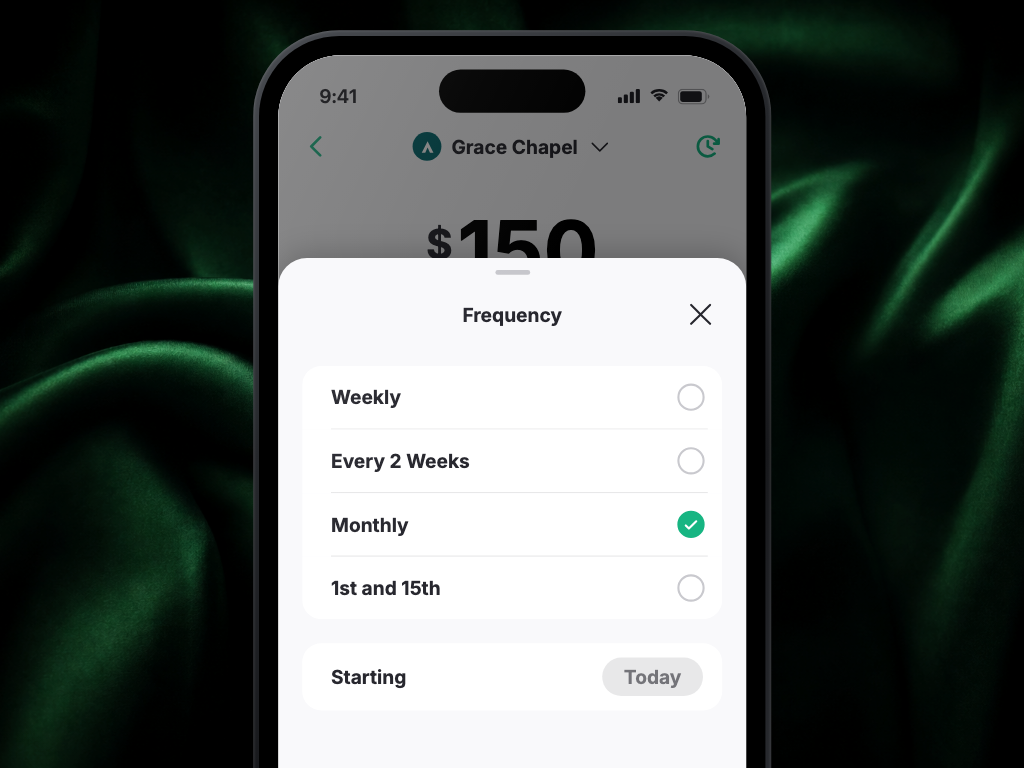
| Weekly | Every 7 days, on the same day of the week |
| Every 2 weeks | Every 14 days |
| Monthly | Once per month, on the same date |
| 1st & 15th | Twice per month, on the 1st and the 15th |
Members can also choose a start date for their recurring gift. The first charge happens on that date (in your church's timezone), and the schedule repeats from there. There's no partial or prorated charge for the time before the start date.
In giving history and recurring gift details, the next scheduled charge appears as Next: Month Day, Year so donors and staff can see the full upcoming date.
The 1st-and-15th schedule
The 1st-and-15th option works a little differently behind the scenes, and it's worth understanding because it comes up in support questions:
- Apollos sets up two linked schedules — one anchored to the 1st, one anchored to the 15th. The member only enters their payment details once, and both schedules share the same payment method.
- The first charge lands on whichever date comes next. If a member signs up on the 10th, their first gift processes on the 15th; if they sign up on the 20th, it processes on the 1st of the next month.
- Only one of the pair syncs its schedule to Rock, so your records show a single recurring commitment — not two. (Each individual charge still syncs normally.)
- When the member cancels, both linked schedules are canceled together. You should never see one half active and the other canceled.
- Your church timezone setting determines exactly when "the 1st" and "the 15th" begin. If your church's timezone is set incorrectly, charge times can be off — ask your Apollos contact to verify it.
Recurring gift statuses
A recurring gift is always in one of these states:
| Status | What it means |
|---|---|
| Active | Running normally — charges happen on schedule |
| Past due | The most recent charge failed. Stripe automatically retries (typically a few times over several days). The member may need to update their payment method |
| Incomplete | The member started setup but never finished confirming their payment method. No charges will happen — they need to set the gift up again |
| Canceled | The gift has ended. No more charges |
Set up a recurring gift (what members do)
- The member opens the Give experience in the app (or on your website's giving form).
- They choose an amount, a fund, and a frequency.
- Optionally, they pick a start date.
- They confirm with their payment method.
From then on, charges happen automatically. For the member-facing walkthrough you can share with your congregation, see How to give.
Note for ACH (bank account) gifts: a recurring gift paid from a bank account doesn't activate until the bank account finishes verification, which can take 3–5 business days. See Payment methods.
Edit a recurring gift
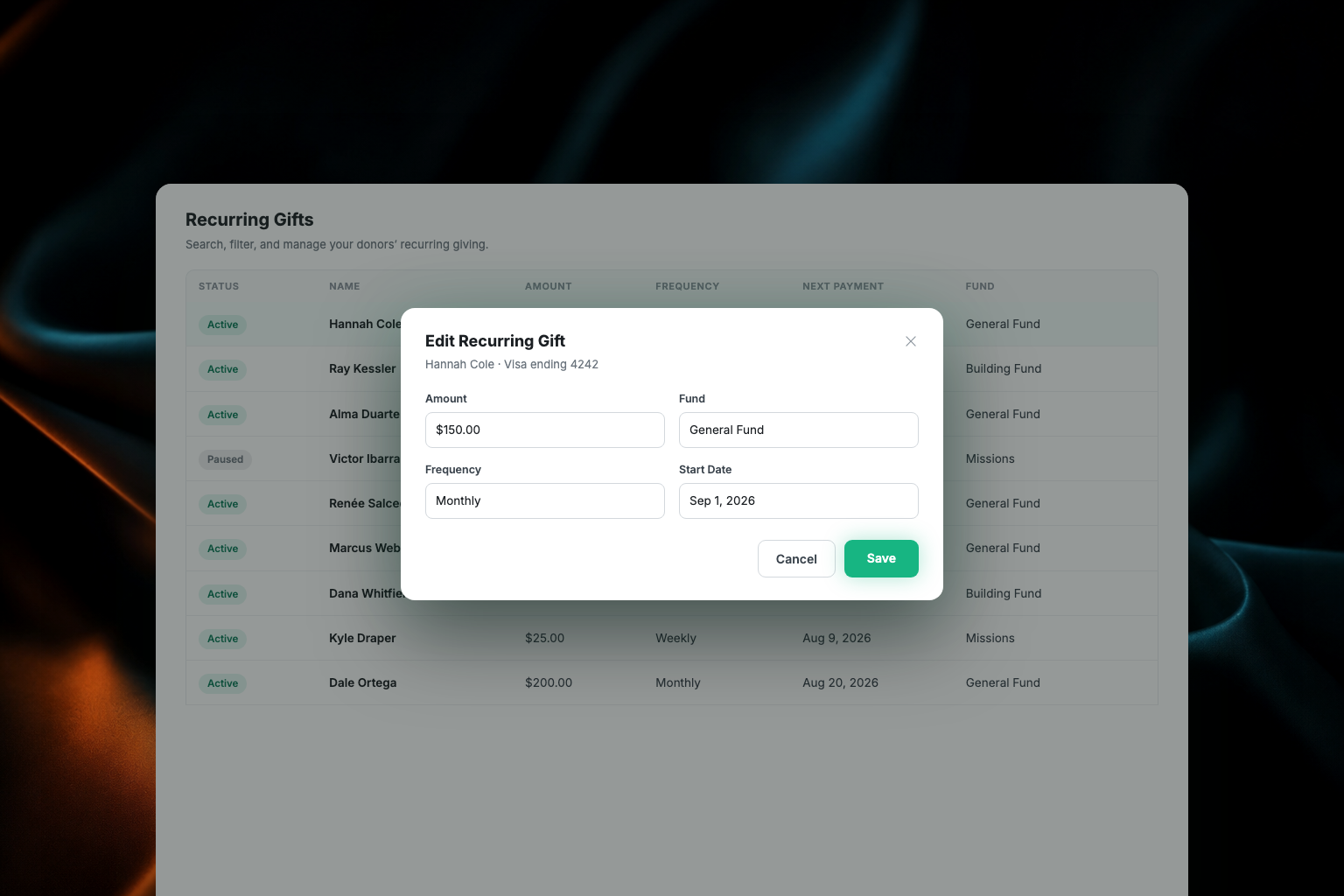
Members and admins can edit supported active recurring gifts without canceling and recreating them. Supported edits include:
- Amount
- Active fund
- Frequency
- Next payment date
- Payment method
Date and frequency changes follow the same schedule rules as new recurring gifts. Admin calculates the dates staff can select in the church's timezone. Weekly, every-2-weeks, and monthly gifts can move within the valid window for that frequency. 1st-and-15th gifts stay anchored to the next 1st or 15th. Older unsupported cadences, such as quarterly or yearly gifts, may not show every edit option.
Admins editing a gift in Admin can choose only active funds.
Change the payment method on a recurring gift
Members can switch the card or bank account on an active recurring gift without canceling and recreating it:
- In the app, the member opens their giving settings and finds the recurring gift.
- They choose a different saved payment method (or add a new one).
- The next scheduled charge uses the new payment method.
This is the right path when a card expires or a member wants to switch from a card to a bank account.
Cancel a recurring gift
Members cancel their own recurring gifts from the app. When they do:
- The charging schedule stops immediately — no further charges.
- The cancellation syncs to Rock RMS (or your ChMS), so the scheduled transaction is closed out in your records too.
- For 1st-and-15th gifts, both linked schedules are canceled together automatically.
- The member receives a cancellation confirmation email — see Giving emails.
Only the member who owns the gift can cancel it from the app. If a member can't access the app and asks the church to stop their gift, contact your Apollos representative.
How recurring gifts appear in Admin
In Admin, recurring gifts appear in the Giving section for staff with recurring-giving access. As an admin you'll see:
- Each charge from a recurring gift in Giving → Transactions, just like one-time gifts.
- Invoice history in the recurring gift detail sheet, including status, transaction ID, date, and total.
- Recurring activity reflected in your downloadable reports — see Giving administration & reports.
- The scheduled commitment in Rock RMS as a scheduled transaction, kept up to date automatically (including amount, fund, frequency, next-gift-date, payment-method changes, and cancellations).
Open a recurring gift row in Giving → Recurring to review its details. The Transactions section may briefly load, then shows the gift's invoices. If no invoices exist yet, Admin shows an empty state.
Troubleshooting
Do we have to ask Apollos to turn on recurring-gift editing?
No — every church has it. Members can edit their own eligible recurring gifts in the app, and staff with recurring-giving access can edit them in Admin. Gifts on older schedules Apollos no longer offers, such as quarterly or yearly, may show fewer options.
Why don't I see a Recurring tab under Giving?
Every church has the Recurring tab, so a missing tab is about permissions rather than availability. Check that your role includes recurring-giving access — see Invite your team & roles.
Why did a member's recurring gift stop charging?
Usually one of three reasons:
- The payment failed. The gift is in Past due status — the card was declined, expired, or had insufficient funds. Stripe retries automatically for several days; if retries keep failing, the gift is eventually canceled. The member should update their payment method.
- The gift was canceled — by the member, or automatically after repeated payment failures.
- It never actually started. If the member abandoned setup before confirming payment, the gift is Incomplete and will never charge. They need to set it up again.
Why hasn't a new recurring gift charged yet?
Check the start date — the first charge happens on the start date the member chose, not the day they set it up. For 1st-and-15th gifts, the first charge waits for the next 1st or 15th. And for bank-account gifts, charging waits until the bank account finishes verification (3–5 business days).
Why does a 1st-and-15th gift show up twice in Rock?
It shouldn't — only one of the two linked schedules syncs to Rock. If you're seeing duplicate scheduled transactions or duplicate gifts in Rock for a 1st-and-15th donor, contact your Apollos representative with the member's name and the gift dates; this needs a fix on the Apollos side. See also Giving troubleshooting.
A member says they were charged on the wrong day. What should I check?
For 1st-and-15th gifts, confirm your church's timezone setting with your Apollos contact — an incorrect timezone can shift charge times. For other frequencies, the charge day follows the start date: a weekly gift started on a Tuesday charges every Tuesday.