


Set up your organization profile & branding
The Organization Profile is where you customize the branding, look, and feel of your apps to match your church — name, logos, colors, Bible translation, and support contacts. Complete it carefully: this information is visible to your members in the app and in your app store listings.
How it works
Everything you set here applies across your mobile app, TV apps, website embeds, and web giving. Your logos and colors define the visual identity; your support contacts tell members (and the Apollos team) who to reach when they need help.
Save your work. Changes are not saved until you click the green Save button at the top of the page. Always save before leaving the page.
Open the Organization Profile
- Sign in at admin.apollos.app with your email address.
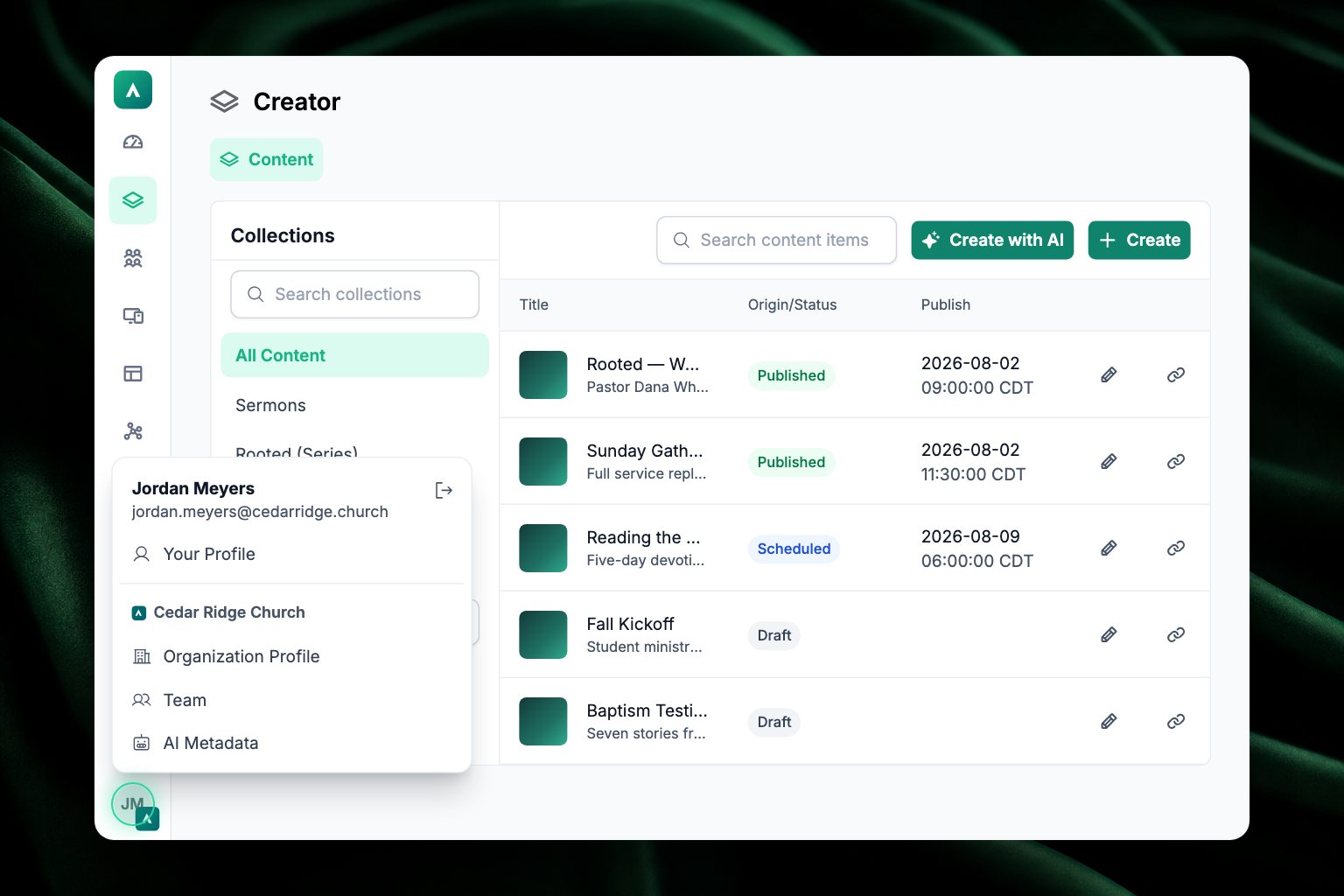
- Click the round icon in the lower-left corner. It shows your own initials (or your photo), with a small chip of your church's logo pinned to its bottom-right corner.
- Click Organization Profile in the pop-up menu.
Fill in your church's basics
| Field | What to enter |
|---|---|
| Organization Name | The public name of your church, as you want members to see it. |
| Organization Website | Your church's primary website address. |
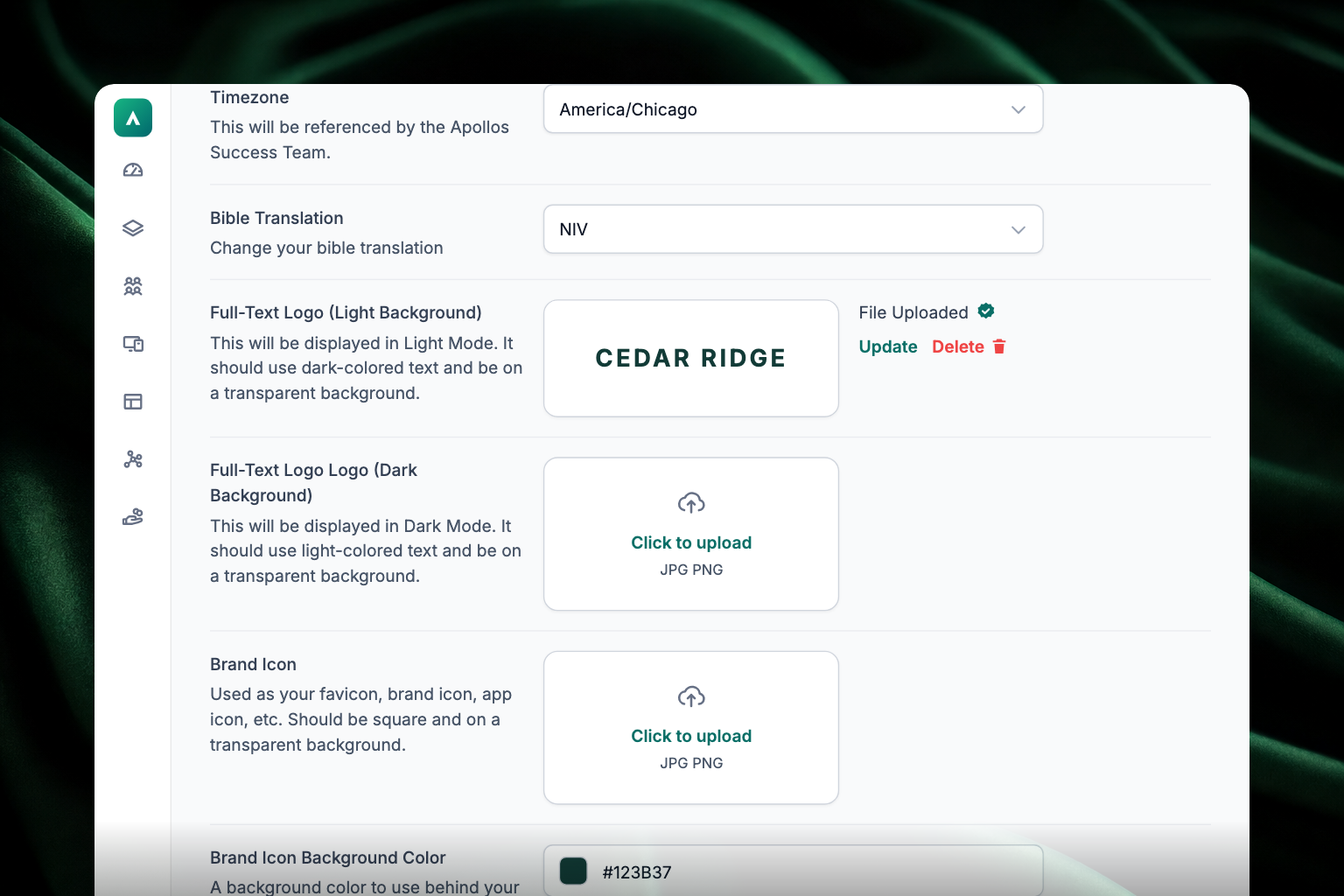
| Timezone | The timezone of your church's main location — this keeps event times and timestamps accurate. |
| Bible Translation | The default translation used when the app displays Scripture. Choose from ESV, WEB, NLT, and KJV. If your church uses its own Bible API key, this selector is locked — the key decides the translation. |
Upload your logos and icon
| Field | What to upload |
|---|---|
| Full-Text Logo (Light Background) | Your logo as it should appear when devices are in light mode. Use dark-colored text on a transparent background. |
| Full-Text Logo Logo (Dark Background) | Your logo for dark mode. Use light-colored text on a transparent background. (The duplicated word in that label is a typo on our side — it's the right field.) |
| Brand Icon | Your app icon. It should be square, on a transparent background, and follow the size requirements shown on screen. |
| Brand Icon Background Color | A fallback background color, used if your brand icon has transparency. |
Choose your brand colors
| Field | Where it's used |
|---|---|
| Primary Brand Color | The dominant color used throughout your app and web experiences. |
| Buttons & Links Color | Buttons and links. Pick a contrasting but brand-consistent color so actions stand out. |
| Accent Color | Secondary elements — use it to guide attention subtly. |
Add your support contacts
| Field | Who it's for |
|---|---|
| User Support Email | Shown to members in the app. Enter the email of someone on your team who will field support questions from your congregation. |
| Tech Support Contact | For the Apollos team — the name, email, and mobile number of your technical point of contact, in case Apollos needs to reach your church about a support issue. |
Chat features
Below your support contacts is a Chat Features section with one toggle: Restrict Chat for Minors. Turn it on and minors can't send or receive private chat messages — they can only take part in the chat of a community they belong to, and they won't appear in app search features such as Find People to Follow. See Chat & moderation.
Experimental features
At the very bottom of the page is Experimental Features, with a single toggle: Enable AI-assisted Scripture References. Turn it on and Apollos recognises Scripture references as you write and turns them into Scripture blocks. Check with the Apollos Customer Success team before enabling it.
Troubleshooting
Do I still need to enable these features in Organization Profile?
Link embeds, Web Embeds, eligible Webview tabs, the new editor, and polls are generally available. Their former Organization Profile switches have been removed.
Why didn't my changes appear in the app?
First, make sure you clicked the green Save button at the top of the page — changes are lost if you leave without saving. After saving, allow a few minutes for changes to take effect everywhere.
Why does Admin say this name is already taken?
Another church already uses that organization name or the matching church address generated from it. Try a more specific name so members and staff can tell the churches apart.
What format should my logos be?
Use transparent backgrounds for both full-text logos and the brand icon. The light-background logo should use dark text, and the dark-background logo should use light text, so each is readable in the matching mode. The upload fields show the exact size requirements.