


Creator AI
Creator AI writes content for your church — devotionals, discussion guides, articles, even multi-week plans — from a simple prompt, so your team can spend less time writing and more time on ministry.
How it works
Creator AI lives inside the Content section of Admin. You describe what you want (and optionally attach a sermon video, script, or document for it to draw from), it generates a draft, and you polish the result on the same canvas you use for any other content. It's been trained with church content in mind, so it understands the topics and formats your congregation expects.
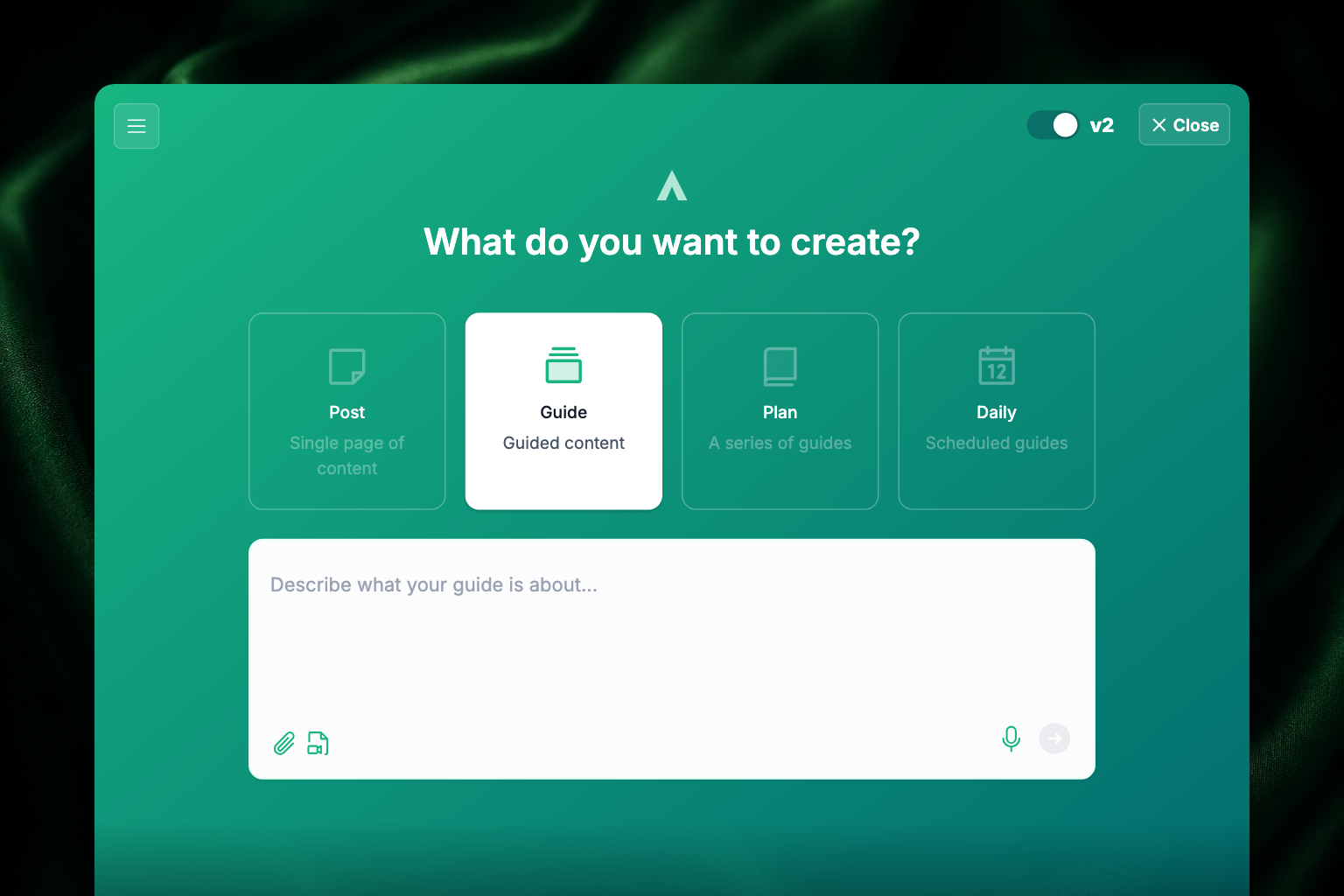
There are two versions of Creator AI, and a switch in the top-right corner moves between them. The switch has no label of its own — just a bold v2 next to it. Off is the original Creator AI; on is the newer v2 experience, which adds content types and a few more ways to feed it source material. Your choice is remembered, so it stays where you left it the next time you open Creator AI.
Note: the Free plan includes limited AI content functions. The full Creator AI experience described on this page is available on the Creator, Go, and Max plans.
Open Creator AI
- Sign in to Admin at admin.apollos.app.
- Click the Content icon in the left sidebar.
- In the toolbar above the content list, click Create AI — the green button with the magic wand. (The plain Create from blank button next to it opens an empty editor instead.)
Creator AI opens full-screen over the content list. Close in the top-right corner takes you back.
The original Creator AI: prompt and create
With the v2 switch off, Creator AI is a single prompt box — your church's version of ChatGPT. Type whatever you want it to create in the box marked What would you like to create?, then click the arrow button to submit.
When your prompt requests a specific YouVersion Bible version, Creator AI keeps that version and creates Scripture blocks for the passages instead of turning them into ordinary links.
As you type, a Suggestions... list drops down under the box with four starting points. Picking one fills in the opening of your prompt and leaves you to finish the sentence:
- Discussion Guide — starts your prompt with "Write a discussion guide for…". Great for small group reflection questions; you can even feed it a sermon and it builds the guide.
- Interactive Notes — starts with "Create interactive notes about…". Feed it your sermon script for notes with summaries, fill-in-the-blank sections, and Bible verses — ready for Sunday morning.
- Blog or Article — starts with "Write a blog post about…". Plug in a topic and any relevant details.
- Daily Reflection — starts with "Create a daily reflection on…". Build a batch of reflections for your Daily Habits reading plan.
Beneath the prompt box, under a line reading Or, try a sample, is a row of ready-made prompt cards. Click one to run it as-is.
After you submit:
- Creator AI generates a first draft with a "Look good?" box below it.
- Click Continue to move the draft to the canvas for editing, or Start Over to refine your prompt and try again.
A note on prompting: you don't need to be an expert. Think of the AI as a very well-read intern that still needs direction — if you have a precise idea of what you want, add details and parameters to your prompt. It goes a long way.
Attach videos, images, and documents
The + icon on the left of the prompt box lets you attach files and links as context:
- YouTube videos — Creator AI watches and analyzes the video.
- Documents — sermon scripts, outlines, study notes.
- Images — visual context for the AI to reference.
This is where Creator AI gets powerful: attach your Sunday sermon's YouTube link and generate a summary, interactive notes, a group discussion guide, and a blog post from the one source. Attach the script ahead of time and have it all done before Sunday even arrives.
In the v2 experience the same job is split across three controls at the edges of the prompt box: a paperclip to upload a file, a video icon to add a YouTube link, and a microphone to dictate your prompt instead of typing it. The microphone is only in v2 — the original prompt box has no dictation.
v2: pick a content type first
Turn the v2 switch on and Creator AI asks What do you want to create? before anything else. Choose one of four types, then describe what you want in the box below it. The prompt box holds up to 10,000 characters, so long sermon notes are fine.
| Type | What it makes |
|---|---|
| Post | A single page of content |
| Guide | A guided piece of content — a set of swipeable cards |
| Plan | A series of guides |
| Daily | Guides scheduled to release on a calendar |
Post
A Post is a single-page piece of content — ideal for devotionals, announcements, or short articles.
- Select Post and enter your prompt (e.g., "A short devotional on Psalm 23:1–3 about God as our Shepherd").
- Click the arrow button at the bottom right of the prompt box — Creator AI generates a complete draft.
- Below the output, choose a collection to file the post in, hit the refresh icon to regenerate, or click Continue to edit it on the canvas.
Guide
A Guide is a set of swipeable cards — perfect for discipleship tools, small group discussion material, or step-by-step studies.
- Select Guide and enter your prompt (e.g., "A 3-card guide on how to pray with Scripture, including steps and a reflection question").
- Creator AI generates a multi-card outline.
- Reorder cards by dragging, and add, remove, or edit individual cards.
- Choose a collection and click Continue to finalize on the canvas.
Members swipe through the cards in the app, each one a focused piece of content.
When a generated Guide page contains only structured feature blocks, such as Scripture references and question blocks, Creator AI builds that page directly from those blocks. This keeps feature-only pages from gaining extra introduction text that your prompt did not ask for.
Plan
A Plan is a series of Guides delivered over time — multi-day devotionals, reading plans, or discipleship programs. This is the most powerful of the four: weeks or months of content from a single prompt.
- Select Plan and enter your prompt (e.g., "A 7-day devotional plan about gratitude").
- Configure the settings:
- Recurrence — Daily, Weekly, Monthly, or Evergreen
- Days — how many installments (1–365)
- Review the generated outline: edit steps, drag to reorder, and add new pages.
- Click Continue — the full plan generates in the background, and you'll get a notification when it's ready.
- Review and edit each Guide in the plan.
Daily
Daily produces guides scheduled onto a calendar — the shape that feeds the app's Daily Habits experience, where members get one piece each morning. Prompt it the same way you would a Plan, then check the schedule before you publish. See Daily Habits for how members experience it.
Finish on the canvas
Whichever version you use, clicking Continue moves your content to the canvas — the same editor used for all content. There you can make final edits, rearrange and format sections, add or remove blocks, attach media, and publish or schedule it. See Create, edit, publish & unpublish content.
Find past sessions
The v2 experience keeps your past sessions. Click the three-line icon in the top-left corner to open the sidebar and pick one up again. The original Creator AI has no sidebar.
Troubleshooting
What should I do when generation fails?
Admin shows the available reason so you can correct the request or try again instead of receiving a generic failure. If the same provider error continues, save your work and contact Apollos support with the message.
Why doesn't the output match what I wanted?
Add more detail to your prompt — the audience, tone, length, and key points you want covered — and attach source material (a sermon video or script) so the AI has something concrete to draw from. Use Start Over or the refresh icon to regenerate.
Why is my Plan taking a while to appear?
Plans generate in the background, especially longer ones. You'll receive a notification when generation is complete.
Where did the content types go?
Post, Guide, Plan, and Daily only appear when the v2 switch in the top-right corner is on. With it off you get a single prompt box and no type picker.
Can I edit what the AI created?
Always. Nothing publishes automatically — every draft lands on the canvas for you to review, edit, and publish on your schedule.