


Payment methods
Members can give with cards, Apple Pay, Google Pay, or a US bank account — in the app, on your website, or through an App Clip without installing anything. This page covers every way to pay, how saved payment methods work, and the extra steps involved with bank accounts.
How it works
When a member gives for the first time, their payment method is securely saved with Stripe for future gifts — they won't need to re-enter card details every time. Saved payment methods power recurring gifts too: each scheduled charge uses the payment method attached to that gift.
Supported payment methods
| Payment method | Where it works | Settles |
|---|---|---|
| Credit & debit cards | Everywhere (Visa, Mastercard, Amex, Discover) | Instantly |
| Apple Pay | iOS app, App Clips, web giving | Instantly |
| Google Pay | Android app, web giving | Instantly |
| US bank account (ACH) | App and web giving | 3–5 business days |
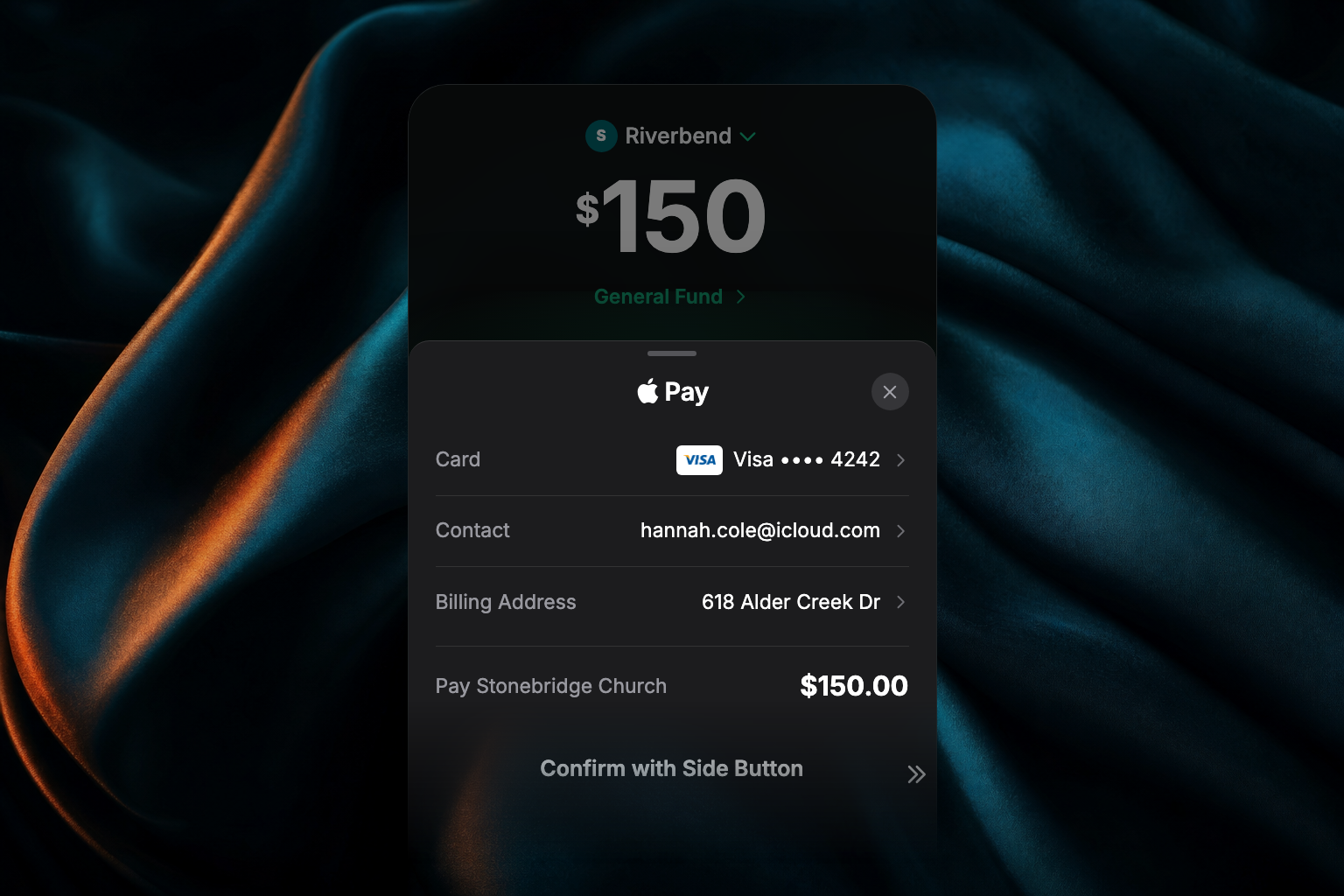
Apple Pay and Google Pay are detected automatically — when a member's device has a wallet configured, the option appears in the giving flow, and they confirm with Face ID, Touch ID, or their passcode. Apple Pay and Google Pay gifts are also tracked separately in reporting, so you can see how many gifts come through each.
Using another giving provider?
Apple Pay and Google Pay are also available through the Apollos Pay package — express checkout in your app while your existing provider (such as Pushpay) keeps handling traditional giving. Talk to your Apollos contact about which package fits.
Bank accounts (ACH) work differently
Bank account gifts have two timing differences worth knowing, because they generate the most member questions:
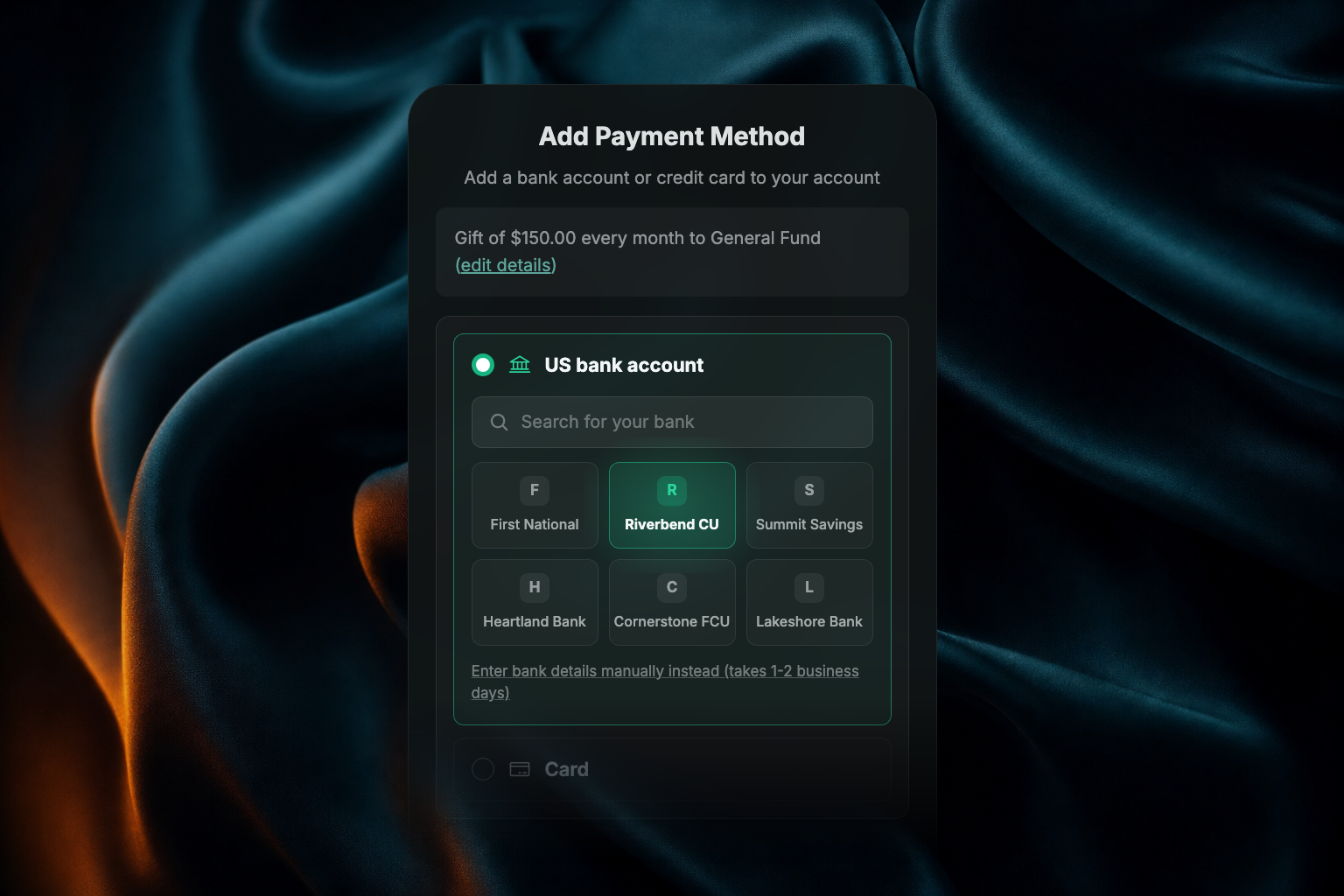
- Verification comes first. Before a bank account can be used, it has to be verified — instantly for most banks, or via micro-deposits that take 1–2 business days. A recurring gift paid by bank account doesn't activate until verification completes.
- Settlement takes 3–5 business days. Unlike cards, a bank gift shows as pending until the bank confirms it — typically 3–5 business days. This is normal and not a sign anything is wrong.
App Clips: giving without the app
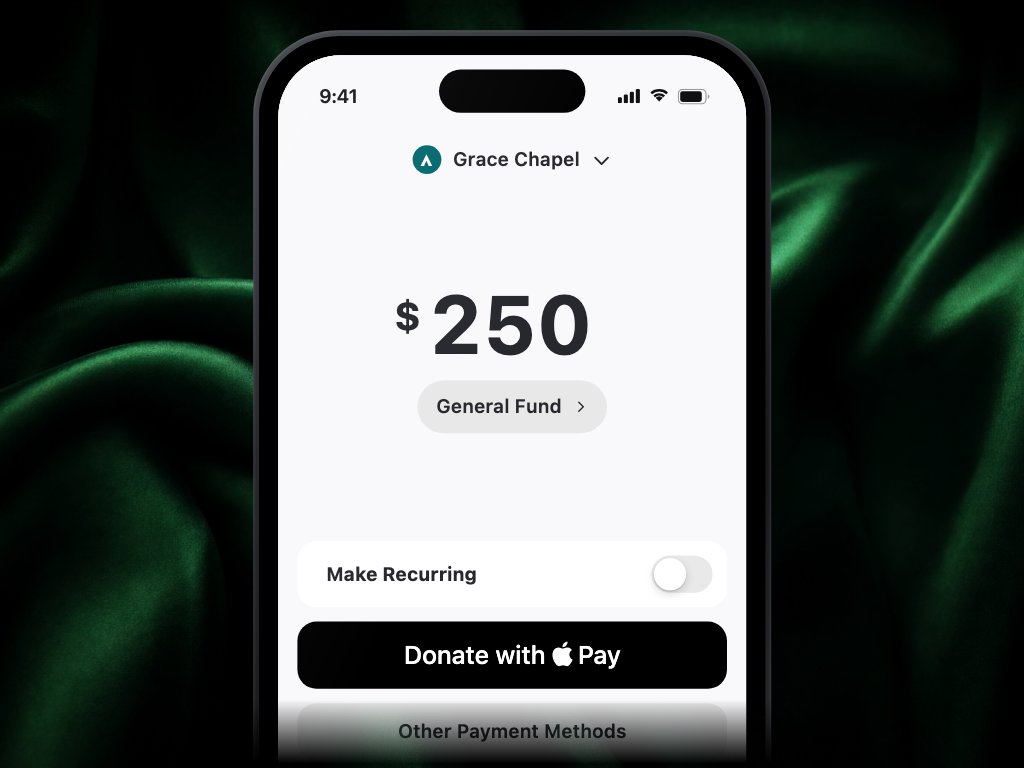
App Clips are a lightweight iOS experience that lets people give without installing your church app. A person can open an App Clip from a QR code, a Tap tag, or a direct link:
- A compact giving form appears: the campus across the top, then the amount, the fund, and the option to make it recurring.
- They pay with Apple Pay.
- After giving, they can give again or finish — and they're prompted to download your full app.
App Clips are a strong first-touch tool: people can give immediately, and many go on to install the app afterward.
A compliance note: for regulatory reasons, App Clip and web giving check that the giver is in the United States. Someone giving from a non-US connection (for example, while traveling abroad or using a VPN) will be blocked in those flows — but they can still give through the full app.
Giving on your website
You can add a giving form to any page of your church website. The embedded form supports one-time and recurring gifts, Apple Pay and Google Pay express checkout, pre-filled amounts, and full theming to match your branding. Set it up in Admin under Giving → Web Embed — see Website embeds for the full guide.
Apollos also supports Stripe-hosted checkout pages as an alternative — a streamlined, Stripe-branded payment page for one-time or recurring gifts.
What members can do with saved payment methods
Members manage their own payment methods from the app's giving settings:
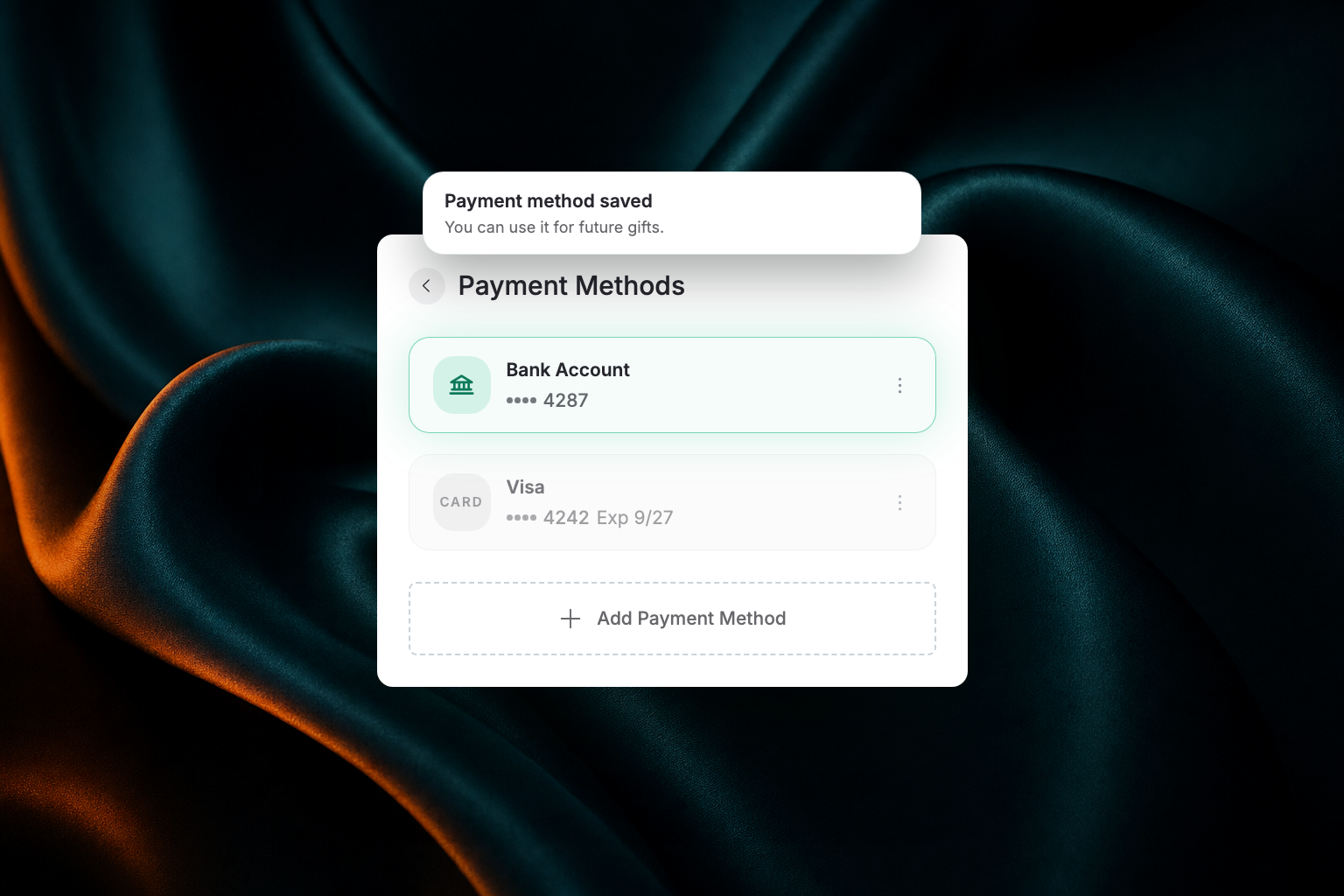
Members manage their payment methods on a Payment Methods screen. It opens from the app but is a web page, so it looks slightly different from the rest of the app. Each saved method appears as a card showing the brand (or Bank Account), the last four digits, and a card's expiry date, with a ⋮ menu offering Edit and Delete. Add Payment Method sits at the bottom.
- Add a new card or bank account.
- Update billing details or a card's expiration date.
- Remove a saved payment method — unless it's currently used by an active recurring gift (see below).
- Switch the payment method on a recurring gift without canceling it — see Recurring giving.
The screen doesn't show how many recurring gifts use each method. If a member tries to delete one that a recurring gift depends on, Apollos blocks it and tells them how many gifts are in the way.
During donor migration, a donor who arrives from a migration link can view, add, edit, and remove saved payment methods without signing in to their full account. Editing and removing happen right there, so they can finish setting up without losing their place.
Troubleshooting
Why does bank verification open a new tab on iPhone?
When a donor verifies a bank account from the giving embed on your website, Safari opens the bank's sign-in in its own tab instead of inside the embed. Banks don't allow their sign-in pages to load inside another site, so the separate tab is what lets verification finish. The donor comes back to your giving page afterward.
Why can't a member remove a saved payment method?
If the payment method is the one charging an active recurring gift, Apollos blocks removal — otherwise the recurring gift would silently start failing. The member should first change the payment method on their recurring gift(s), then remove the old one.
Why is a member's bank account gift still pending?
ACH gifts take 3–5 business days to settle — pending status during that window is normal. If it's been longer than 5 business days, the bank may have rejected the payment (insufficient funds or a closed account); the gift will eventually show as failed if so. Check Giving → Transactions in Admin, and see Giving troubleshooting.
Why isn't a member's new bank account working yet?
The account probably hasn't finished verification. Depending on the bank, verification is instant or requires confirming small micro-deposits after 1–2 business days. The account can't be used for gifts — and recurring gifts on it won't activate — until verification completes.
Why doesn't Apple Pay show up for a member?
Apple Pay only appears on iOS devices that have a card set up in the Apple Wallet. Ask the member to confirm their Wallet has at least one card. The same applies to Google Pay on Android.
A member's card payment didn't save — what happened?
Most often the member closed the app before finishing the confirmation step. Ask them to add the payment method again and complete the flow. On iOS Safari, the bank authorization window now sizes to the visible screen so the final confirmation button should not be clipped. If it repeatedly fails to save, contact your Apollos representative.