


Feeds: building your app's home screen
Feeds are the configurable screens of your apps — each one is a stack of sections you arrange and fill with content, so you control exactly what members see when they open a tab.
How it works
Every church's feeds load more content as members keep scrolling. When a feed holds more items than fit on screen, members can keep going through the rest instead of stopping at the first batch.
A feed is a list of sections, each showing a different slice of your content: a carousel of recent sermons, a prayer bar, upcoming events, quick links, and so on. Feeds power:
- Mobile app tabs — each tab in the bottom navigation shows a feed
- TV apps — the home screens on Apple TV, Fire TV, and Roku
- Website embeds — content lists and players embedded on your church site
- Tap Tags — an NFC tag can open a specific feed when scanned
A feed is "live" once it's assigned to a tab in your app. Until then, you can build and edit it freely without members seeing anything.
The Feeds section is available on the Go and Max plans.
Note: including non-Apollos content in your feeds is available on the Max plan.
Browse and create feeds
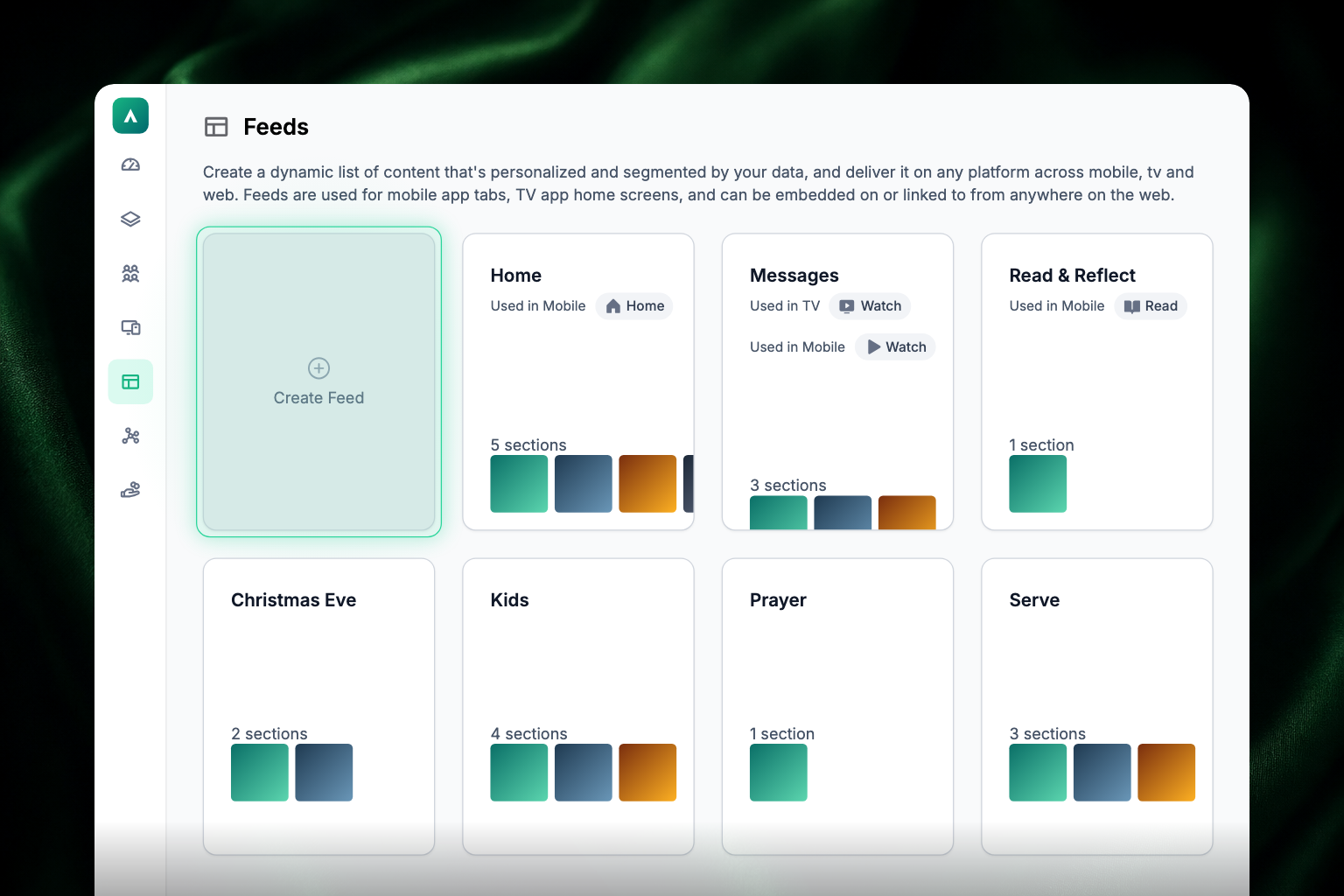
Click the Feeds icon in the left sidebar of Admin. You'll see a card for every feed, showing its name, where it's used (which tabs, TV, and how many Tap Tags point to it), and a preview of its sections. Active feeds — those assigned to a tab — sort to the top.
To create a feed, click the Create Feed card. You'll land in the feed editor for your new feed.
Edit a feed
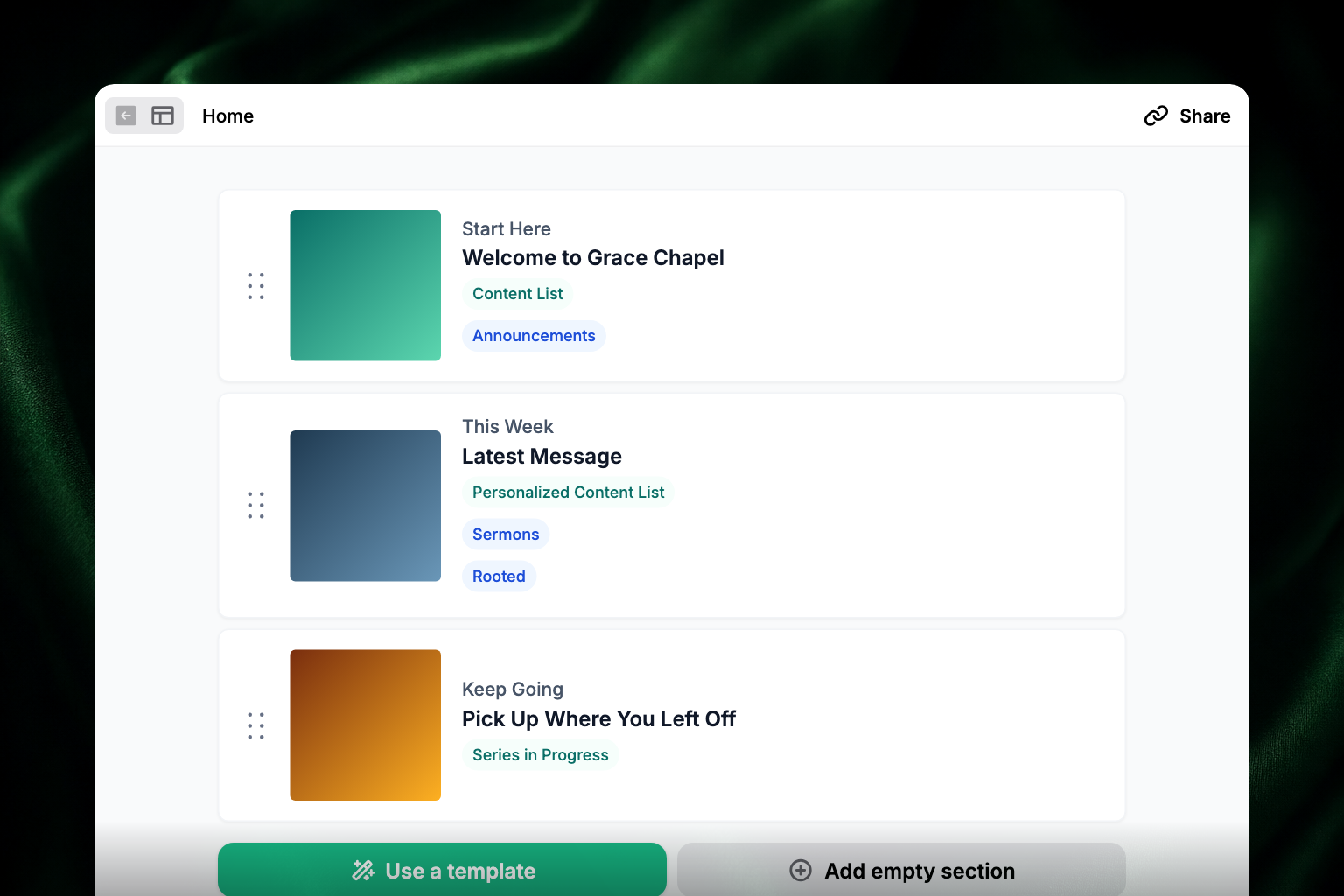
Click any feed card to open the editor. From here you can rename the feed, add and configure sections, reorder them, assign the feed to a tab, or delete it.
- Reorder sections — grab the six-dot handle on the left of a section and drag it up or down.
- Edit a section — click its card to adjust its content, layout, and display settings.
- Add a section — use a template or build one from scratch (both covered below).
- Save — click Save Changes when you're done with a section.
Add a section from a template
Templates are pre-built sections for common patterns. Click Use a template at the bottom of the feed editor and browse by category:
Getting Started
- For You — featured content for everyone plus personally segmented content matched to member tags.
- Watch Next — featured media at the top with additional media categories below.
- Explore — a browsable section for any kind of content.
- Give Online — a card with your giving link, text-to-give number, and other ways to give.
- Quick Links — a set of static links that open in the app or a browser.
- Upcoming Events — pulls events from your connected calendar; optionally segmented by campus.
Integrations
- Studio C — pulls in Studio C badges, messages, and targeted content. See Studio C.
- Simple: Merlin Embed — embeds in-app giving through Simple.
Personalization
- At Your Campus — content tagged with the member's campus.
- Milestones — cards that track a member's completion of key steps (baptism, joining a group, volunteering), driven by tags or your church management system.
- Popular — content you've tagged as popular, shown to everyone.
- Prayer Bar — a swipeable row of prayer requests.
- Recommended — targeted content recommended for the specific member, based on tags or data views.
See Personalization: tags & audiences for how the tagging behind these sections works.
Watch and Listen
- Continue Watching — media the member started but hasn't finished.
- Media List — your latest published media, filterable by tags and campus.
- This Weekend — the latest sermon, sermon notes, and group guide together in one section.
- Upcoming Livestreams — your livestream schedule with live viewing. See Livestreams.
Basic Content Sections
- Content Tags — a strip of tag buttons members use to filter content.
- Horizontal Content Cards — a swipeable carousel of content cards.
- Large Content Cards — full-width cards stacked vertically.
- Static Links List — a titled list of links.
Build a section from scratch
Click Add empty section in the feed editor. Every section has three parts to set up: Content (what to show), Layout (how to show it), and Display (titles and buttons).
1. Choose the content
Expand the Content section and click Add Content, then pick a content type:
| Content type | What it shows |
|---|---|
| Content List | Content from any collection and/or tag, with a limit and optional campus personalization |
| Personalized Content List | Like Content List, but targeted to members by their tags |
| Content Completion | Content with a completion indicator once the member has engaged with it |
| Milestones | Completion cards driven by updates to the member's profile (e.g., attended a class) |
| Series in Progress | Series the member is working through, with progress shown |
| Recently Viewed | Content the member recently opened, newest first |
| Livestreams | Content items with a livestream |
| Media in Progress | Media the member started but hasn't finished |
| Events | Events from Admin or your synced church calendar |
| Tag List | A scrollable list of tags that filters paired content |
| Community Prayer | A prayer list, usually a carousel where the first item lets members add their own request |
| Static Links | One or more links with icons; open as an in-app feed, in-app browser, or external browser; can be segmented by audience |
| Webview | A live webpage embedded directly in the feed (URL and height) |
| Studio C Badges / Messages | Badges and messages from your Studio C integration |
2. Choose the layout
| Layout | What it looks like |
|---|---|
| Horizontal Card List | A swipeable carousel of cards |
| Vertical Card List | Full-sized cards stacked as the member scrolls |
| Hero List | The most recent item as a large card up top, the rest listed below — great for sermons |
| Horizontal Media List | A carousel built for video content |
| Action List | A titled list with thumbnails, plus a "View More" button when there's more |
| Action Table | Like Action List, in a tighter table without "View More" |
| Action Bar | A bar of three linked icons |
| Chip List | Small swipeable chips — ideal with the Tag List content type |
| Prayer List | A carousel of circles for prayer requests |
| Badge List | A badge display — ideal with Studio C Badges |
| Webview | Renders the Webview content type |
3. Set up the display
Give the section a title and optional subtitle, and toggle on a View More button if you want one (you can customize its text). Then click Save Changes.
Put a feed live in your app
A feed appears to members once it's assigned to a tab:
- Go to the Apps section in Admin.
- Pick the mobile or TV tab you want.
- Point the tab at your feed.
The feed's card on the Feeds page will then show where it's used.
Delete a feed
Open the feed in the editor and delete it from there. If the delete option is greyed out, the feed is still assigned to a tab — unassign it first. Note that Tap Tags pointing at a deleted feed need to be reassigned in the Tap section; see Apollos Tap.
Troubleshooting
Can I copy an existing feed instead of building a new one?
Yes. Find the feed in the feeds list and choose Duplicate. Apollos creates a copy with the same sections, which you can rename and edit without changing the original. The copy isn't shown anywhere until you assign it to a tab.
Why doesn't my feed show up in the app?
The feed isn't assigned to a tab, or it's assigned to a different tab than you expect. Open the feed editor and check the tab assignment, then check the Apps section.
Why is a section in my feed empty?
The collection or tags the section pulls from may be wrong, or there's no published content matching them. Open the section's Content settings and confirm the collection/tags, then check that matching content is published and not expired.
Why does a Tap Tag open the wrong feed?
The Tap Tag's action points at an old feed. Reassign it in the Tap section — see Apollos Tap.
Why are my sections out of order?
Drag them into the right order with the six-dot handle on the left of each section, then save.