


Planning Center
Planning Center Online (PCO) integrates with Apollos to sync people, groups, campuses, and events — solid, people-focused sync that covers the core data areas most churches need.
How it works
Apollos connects to Planning Center using OAuth: you authorize Apollos to access your PCO data, and Apollos keeps the connection refreshed automatically — no manual token maintenance needed. Credentials are stored encrypted.
Planning Center is the source of truth for synced data. Changes made in Apollos Admin to people, groups, or events will be overwritten on the next sync cycle — make those changes in PCO. See How data sync works.
Sync runs on a regular schedule; most changes appear in the app within the hour. PCO can also be used alongside Rock if your church uses both systems, though each church typically has one primary ChMS.
Set up the Planning Center integration
- In Admin, go to Data → Catalog.
- Find the Planning Center tile and click Overview on it. The tiles themselves have no connect button — connecting happens on the integration's own page.
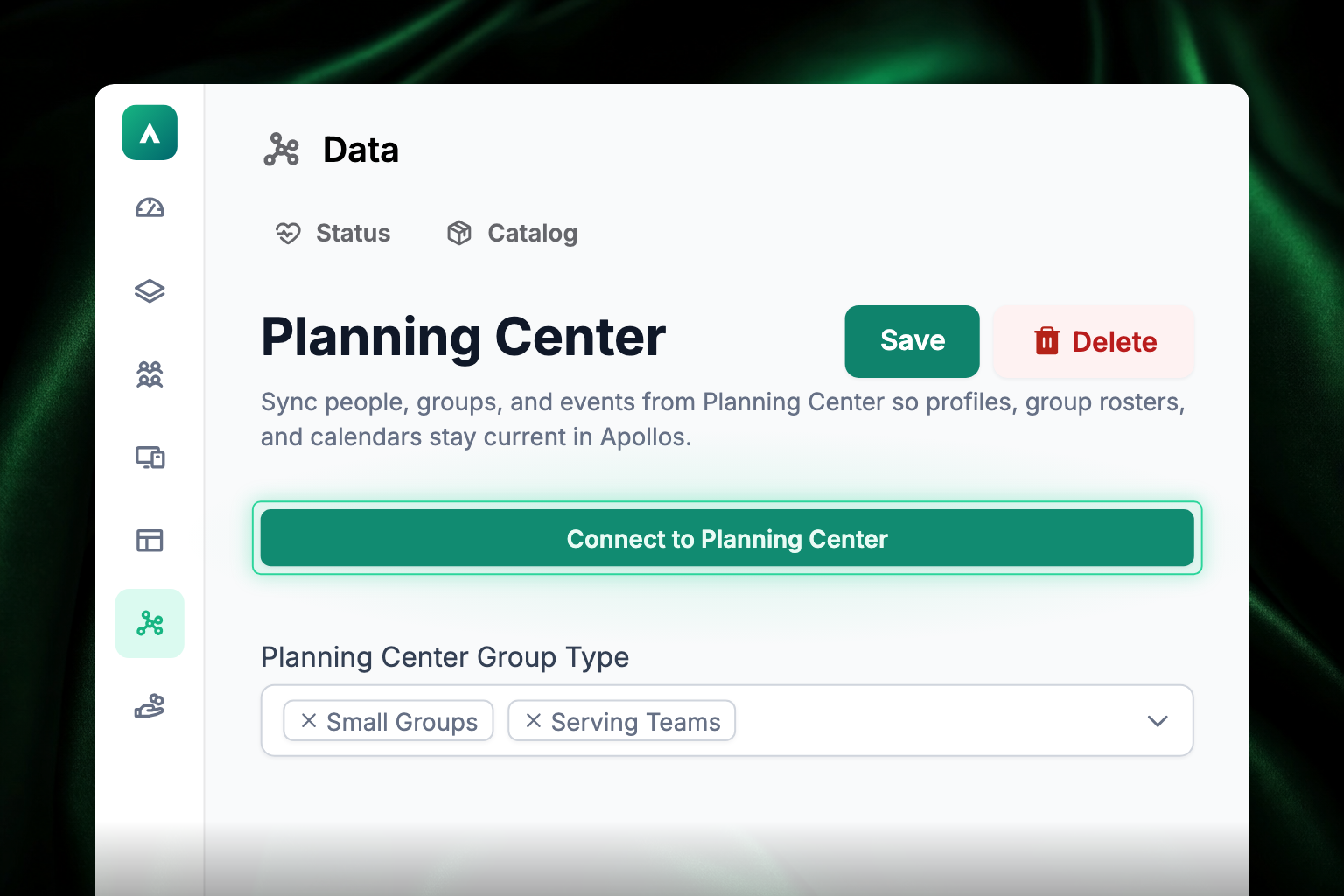
- Click Connect to Planning Center and follow the sign-in flow to authorize Apollos to access your PCO data. Once it's done, the button reads Connected to Planning Center with your PCO organization's name beside it.
- Below the button, choose your Planning Center Group Type — which kinds of PCO group should become communities in Apollos — and click Save at the top of the page.
- Confirm the workflows are running in Data → Status.
Important: the Planning Center integration must be explicitly enabled — it does not activate automatically. The same goes for campus sync (see below).
What syncs
Plan availability
What syncs depends on your plan:
| Planning Center data | Available on |
|---|---|
| People | Go and Max |
| Campuses | Go and Max |
| Tags | Max |
| Events | Max |
| Groups | Max |
People
Full people sync — name, birthdate, gender, email, phone number, profile photo, and campus assignment. When someone signs up in the app, their profile is created in Planning Center automatically. People merged in PCO are mirrored in Apollos.
A few details worth knowing:
- Gender — Planning Center only accepts "male" or "female". If a member's gender is "unknown" in Apollos, that field simply isn't sent to PCO. This is expected behavior.
- Phone numbers sync as Mobile/primary; email addresses sync as Home/primary.
Groups → Communities
Planning Center groups sync to become Communities in Apollos, including group membership. Manage groups and membership in PCO — changes made in Apollos are overwritten on the next sync. See Communities & groups.
Campuses
Campus data syncs from PCO, but campus sync must be explicitly turned on. This is the setup step that gets missed most often — if your campuses aren't appearing in the app, check this first, and contact Apollos support if you can't find the setting.
Events
Events receive partial sync from PCO. Your church can configure the title of the action button shown on synced events. Registration events can include Register buttons, and if a registration page can't be read in time Apollos keeps the event it already has rather than removing it from the app. Significant events can also be used for member tagging and personalization.
What doesn't sync
Unlike Rock RMS, the Planning Center integration does not support:
- Giving — PCO giving data doesn't sync. Giving in Apollos runs on its own Stripe connection; see How giving works.
- Content — create content directly in Apollos or through a media integration (WordPress, YouTube, Vimeo, and more).
- Prayer requests — prayer is managed within Apollos; see Prayer.
- Persistent sign-in through PCO — staying signed in via Planning Center accounts isn't available without custom integration work.
Troubleshooting
Why aren't my campuses showing in the app?
Campus sync must be explicitly enabled — it isn't turned on automatically. Open the Planning Center integration page from Data → Catalog, and if you can't find the setting there, contact Apollos support.
Why aren't my groups appearing as Communities?
Verify the groups are active in PCO and that the correct group types are configured to sync. Remember that membership changes made in Apollos are overwritten — manage membership in PCO.
Why does sync seem stuck?
Check Data → Status for the workflow's health. Toggling the integration off and back on in Data → Catalog triggers a fresh, full sync. After the first full import, inactive-person syncs use a recent-change window, so large churches should not have to re-scan the full inactive history on every run.
Why did a Planning Center event show the wrong date or lose its registration button?
Check the event date and registration page in Planning Center. Apollos skips non-date page text when parsing registration dates and attaches Register buttons to the matching synced event. If the source looks correct and the next sync does not fix it, contact Apollos support with the event name and Planning Center ID.
Why hasn't my settings change taken effect?
Settings are cached for up to 5 minutes. Wait a few minutes after making changes, then check again. If the connection itself fails, the authorization may have been revoked or recreated in PCO — reconnect the integration with the current credentials.