

TV apps (Apple TV, Fire TV, Roku)
Apollos gives your church apps for Apple TV, Amazon Fire TV, and Roku — a focused, big-screen viewing experience that's ideal for sermons, worship recordings, and video series.
How it works
Unlike your mobile app with its multiple tabs and features, TV apps display a single content feed optimized for remote-control browsing. You build that feed in Admin under Apps → TV, and the same feed powers all three TV platforms.
On a TV app's detail screen, the main video button reads Watch now, and a progress bar still shows where the viewer left off.
Your TV apps are distributed through each platform's store:
- Apple TV — the Apple TV App Store (requires a separate Apple Developer account submission)
- Amazon Fire TV — the Amazon App Store
- Roku — the Roku Channel Store
Configure your TV app
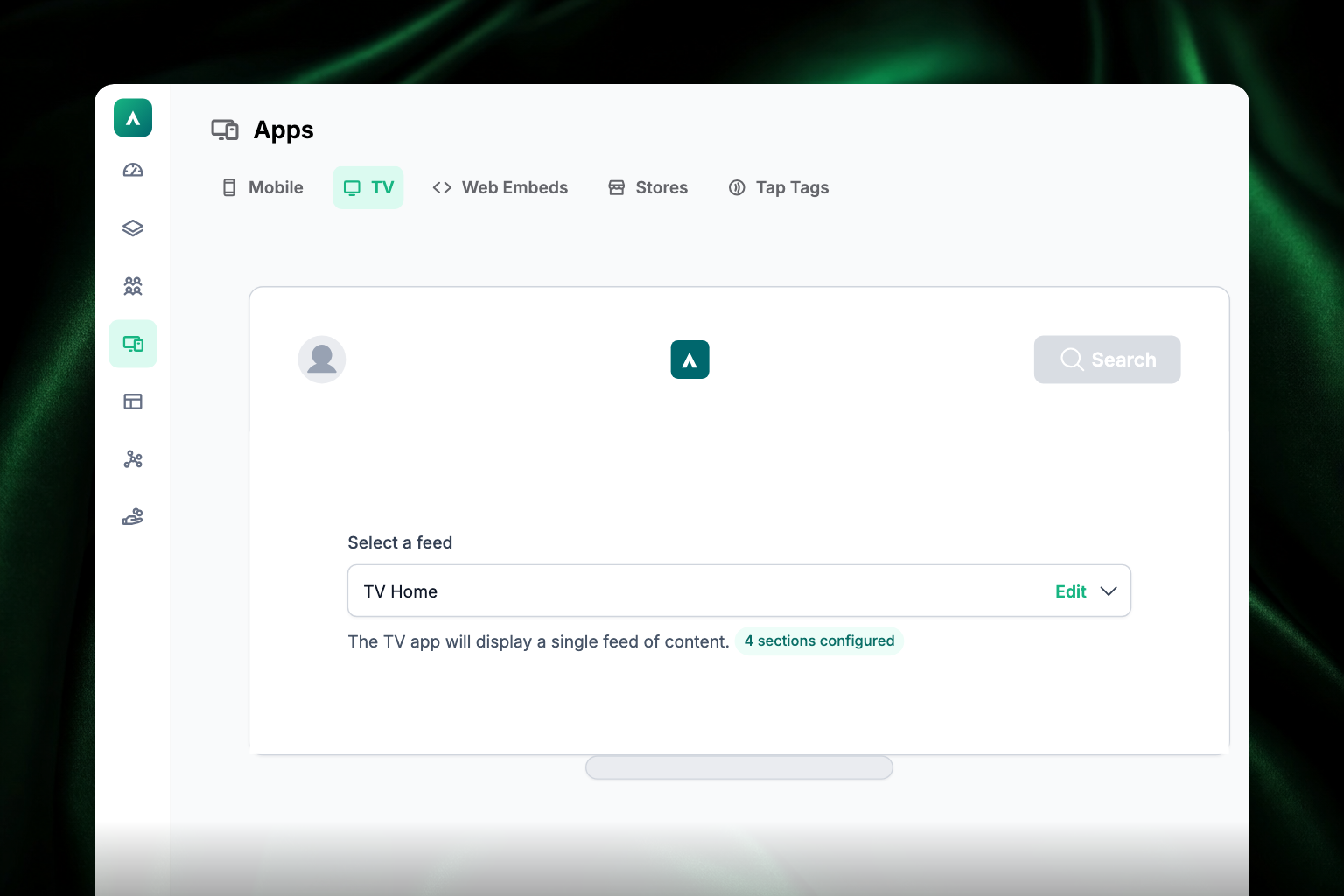
- In Admin, go to Apps → TV.
- Under Select a feed, pick the single content feed the TV app will show — choose an existing feed or build one. See Feeds: building your app's home screen.
- There's no Save button. Choosing a feed saves it right away, and the badge under the selector updates to show how many sections that feed has configured.
- Click Edit next to the selector to open the feed and make sure the content is engaging, well organized, and visually appealing for a large screen.
Choose content that works on TV
TV apps work best with video-heavy content:
- Sermon series with streaming video
- Worship recordings
- Special event broadcasts
- Video devotionals and teaching series
For the best playback experience, make sure your video content uses HLS streaming links (web addresses ending in .m3u8). If your videos come from Vimeo, YouTube, or another media platform, see Media: Vimeo, YouTube, Wistia & more.
Preview your TV app
- Download the Apollos Preview TV app from your TV platform's store.
- In Admin, open the Launchpad (the green rocket icon, lower-left) and click the TV tab.
- Open Apollos Preview TV — it will prompt you for a password.
- Enter the password shown at the top of the Launchpad TV tab and browse your TV app demo.
Submit to the TV stores
Each TV platform has its own store with its own submission requirements. Manage your store listings — marketing assets, descriptions, and screenshots for each platform — in Admin under Apps → Stores, then request your release from the Launchpad. See App store listings for the full walkthrough.
Troubleshooting
Why does a video pause and then keep playing on our TV app?
When playback hits an error, the TV app retries instead of dropping the viewer back to the menu — so a short pause is the app recovering. If a video never resumes, check that it uses an HLS streaming link (ending in .m3u8) and that the hosting provider is up.
What do the different TV playback messages mean?
The TV apps tell the difference between a video that isn't available, a format they can't play, and a connection problem, and show a message for each. An unavailable or unplayable video points at the content — check that the link is an HLS stream ending in .m3u8. A connection message usually clears on the next attempt.
Why does Admin warn me about a YouTube or Vimeo link?
YouTube and Vimeo links don't play reliably on Apple TV, Fire TV, or Roku. Because your church has TV apps, Admin warns you when content uses one of those links so you can supply an HLS stream instead. See Media: Vimeo, YouTube, Wistia & more.
Why won't a video play on my TV app?
Check that the video uses an HLS streaming link (ending in .m3u8). Other video formats may play on mobile but not reliably on TV platforms. If the video comes through an integration, see Media: Vimeo, YouTube, Wistia & more.
Why does my TV app look different from my mobile app?
That's by design — TV apps show a single feed configured under Apps → TV, separate from your mobile tabs. If the TV app shows the wrong content, check which feed is selected there.
Do all three TV platforms show the same content?
Yes. The feed you configure under Apps → TV powers Apple TV, Fire TV, and Roku alike.