


Invite your team & roles
Invite teammates into the Apollos Admin so the right people can manage content, giving, and your community — each with a role that matches their responsibilities.
How it works
Admin access is role-based. Each team member has a role (for example, Organization Admin or Creator Editor) that controls what they can see and change. That means you can give a volunteer access to manage content without giving them access to giving data. Your Apollos contact can help you choose the right roles for your team.
Open the Team page
- In the bottom-left corner of the Admin, click the circular profile icon.
- In the menu that appears, click Team.
If you don't see Team in that menu, your role doesn't include team management — ask an Organization Admin at your church.
Invite team members
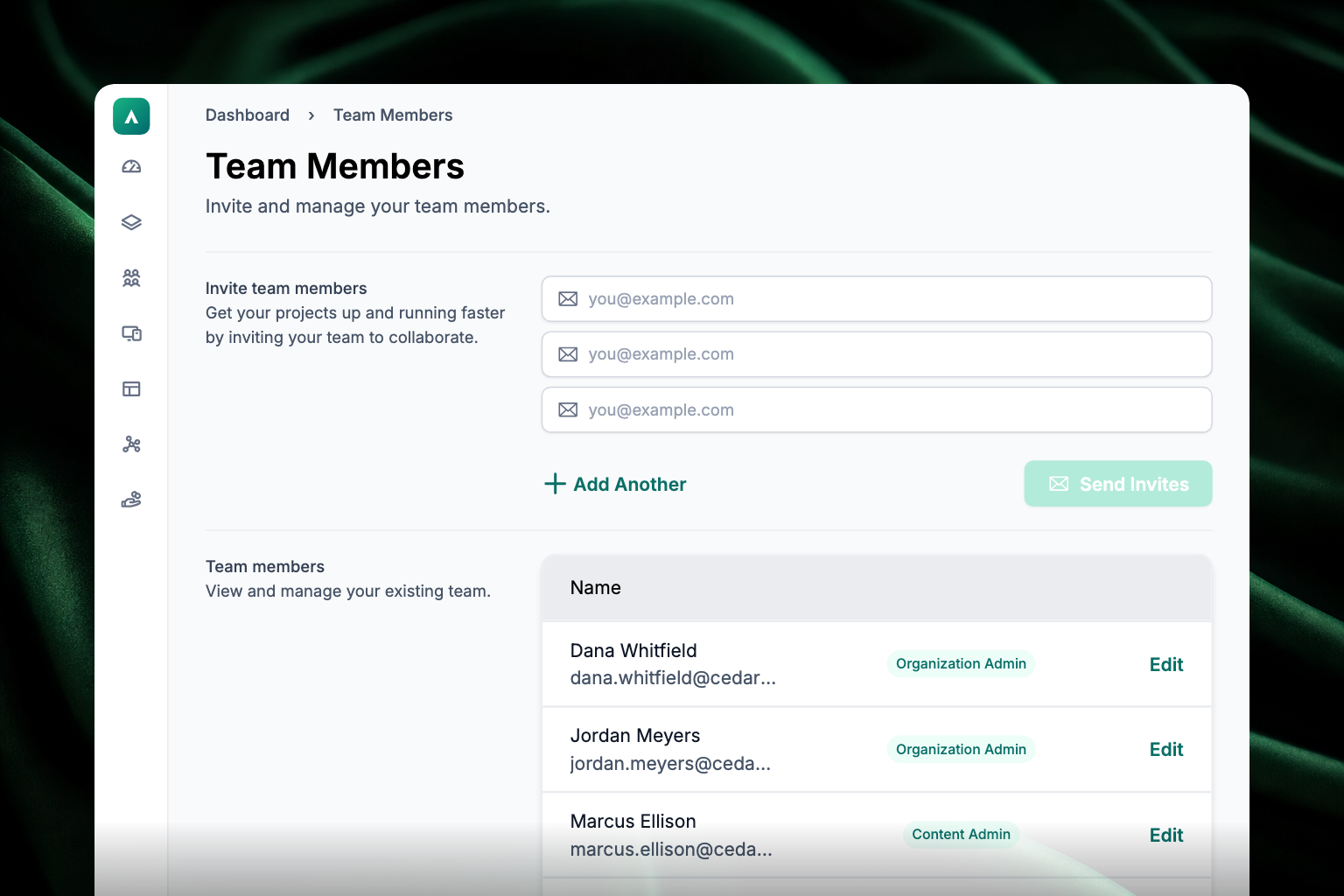
- On the Team page, find the Invite team members section. You'll see three fields for email addresses.
- To invite more than three people, click Add Another (the green text with the plus icon beside it) to add more fields.
- Double-check the addresses, then click Send Invites.
Each invited person receives an email with instructions to join your team.
You can also invite teammates from other places in Admin — the Invite team member button appears on your profile page and on the Organization Profile page, and works the same way.
Manage team members
Below the invite form is the Team members table. It has a single Name column heading, and each row stacks the person's name with their email address underneath, followed by their role and an Edit link.
To change someone's details:
- Click Edit at the end of their row — it's green text, not a button.
- Update their name, email address, or role — or remove them from the team.
- Save your changes.
Update your own profile
Your personal account settings live under Your Profile (same profile icon, bottom-left corner):
- First and last name — shown on your Admin profile so your team knows who's managing settings or content.
- Email — your sign-in address, and where the Apollos Success Team sends messages.
Click Save in the top-right corner after making changes.
Troubleshooting
My teammate didn't receive the invite email — what should I check?
First confirm the email address was entered correctly (check the Team members table). Ask them to check their spam folder. If it still hasn't arrived, remove and re-invite them, or contact Apollos support.
Can I limit what a team member can access?
Yes — that's what roles are for. Assign a role that matches the person's responsibilities, like content-only access for a volunteer. Edit a member's role from the Team members table. If you're not sure which role fits, ask your Apollos contact.
Giving Admins can be limited to specific Giving tabs or report types. Someone with report access only lands on the Reports tab when they sign in, and someone with no giving permissions lands on Account rather than an empty Giving page.
How do I remove someone who left our staff?
Open the Team page, click Edit on their row, and remove them. They'll lose access to your church's Admin immediately.