


App store listings
Before your apps can go live, each platform needs a store listing — the name, descriptions, keywords, and screenshots people see before they download. You manage all of it in Admin under Apps → Stores.
How it works
Apollos publishes your apps to four stores:
- Apple App Store — iPhone and iPad
- Google Play — Android
- Amazon App Store — Fire tablets and Fire TV (requires a TV app)
- Roku Channel Store — Roku TVs and streaming devices (requires a TV app)
You fill in one App Marketing Profile in Admin, and Apollos uses it to build your listings across the stores. Setting up your store connections and marketing profile are steps 4 and 5 of the Launchpad setup guide.
Complete your App Marketing Profile
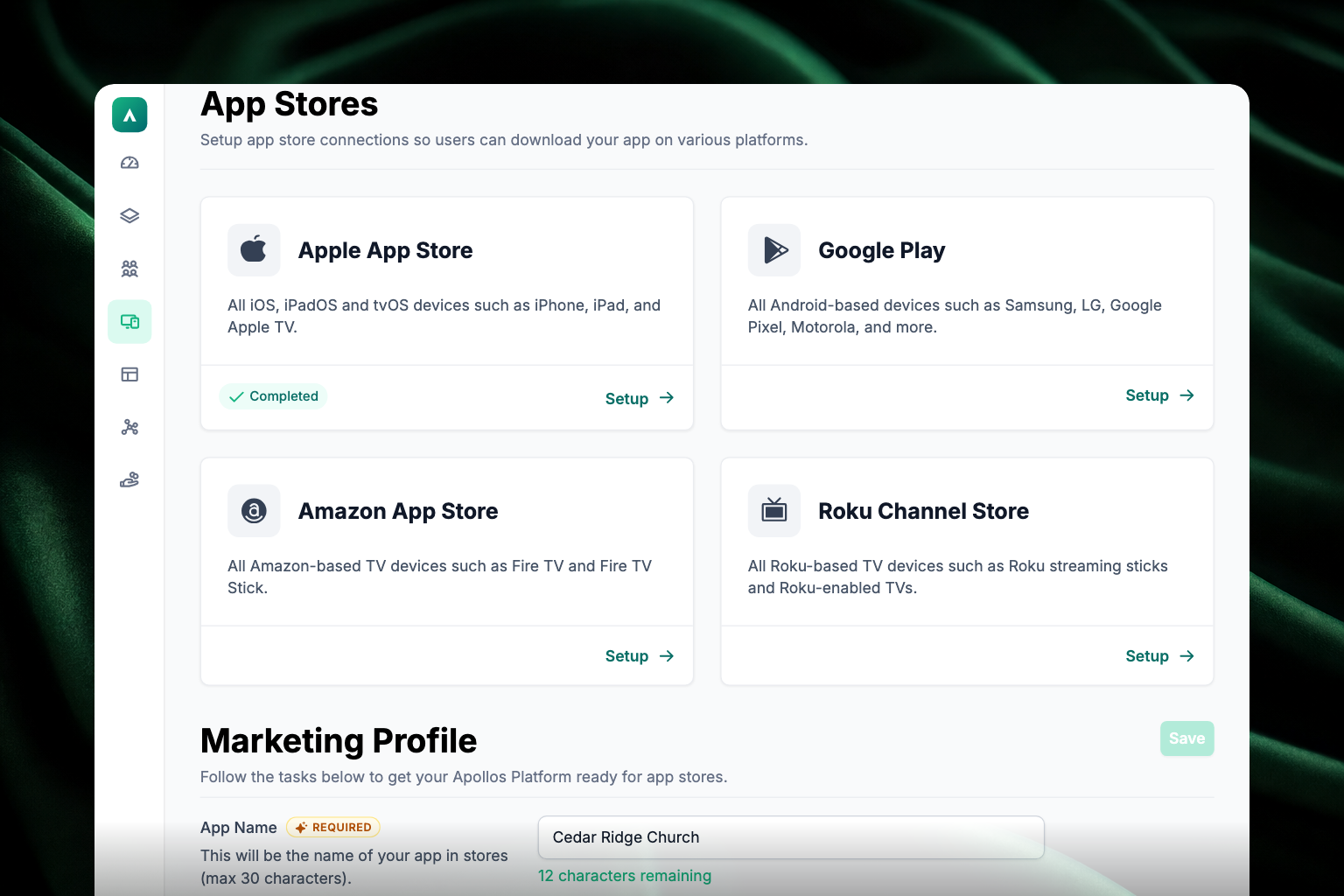
In Admin, go to Apps → Stores. The top of the page shows a card for each store — Apple App Store, Google Play, Amazon App Store, and Roku Channel Store — each with a Setup button. Store setup unlocks once the required marketing profile fields are complete, so start with the form below the cards.
Fill in the Marketing Profile fields:
Field What it is App Name Required. The official name of your app — usually your church name as it appears in the store. Maximum 30 characters, with a live counter. App Display Name The name shown under the icon on members' phones. Keywords Search terms that help people find your app. App Primary Language Your app's primary language. The only choices are English and Other. Short App Description A brief tagline, 80 characters or fewer. Long App Description A detailed description of your app's features and purpose, up to 3,600 characters. Apple Marketing URL Optional — a link to your app's marketing page. Maximum 70 characters. Apple Support URL Required. A link members can use to get support. Upload screenshots. Each device row takes either no screenshots or exactly three — two or four will be rejected when you try to save.
Row Size iPhone Screenshots 1242 × 2688 px iPad Screenshots 2048 × 2732 px Android Screenshots per Google Play requirements Apple TV 1920 × 1080 px Android TV per store requirements The TV rows appear only if your church has a TV app.
Click Save in the top-right corner of the Marketing Profile section. Save stays greyed out until you change something.
Write a strong listing
- Lead with your church identity — make your church name and branding prominent.
- Highlight key features — mention sermons, daily habits, giving, communities, and prayer.
- Use high-quality screenshots — show the app with real content, not placeholder data.
- Include a call to action — for example, "Stay connected with [Church Name] throughout the week."
Stay within Apple's tab guidelines
Apple recommends apps have 3–5 tabs. Apps with more tabs risk rejection during App Store review. Check your tab configuration under Apps → Mobile before submitting — see Mobile app.
Preview before submitting
Always test your app thoroughly with the Apollos Preview app before submitting to the stores. Scan the QR code from the Launchpad to preview your app on a real device and verify that content, feeds, and features all work correctly.
Connect Apple developer access
For iOS setup, enter the Apple Developer Team Name exactly as it appears in Apple Developer Program Membership Details. Punctuation matters, including commas. Admin trims extra spaces at the beginning and end, but it does not change the name itself.
If you upload an App Store Connect API key, use a key with Admin access. Developer-role keys can upload successfully but cannot complete all App Store Connect actions Apollos needs for submission.
Troubleshooting
Do I need my own developer accounts with each store?
The Setup App Stores step in the Launchpad guide walks you through connecting your app to each store's account, then Apollos handles the submission process for you. Your Apollos contact can help with account specifics.
Why might my app be rejected during review?
The most common cause is having too many tabs — Apple recommends 3–5. Other causes include placeholder content in screenshots or an incomplete marketing profile. Make sure App Name and Apple Support URL are filled in — they're required — and that your screenshots show real content.
Why is Admin warning me about my Apple API key?
The uploaded App Store Connect API key may not have Admin access. Create or upload an Admin key in App Store Connect, then return to Admin and try again.
Do I need Amazon and Roku listings?
Only if you're launching a TV app — both stores require one. See TV apps (Apple TV, Fire TV, Roku).