


Polls
Polls let you ask your congregation interactive questions right inside your content — gather feedback, spark conversation, or add a moment of engagement to a sermon, article, or event.
How it works
A poll is a question with answer options that members vote on, in the app or on the web. Polls are embedded inside content items, which ties each poll to a specific sermon, article, or event.
Key behaviors:
- Selection modes — a poll accepts either one answer (single choice) or several (multiple choice).
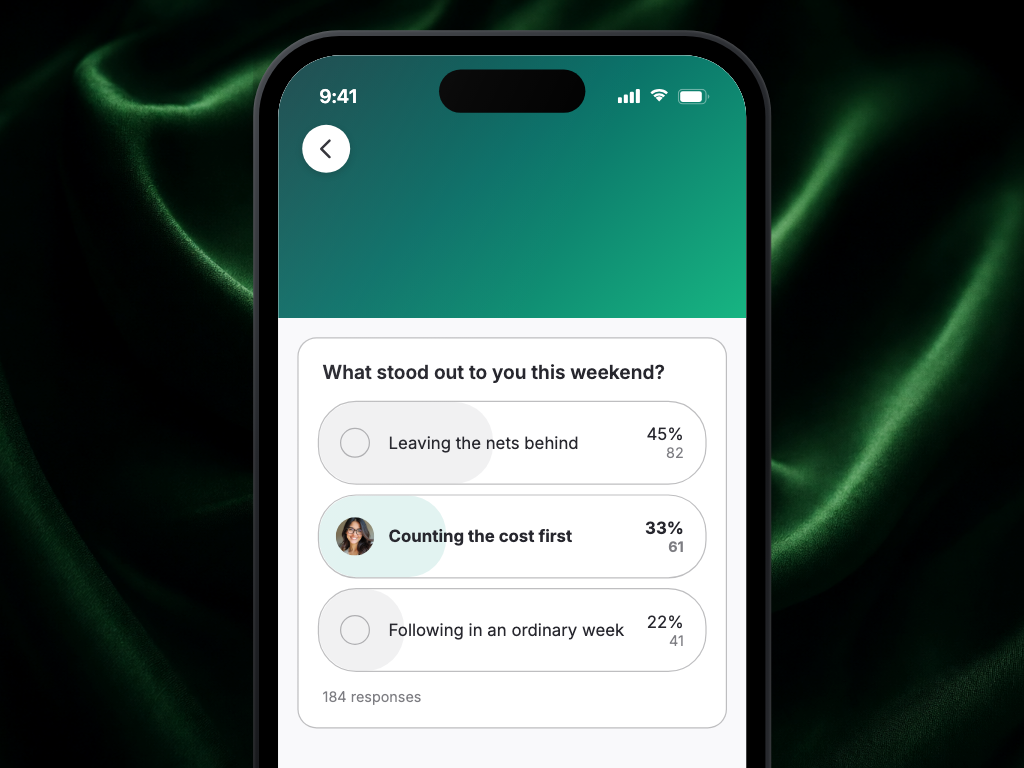
- Statuses — a poll is Active (accepting votes), Closed (voting ended, results visible), or Inactive (hidden).
- Vote changing — members can change their vote by selecting a different option.
- Per-option list assignment — when enabled for your church, each answer option can add voters to a list. Assignments are add-only; changing or clearing a vote does not remove a member from a list.
- Cross-platform — polls work in the mobile app and on the web.
Where polls come from
- Native Apollos polls — created and managed directly in Apollos, with no outside service required.
- Studio C polls — synced from a Studio C integration. If your church uses Studio C, its polls can flow into your app; see Studio C for setup.
Create a poll
- Open (or create) the content item where the poll belongs — see Create, edit, publish & unpublish content.
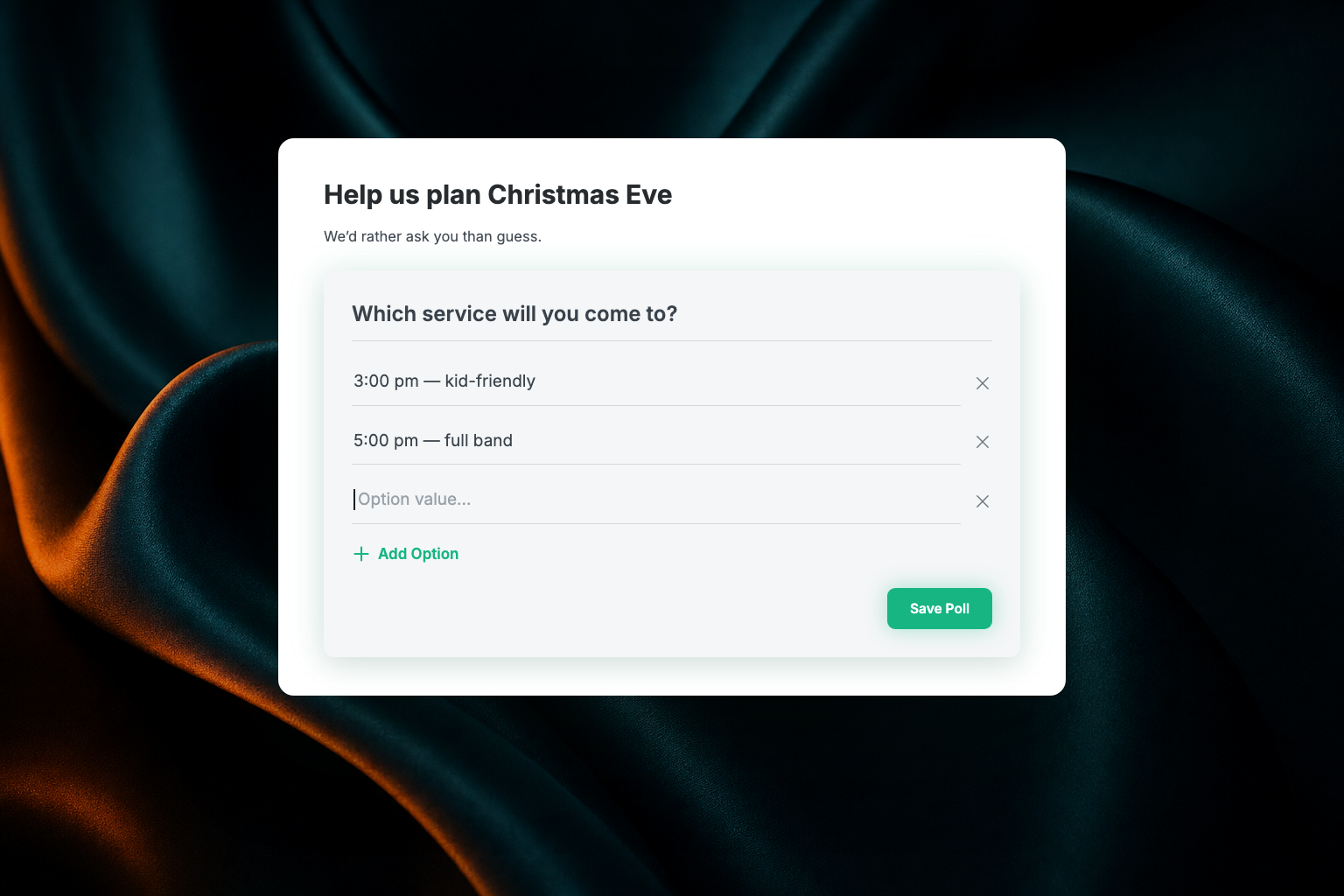
- Add a poll with your question and 2–4 answer options.
- Choose single choice or multiple choice.
- If list assignment is enabled, assign lists to any answer options that should update member lists when selected.
- Publish the content. The poll is live while its status is Active.
Close a poll
When voting should end, set the poll's status to Closed. Members can no longer vote, but results stay visible. Set it to Inactive if you want to hide it entirely.
See how a poll performed
Poll engagement — views, votes, and participation rates — shows up in your analytics, so you can see which kinds of polls resonate with your congregation. See Amplitude for deeper analysis.
Best practices
- Keep it simple — 2–4 answer options get the best engagement.
- Embed in context — attach the poll to relevant content, like a poll about the sermon topic inside the sermon itself.
- Close when done — set polls to Closed when voting should end, so members don't keep interacting with stale questions.
- Review the numbers — use your analytics to learn which poll styles your congregation responds to.
Troubleshooting
Do I still need to enable these features in Organization Profile?
Polls and the new editor are generally available. Their former Organization Profile switches have been removed.
Why can't members vote on my poll?
Check the poll's status — only Active polls accept votes. Also confirm the content item containing the poll is published and visible (see Content troubleshooting).
Can a member vote twice?
Each member gets one vote (or one set of selections in multiple choice). Selecting a different option changes their existing vote rather than adding a new one.
Why was a member added to a list after voting?
That answer option has a list assignment. When the member votes for it, Apollos adds the member to the assigned list. The assignment is not removed automatically if the member changes or clears their vote.
Why aren't my Studio C polls appearing?
The Studio C integration needs polls enabled. See Studio C for setup, or contact Apollos support.