


Sharing content, streaks & habits
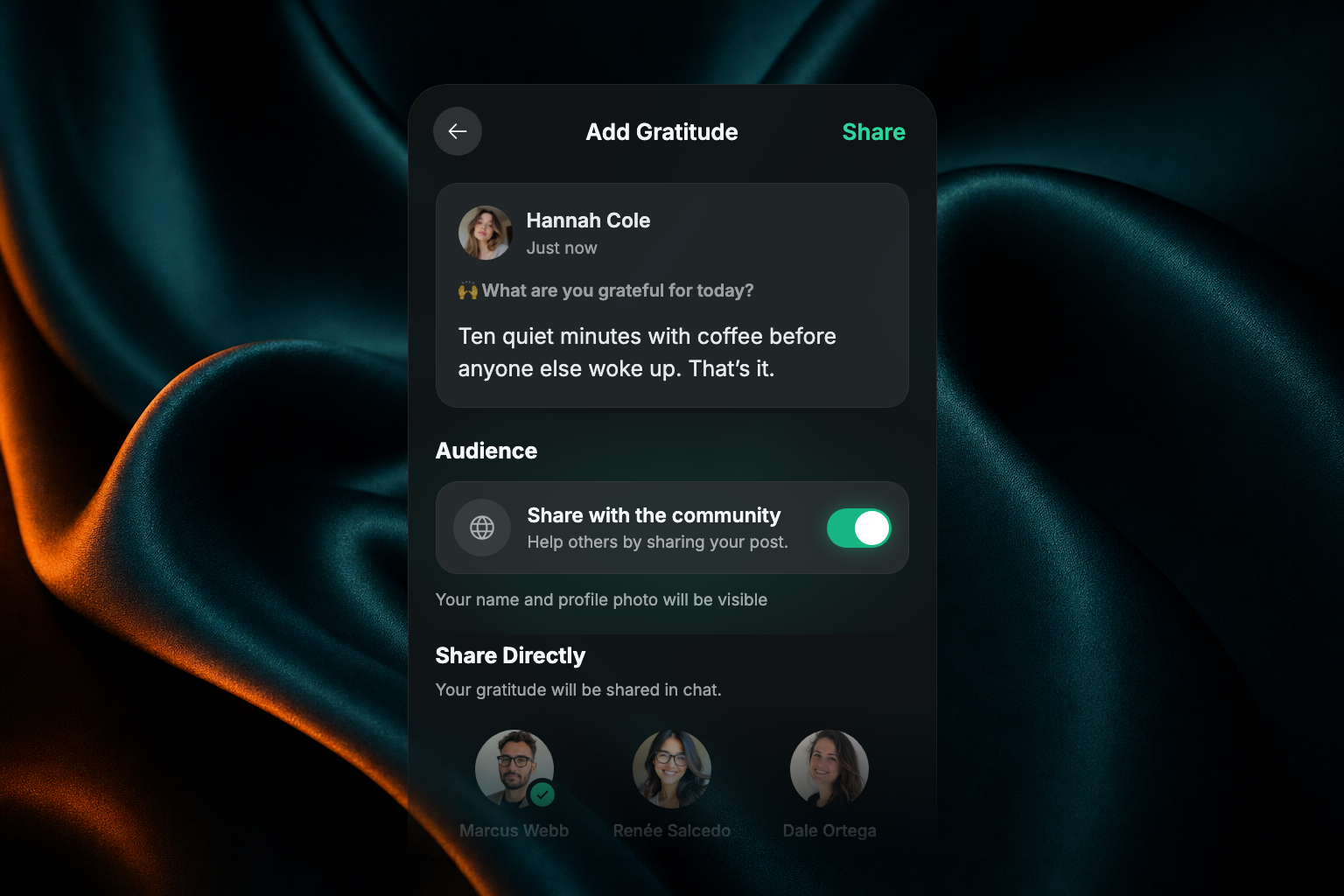
Your church's app helps you grow a daily spiritual rhythm — Gratitude, Prayer, and Scripture — and makes it easy to share messages, articles, and other content with friends.
How it works
Daily Habits live in the Daily tab. Each day you complete all three practices — Gratitude, Prayer, and Scripture — your streak grows, one day at a time. The app keeps a history of everything you've done, and you can share any piece of content from the app with anyone, whether or not they use the app.
Complete your daily habits
Open the Daily tab. At the top you'll see The Daily, with Practice your daily habits now beneath it.
Tap Start to begin. The app guides you through the practices in turn — usually Gratitude, then Prayer, then Scripture, though your church can set a different order.
After each practice you'll return to the Daily tab, where the button now says Continue. Tap it to move to the next habit.
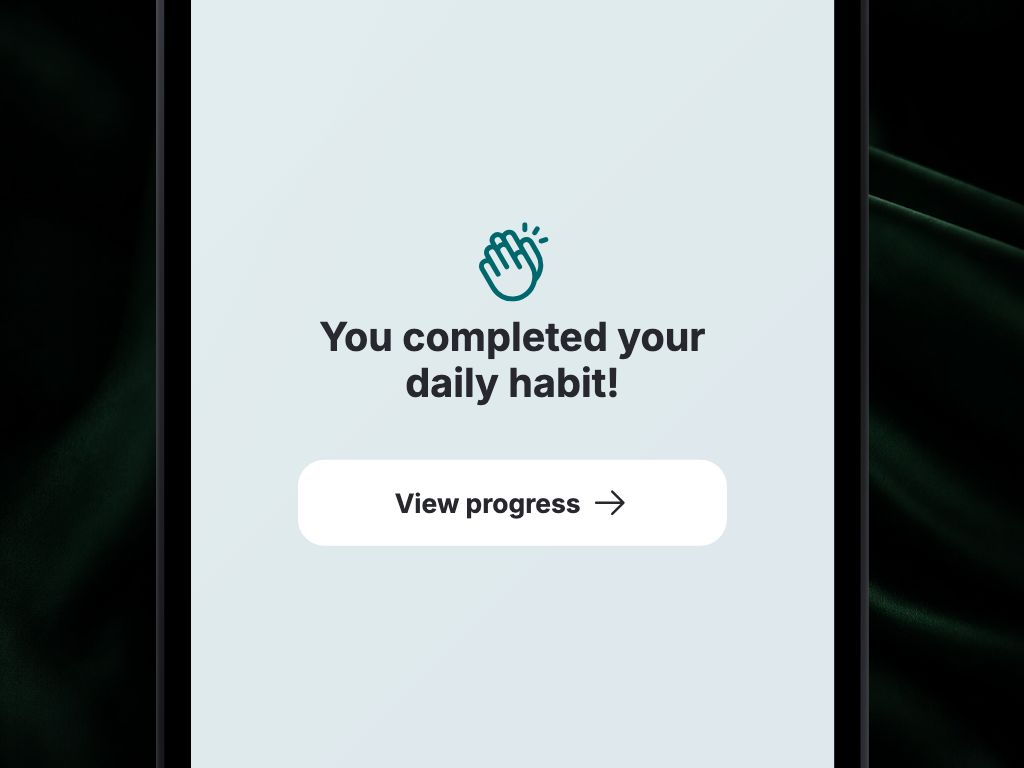
When you're done, a full-screen celebration appears reading You completed your daily habit!, with a View progress button.
Prefer to pick your own order? Scroll down on the Daily tab to see Practice Gratitude, Pray for Others, and Read Scripture individually. Tap any one to start with it. A checkmark appears next to each habit as you complete it.
See your streak
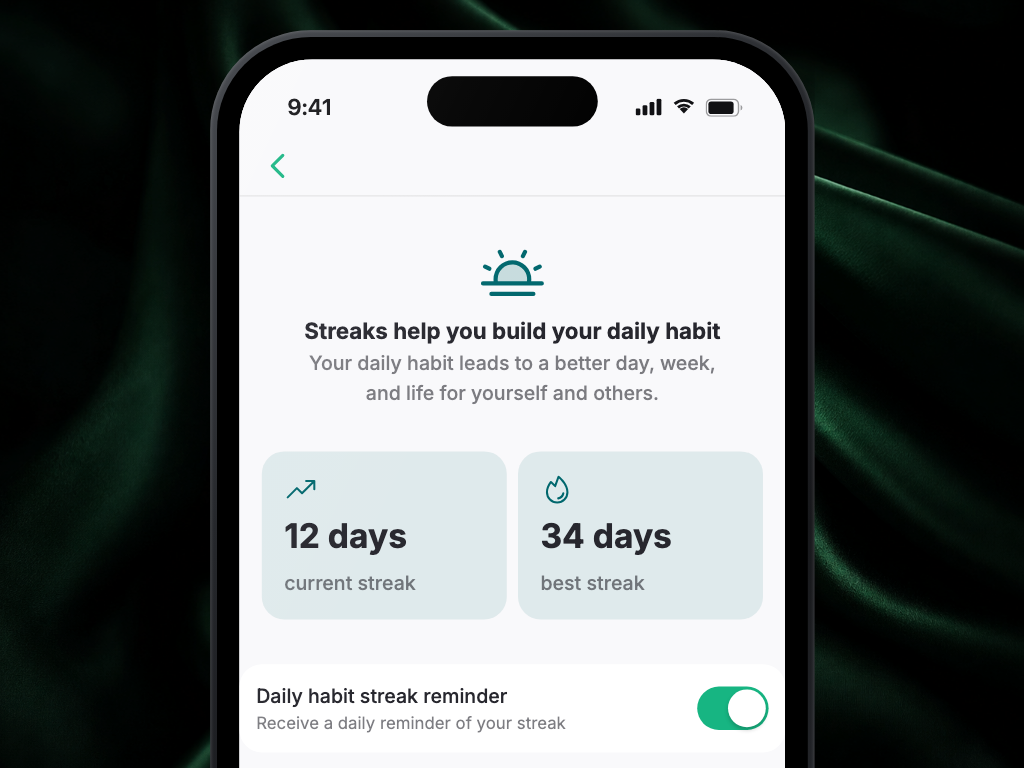
Your streak counts how many days in a row you've completed your daily habits. Tap View History from the Daily tab and you'll see two badges side by side at the top:
- current streak on the left, with an upward-trend icon
- best streak on the right, with the flame icon
Each shows a number of days. They update in real time as you complete habits.
Turn on streak reminders
If the day is almost over and you haven't completed a habit, the app can send you a gentle reminder. These nudges are optional — manage them with the Daily habit streak reminder toggle on the Streaks screen, or see Manage notification preferences.
Review your habit history
- On the Daily tab, tap View History.
- Below your streak badges is a History list. Each row is one week, labelled with its date range, with a mark for each day you completed your habits.
- Tap a day to revisit the daily reading for that date and see everything you did — gratitude entries, prayers, and readings.
It's a simple way to look back and appreciate the rhythm you've built over time.
Share content with others
You can share anything in the app — an article, message, image, or video:
Find the content you want to share.
Tap the share icon (an arrow pointing outward).
A share menu appears — choose a messaging app, email, social media, or copy the link.
Add a personal note if you'd like, then tap Send or Post.
The person you share with doesn't need the app — the link works for anyone.
Respond to reflection questions
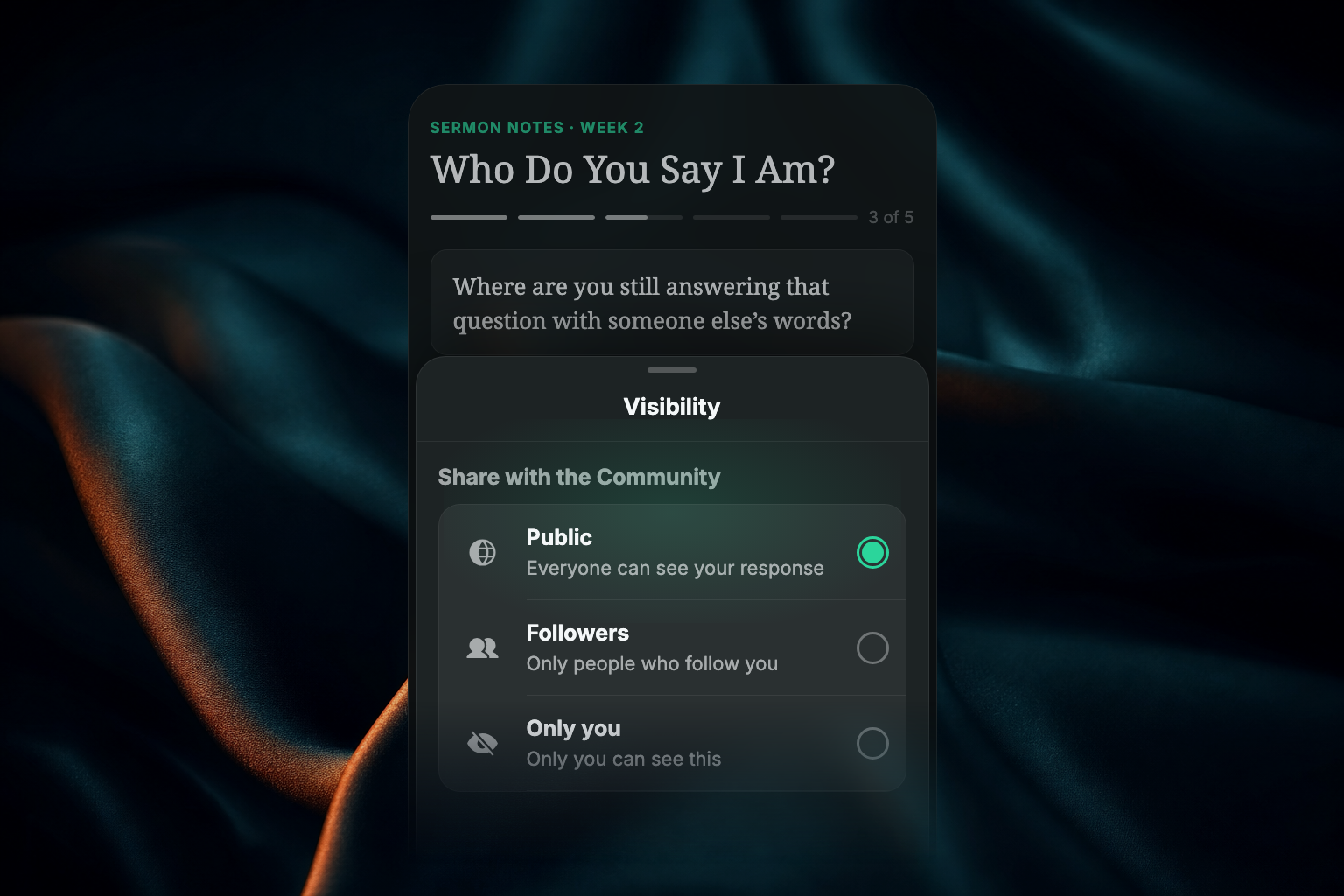
Some content includes a reflection or discussion question. When you respond, choose who can see it:
- Public — anyone who can view the content can see your response.
- Followers — only members who follow you can see your response.
- Only you — your response stays private.
Use Only you for personal journaling or a reflection you are not ready to share.
FAQ
What happens to my streak if I miss a day?
Your streak counts consecutive days, so missing a day resets it. Turning on streak reminders can help — and a fresh start tomorrow counts just the same.
Do I have to complete the habits in order?
No. The Start flow walks you through Gratitude, Prayer, and Scripture in order, but you can also scroll down on the Daily tab and complete them individually in any order you like.
Can I see what I wrote on a previous day?
Yes. Tap View History on the Daily tab, pick a date on the calendar, and you can revisit your entries and that day's reading.
Can I keep a reflection response private?
Yes. Choose Only you before posting your response.