


Apollos Tap (NFC tags)
Apollos Tap is a set of physical NFC tags (each with a QR code backup) that you place around your church — seats, welcome desks, lobby tables — so anyone can tap their phone and instantly land in your giving experience, a specific feed, or any web address. No app download required.
How it works
Each Tap tag has a unique number. In Admin, you assign ranges of tags to Action Groups that define what happens when someone taps:
- Open a Feed — send people to any feed you've built in Admin (a welcome experience, next steps, event info). See Feeds: building your app's home screen.
- Open a URL — send people to any web address.
When a member taps a tag (or scans its QR code), their phone opens the assigned destination. If they have your app installed, it opens directly in the app. If not, they get an instant web experience — and for giving, an App Clip on iPhone where they can give immediately with Apple Pay, then be invited to download the full app. See Tap to give for the giving experience.
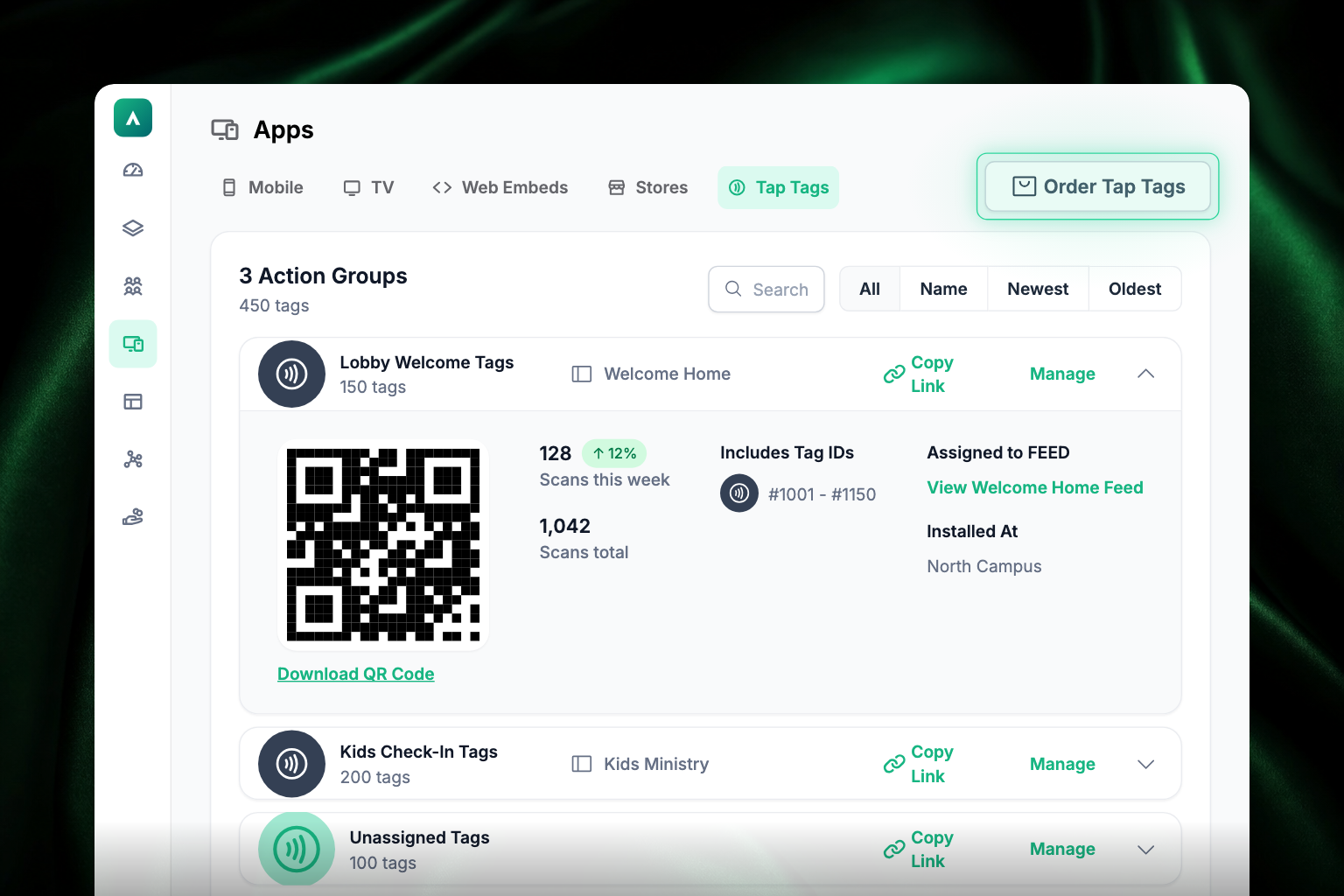
Manage everything at Apps → Tap Tags in Admin (admin.apollos.app/{churchSlug}/apps/tap).
Choose your tag format
Tap tags come in several physical formats to fit different environments:
- Adhesive stickers — stick on pew backs, welcome center counters, or lobby tables
- Screw-mount discs — permanent installation on podiums, kiosks, or walls
- PVC stands — freestanding tabletop displays for lobbies and events
Every tag includes a QR code as a fallback for phones without NFC.
Order Tap tags
- In Admin, go to Apps → Tap Tags.
- Click Order Tap Tags in the top right.
- Follow the prompts to start the ordering process with the Apollos team.
Tags arrive as a batch — a numbered set that appears on your Tap Tags page, ready to assign.
Assign tags to a destination
The easiest way to set up a tag is to scan it:
- Scan the tag with your phone's camera (or tap it).
- Your browser opens the Admin assignment screen for that exact tag.
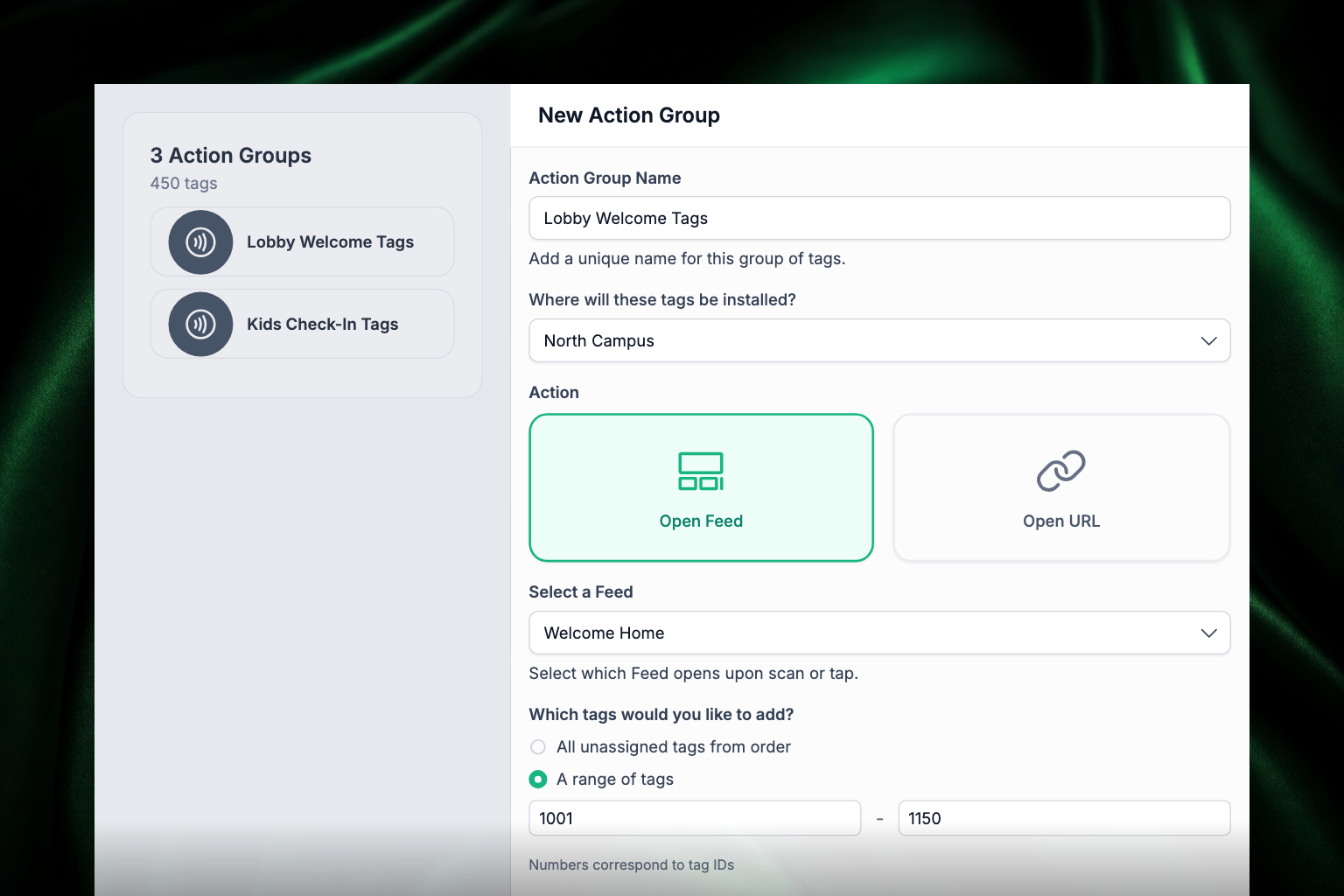
- Choose the action: Open Feed (and pick the feed) or Open URL (and enter the address).
- Name the Action Group — for example, "Welcome Desk" or "Tap to Give".
- Optionally assign a campus, so you can track engagement by location.
- Save. Anyone who taps that tag now lands on your chosen destination.
You can also create and edit Action Groups directly from the Tap Tags page, where you set the tag number range each group covers. For example, in a batch of tags numbered 1000–2000, "Welcome Desk" might cover tags 1000–1050 and open your Welcome feed, while "Guest Center" covers 1051–1100 and opens a different feed. The rest stay unassigned until you need them.
Tip: Setting up several tags for the same destination? Create the Action Group for one tag first, then edit it and widen the tag range to cover all of them.
Edit or remove an Action Group
- Edit — open the Action Group from the Tap Tags page to change its name, destination, campus, or tag ranges. A single group can cover multiple tag ranges.
- Delete — removing a group frees its tags; they show as unassigned and can be reassigned to a new destination at any time.
See how your tags perform
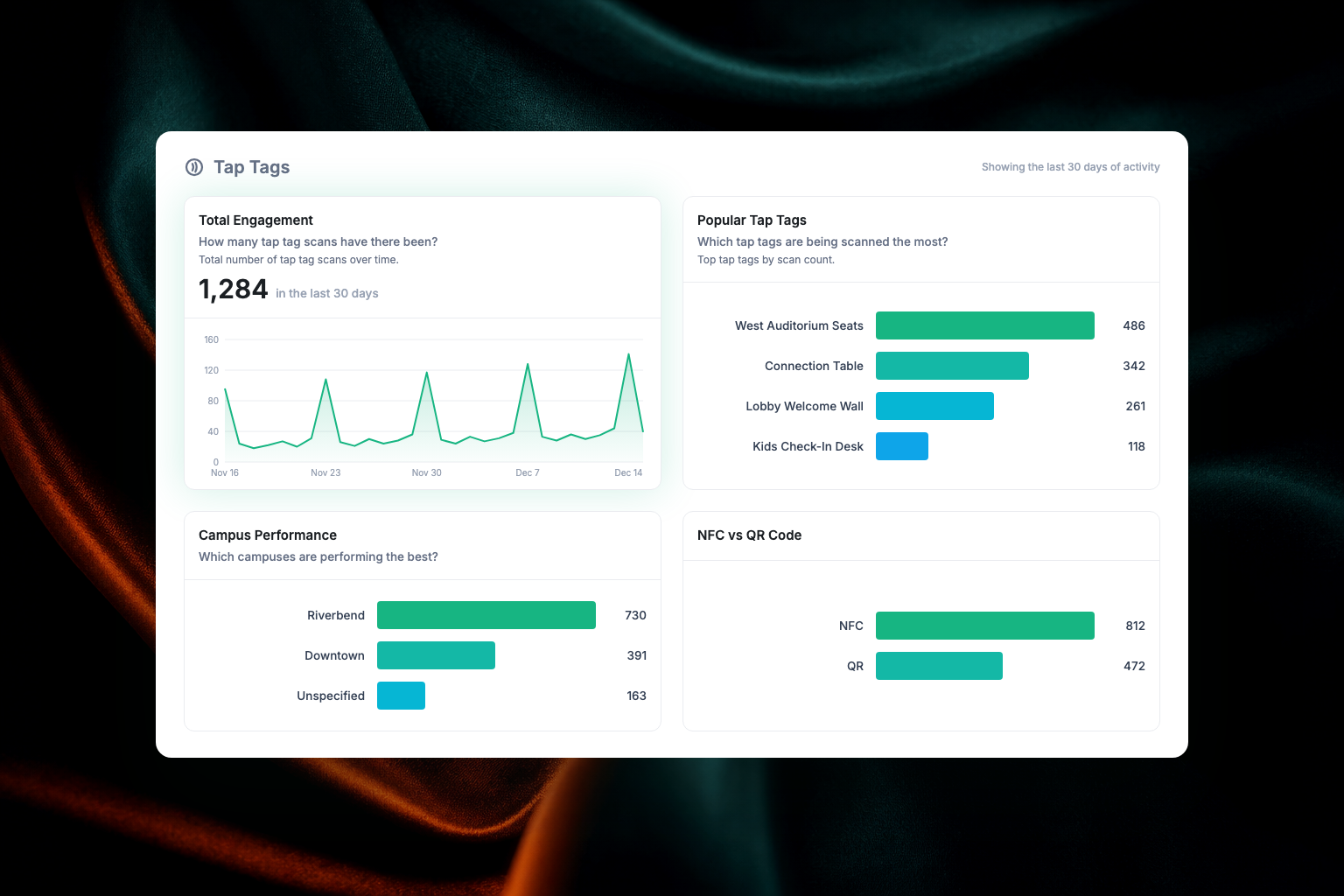
- Dashboard — churches with Tap enabled get Tap analytics: total scans, most popular tags, campus performance, NFC vs. QR breakdown, and top content. See Dashboard: reading your analytics.
- Audience — filter your people by Tap activity (for example, "everyone who scanned a tag in the last 30 days"), and see scan history on individual member profiles. See Audience: manage your people.
Best practices
- Place tags at high-traffic touchpoints: entrances, seats, offering stations, welcome centers.
- Add clear signage explaining what tapping does — "Tap to Give" or "Tap to Connect".
- Use campus-specific Action Groups so you can compare engagement by location.
- Test tags with several phone models before deploying widely.
Troubleshooting
Why does nothing happen when someone taps a tag?
The tag probably isn't assigned to an Action Group yet. Check the Tap Tags page — if its number falls in the "unassigned" range, scan it and assign it (or widen an existing group's range to include it).
Why does a tag open the wrong feed?
Its Action Group points at the wrong destination. Edit the group on the Tap Tags page and choose the correct feed or URL — the change applies to every tag in that group.
Why do I see an "already claimed" error when scanning a tag?
That tag's number is already covered by another Action Group. Find which group covers that range on the Tap Tags page and edit it, rather than creating a new one.
Why am I getting a range error when creating an Action Group?
The range you entered goes beyond your batch's tag numbers, or overlaps a range another group already covers. Check the batch's tag range and the existing groups, and adjust your numbers.
Why is the unassigned count higher than I expected?
Deleting an Action Group frees its tags — they reappear as unassigned. They're available to assign to a new destination.
Why is campus filtering missing data in analytics?
Campus is recorded at scan time, so older scans (before a campus was assigned) won't carry campus data. New scans will.
How long until a brand-new tag works?
Tags assigned in Admin take effect right away. For brand-new orders, the Apollos team confirms tags are fully active before they ship — if a fresh tag isn't responding after setup, contact Apollos support.