


Studio C
Studio C is a third-party integration that adds gamification, targeted content, messaging, and polls to your Apollos app — popular with churches that want to reward engagement with badges and achievements or add interactive polls to their content.
How it works
Once connected, Studio C tracks member engagement and powers four features inside your app: badges for completing actions, content targeted by behavior, in-app messages and push notifications, and interactive polls embedded in content. Studio C content appears through your app's feed configuration, using dedicated content types (Studio C Badges and Studio C Messages).
Plan availability
| Studio C feature | Available on |
|---|---|
| Embedded dashboard | Go and Max |
| Badges | Max |
| Personalized messages | Max |
Set up Studio C
- In Admin, go to Data → Catalog.
- Find the Studio C integration and enter your Studio C credentials.
- Confirm the workflows are running in Data → Status.
Important: duplicate ChMS profiles are the most common cause of Studio C integration failures. If you're having issues, check for and resolve duplicate member profiles in your ChMS first — see Integration troubleshooting.
Badges
Studio C powers a badge and achievement system: members earn badges for completing actions in the app, which encourages ongoing engagement. To show badges:
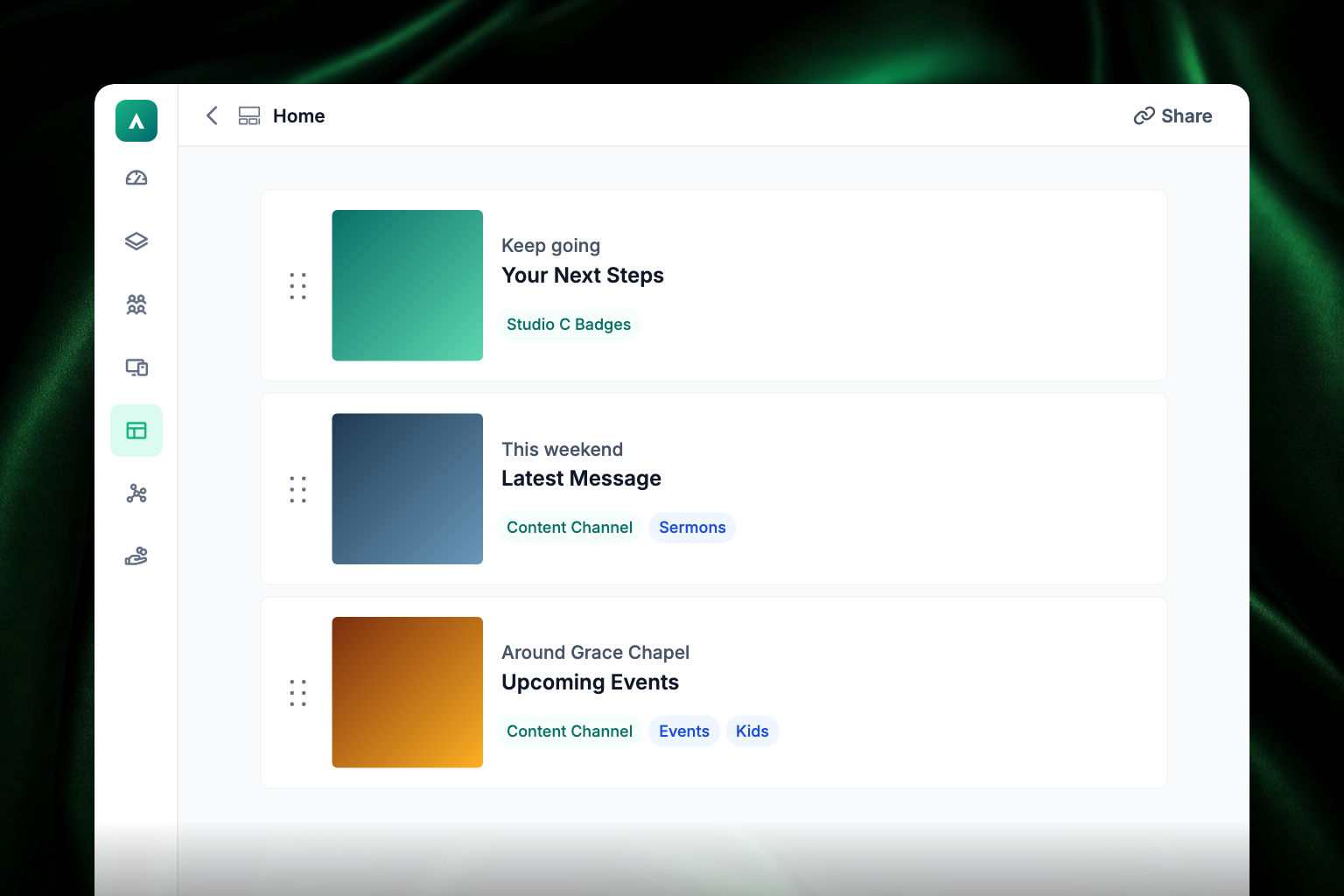
- Go to Feeds in the left sidebar (it's a top-level section, not inside Apps) and open the feed you want the badges to appear in.
- Add a section, and set its content to Studio C Badges.
- Choose a Studio C Badge Type: All (the default), Next Step, or Milestone.
- Click Save Changes. You don't pick a layout — Studio C Badges always uses the Badge List layout, so Apollos selects it for you.
Targeted content & messaging
Studio C delivers content based on member behavior — showing specific content to members based on their actions and engagement patterns. This works alongside Apollos' built-in campus and persona personalization (see Personalization: tags & audiences).
- Use the Studio C Messages content type in your feed sections to surface targeted content.
- Studio C can also send push notifications and in-app messages targeted by engagement data from its platform.
Polls
Studio C can power interactive polls inside your content:
- Set STUDIOC.ENABLE_POLLS to "True" in your app configuration.
- Polls created in Studio C sync to Apollos and can be embedded within content items.
Apollos also supports native polls created directly in the platform — see Polls for both options.
Poll activity (views, option selections, submitted and failed votes) is tracked in your analytics, including Amplitude if connected — see Amplitude for deeper analysis.
Troubleshooting
Why aren't Studio C polls showing in my app?
Verify STUDIOC.ENABLE_POLLS is set to "True" in your configuration. This is the setup step that gets missed most often.
Why is the Studio C integration failing?
Check for duplicate member profiles in your ChMS — this is the most common cause. Resolve the duplicates, then re-check the integration.
Why aren't badges appearing?
Make sure a feed section using the Studio C Badges content type exists in the feed that tab points at. Feeds live in the Feeds section of the sidebar.
Why does sync seem stale?
Check Data → Status for the Studio C workflow. Toggle the integration off and back on in Data → Catalog to trigger a fresh sync.