


How data sync works
Apollos keeps your app in sync with your Church Management System (ChMS) and other connected integrations through automated background sync. Understanding how sync works — and how to monitor it — helps you set expectations for your team and troubleshoot issues quickly.
How it works
Sync runs automatically in both directions:
- Into Apollos — people, groups, events, content, campuses, and giving funds are pulled from your connected systems on a regular schedule.
- Back to your ChMS — when someone signs up in the app, their profile is created in your ChMS. Donations are matched to people and recorded in your ChMS. Profile changes, recurring gift updates, refunds, and prayer requests submitted in the app sync back too.
If a sync attempt fails (for example, because of a brief network issue), Apollos automatically retries it a few times with increasing delays before marking it as failed — so most hiccups resolve themselves without any action from you.
Your ChMS is the source of truth. Changes you make directly in Apollos Admin to synced data — people, group membership, event details, synced content — will be overwritten on the next sync cycle. Make those changes in your ChMS instead. Content created directly in Apollos (manually or with Creator AI) lives natively in Apollos and is never overwritten by sync.
Synced groups are always read-only in Apollos. Manage membership and leader roles in your church management system and Apollos mirrors them into Communities. For supported integrations, synced group leaders become community hosts.
Sync timing
- Regular sync cycle — most data changes appear in Apollos within the hour.
- Time-sensitive data — events and prayer requests update more frequently.
- Groups — sync on a 60-minute cycle.
- Settings changes — configuration is cached for up to 5 minutes, so after changing a setting, wait a few minutes before expecting it to take effect. App queries are also briefly cached, which can add a short additional delay.
Monitor sync health in the Status tab
The Data → Status tab is your primary tool for monitoring sync. Each row is a sync workflow — a job that syncs data from one of your integrations.
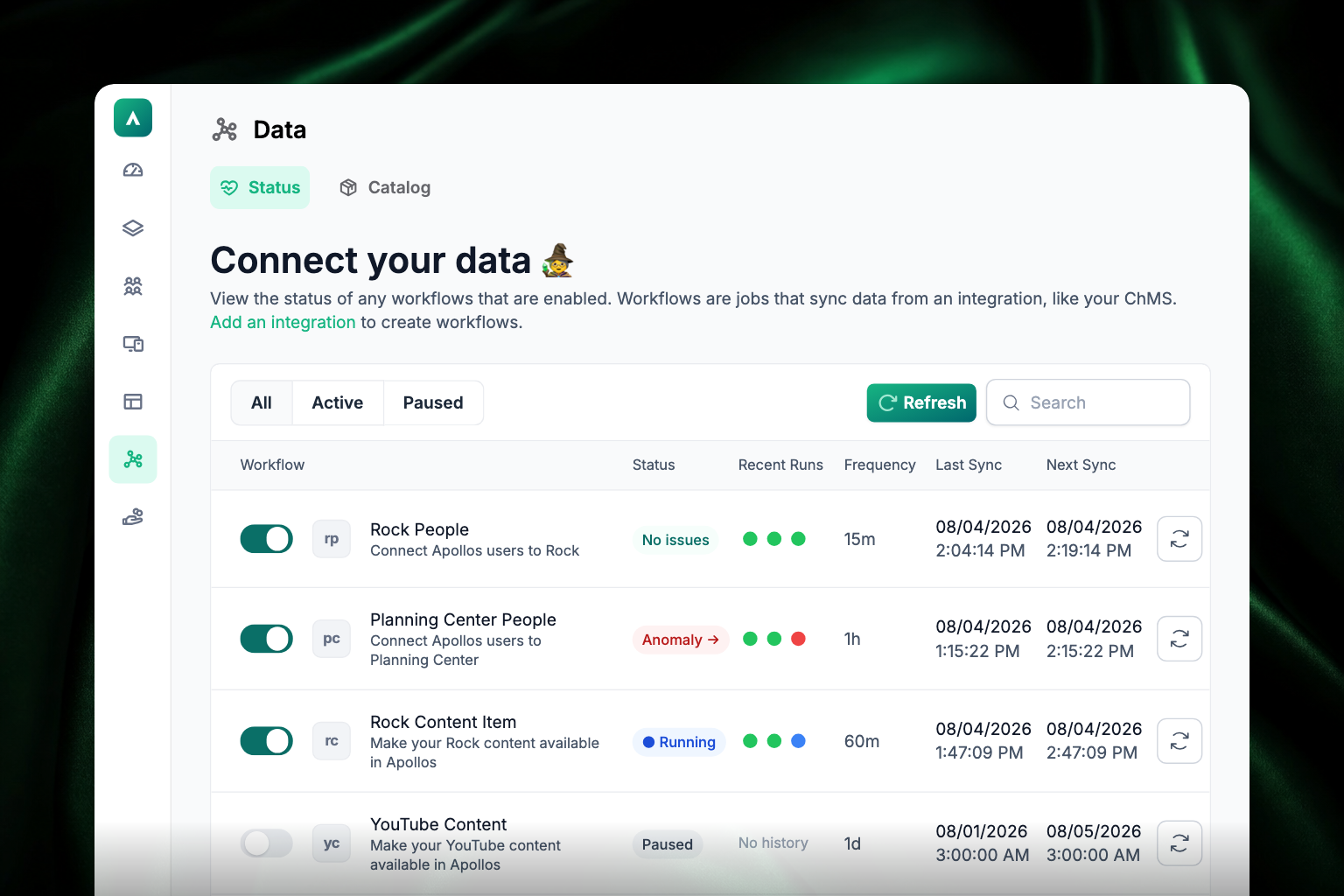
The workflow table shows:
- Toggle switch — enable or pause a workflow.
- Workflow — which integration and data type it syncs.
- Status — No issues, Running, Anomaly, or Paused. An Anomaly badge is a link — click it to see what Apollos noticed.
- Recent Runs — up to three dots for the last three runs, oldest to newest. Green means the run succeeded, red means it failed, blue means it's still going. A workflow that hasn't run yet reads No history.
- Frequency — how often it syncs (for example, every 15 or 60 minutes).
- Last Sync — when data last synced successfully.
- Next Sync — when the next sync is scheduled.
- Refresh button — at the end of each row, re-check that workflow's status.
Use the All, Active, and Paused filters to narrow the list, and the search bar to find a specific workflow. The page doesn't update on its own — click Refresh at the top right to pull the latest status.
Force a full re-sync
If data looks stale or a workflow appears stuck:
- Go to Data → Catalog.
- Find the integration and toggle it off.
- Toggle it back on. This triggers a fresh, full sync.
Troubleshooting
How often does WordPress content sync?
Apollos checks your WordPress site for new and updated posts on a regular schedule. If your church publishes far more often than that — or far less — the schedule can be adjusted for you; ask your Apollos contact. A full re-check of the whole site still runs on its own slower schedule. See Configuration reference.
Why isn't my data syncing?
- Check Data → Status — is the workflow active or paused?
- Look at the workflow's Recent Runs dots and Last Sync time. Red dots or a stale last-sync time tell you the job is failing rather than idle.
- Verify the integration's credentials are still valid in Data → Catalog.
- Toggle the integration off and back on to force a re-sync.
Why do my changes in Apollos keep getting overwritten?
This is expected. Your ChMS is the source of truth — make changes to synced data there, and they'll flow into Apollos on the next sync.
Why hasn't my settings change taken effect?
Settings are cached for up to 5 minutes. Wait a few minutes, then check again. If sync failures keep recurring, note the pattern (time of day, specific data types) and report it to Apollos support.