


Tap to give
Tap to give lets anyone in your building give by simply tapping their phone on a physical Apollos Tap tag — no app download required. It's the most popular use of Apollos Tap, and churches that pair Tap tags with Apple Pay consistently see strong giving engagement.
How it works
Apollos Tap tags use NFC — the same tap technology as contactless payments. When someone taps a tag (or scans its built-in QR code) that's pointed at giving:
- If they have your app installed, it opens directly to the giving flow.
- If they don't have the app, they get an instant giving experience — an App Clip on iOS or a web giving page — where they can give immediately with Apple Pay. Afterward, they're prompted to download your full app.
Either way, the gift flows through your normal giving pipeline: it appears in Giving → Transactions in Admin and syncs to your church management system like any other gift.
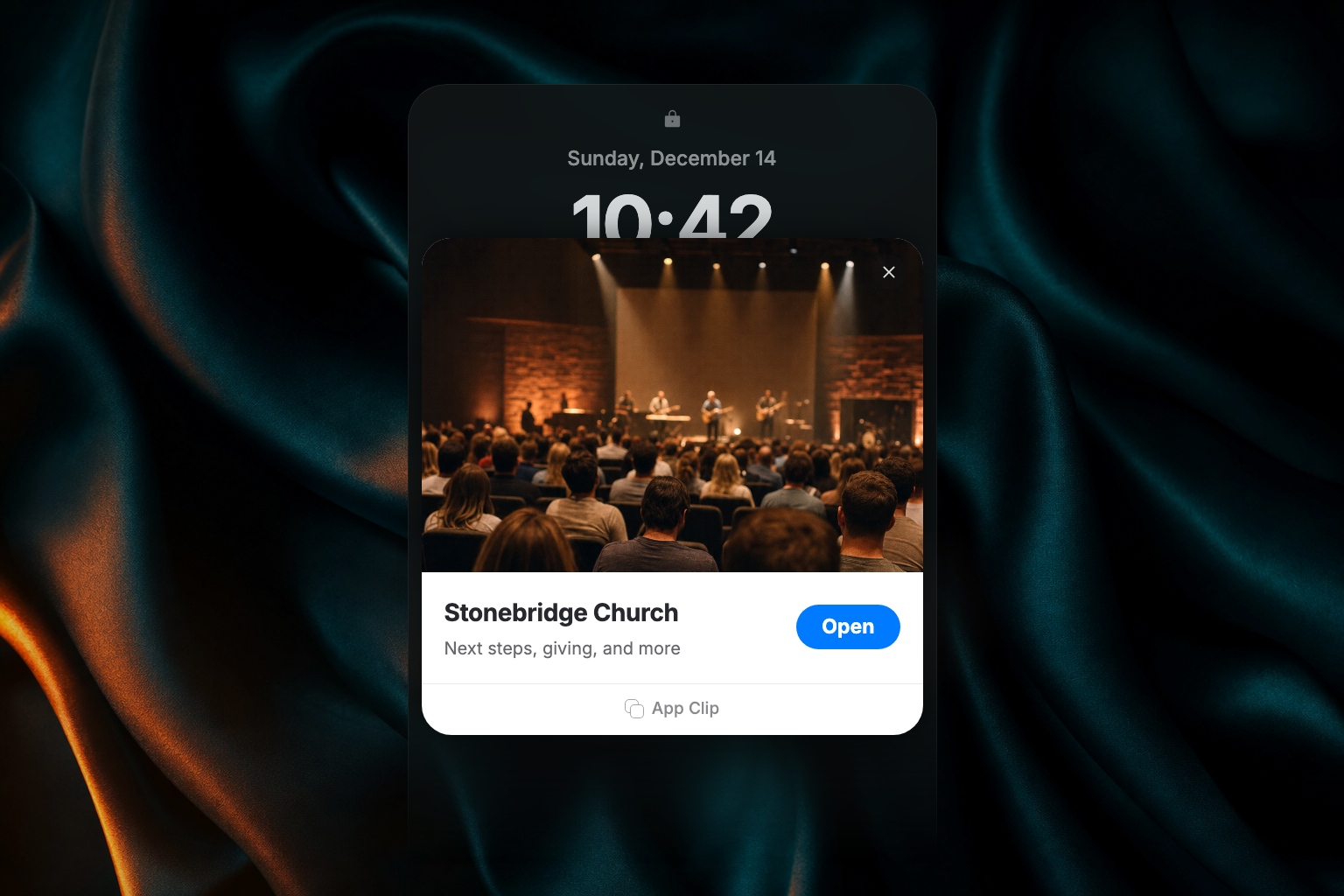
Point a Tap tag at giving
Tap tag hardware and management live in Admin under Apps → Tap Tags — see Apollos Tap for the full setup guide. To use a tag for giving:
- In Admin, go to Apps → Tap Tags.
- Assign the tag to an Action Group that opens your giving experience.
- Place the tag where people give.
Every tag includes a QR code fallback, so people with phones that can't tap can still scan to give.
Where should I place giving tags?
- High-traffic touchpoints — entrances, seat backs, offering stations, welcome centers.
- With clear signage — a simple "Tap to Give" label tells people exactly what will happen.
- Numbered by campus — campus-specific tag numbering lets you track engagement by location.
- Tested first — try tags with a few different phone models before deploying widely.
Troubleshooting
Why was someone's tap-to-give blocked?
App Clip and web giving check that the giver is in the United States, for regulatory compliance. A visitor on a VPN or an international connection will be blocked in those flows — they can still give through the full app. See Payment methods.
A tap opened the wrong thing — how do I fix it?
Check which Action Group the tag is assigned to in Apps → Tap Tags. Updating the Action Group changes what every tag in that group does — no need to touch the physical tags.