


Join & participate in communities
Communities are the groups in your church's app — small groups, ministry teams, classes — where you can chat, share prayer requests, and stay connected with the people in your group.
How it works
You'll find communities in the Community tab of your church's app. Public communities are open for anyone to join; unlisted communities are joined through an invite link or QR code from your group leader. Once you're in, each community has its own chat, prayer requests, and updates.
Before joining community chat, you need a birthdate on your profile so the app can apply its protections for minors. If prompted, add your birthdate to continue.
Find and join a community
Tap the Community tab in your church's app. It opens on My communities — the ones you're already in.
Tap Find communities in the top right. You'll see a list headed Public Communities, each one a card with its picture, name, and how many members it has.
Tap View Profile on a community that interests you.
Tap Join. You'll have access right away — you may be asked to verify your phone number first.
Joining an unlisted community: your group leader will share an invite link or QR code. Tap the link or scan the code to join.
Chat with your community
- Tap into the community to open the chat.
- If you're asked to verify your phone number, enter it — this is a one-time step before you can view or send messages.
- Type your message at the bottom of the screen and tap Send. If you attach an image, keep it 5 MB or smaller.
Share and pray for prayer requests
- Submit a prayer request: share a prayer with one or more of your communities, with your name visible or anonymously.
- Pray for others: tap Prayed For on a request to let the person know you're praying. You can pray once per request.
- Mark as answered: if you submitted a prayer, you can mark it Answered and share how it was answered.
Community members get a notification when a new prayer request is shared in their group. For the full details, see Submit & manage prayer requests.
Vote in polls
Your church may include polls in community content:
- Single choice polls let you pick one answer; multi choice polls let you pick several.
- You can change your vote after submitting.
- Polls show as Active (you can vote) or Closed (voting ended, results visible).
Follow people
Following lets you connect with friends and see their activity — like their prayer requests appearing first in your prayer feed.
Find people to follow
Tap your profile picture in the upper-left corner of the screen.
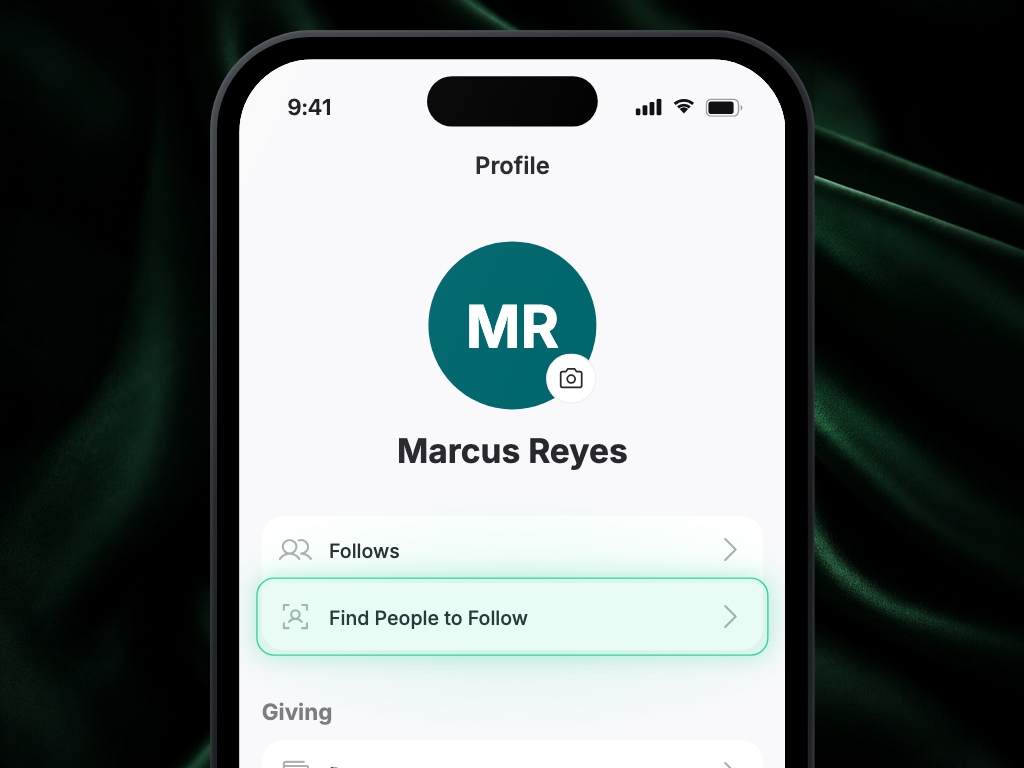
Tap Find People to Follow. It's the second row in the first group of options.
Start typing a name. Suggested people show while the box is empty; once you type, they're replaced by matches.
Tap Follow next to anyone you'd like to follow.
Accept follow requests
- Tap the bell icon to open the Activity Center.
- Tap a Follow request notification — it takes you to your profile.
- In Follows, tap New to see who has requested to follow you.
- Tap Accept to accept, or Hide to hide the request.
You can also get there anytime from your profile: tap your profile picture, then Follows — a New badge appears when you have requests waiting.
See who you follow and who follows you
- Tap your profile picture, then tap Follows.
- You'll see three tabs:
- Following Me — people who follow you (new requests appear here too)
- I'm Following — people you follow
- Hidden — people whose requests you've hidden
Leave a community
Open the community's chat, tap the community's name at the top of the screen to open its profile, scroll down to the Leave Community card, and tap it. You can rejoin a public community anytime, or ask for a new invite link for an unlisted one.
FAQ
Why is the app asking for my phone number before I can chat?
Chat requires a verified phone number — it's a one-time step that helps keep community conversations safe.
Why can't I send a photo in chat?
Photos sent in chat must be 5 MB or smaller. Choose a smaller photo or reduce the file size, then try again. Other kinds of file have their own limits, so a file that's too big for chat may still be fine elsewhere in the app.
Why does the app need my birthdate before I can chat?
Your birthdate lets your church keep conversations between adults and younger members appropriate. Add it in your profile, then open the community chat again.
What does verifying my phone number do?
It confirms the number belongs to you, which keeps your church's chats trustworthy and makes sure chat notifications reach you. You only do it once, and your number isn't shown to other members.