


Push notifications & messaging
Push notifications keep your members engaged with your church between app opens — alerting them to new chat messages, prayer requests, community invites, comments, follow requests, and daily habit reminders. Members control what they receive, and you control what your app sends.
How it works
Apollos uses OneSignal, a push notification delivery service, to reach iOS and Android devices. When something happens in the app that should notify someone:
- Apollos checks the member's notification preferences.
- If they want to hear about it, OneSignal delivers a push notification to all of their registered devices.
- Tapping the notification opens the app directly to the relevant screen — the chat, the prayer, the community.
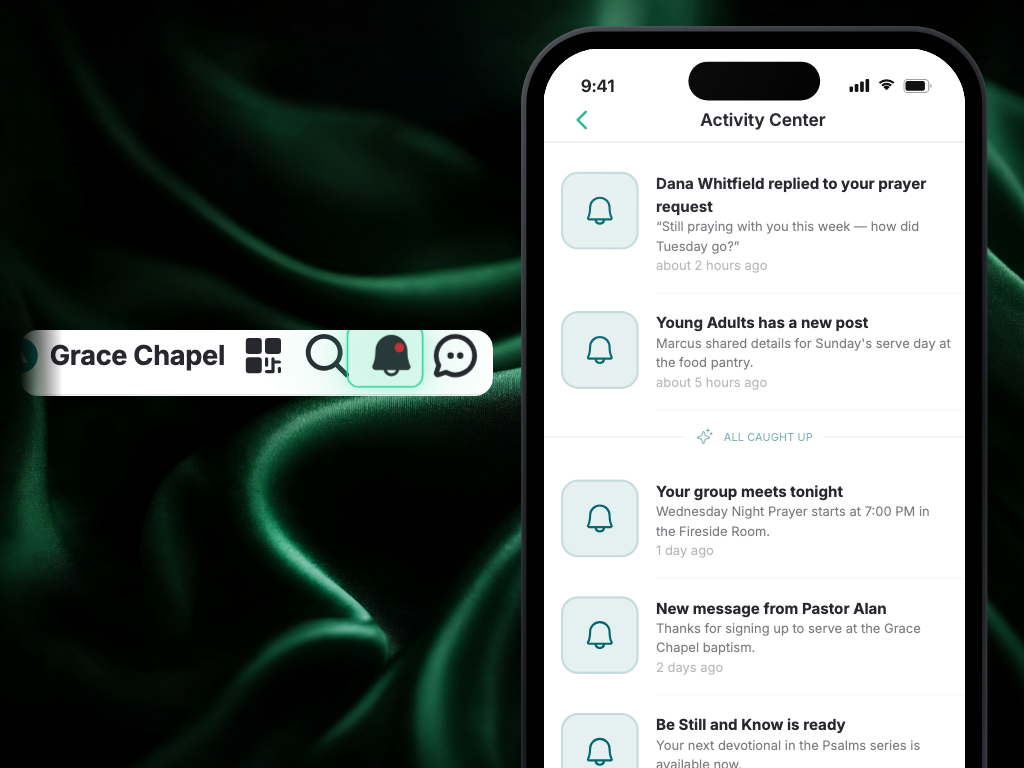
Every notification also lands in the Activity Center — the bell icon in the app header. It works as a notification inbox where members can review follow requests, prayer updates, community invites, and more, even if they missed (or disabled) the push.
How a member's device gets connected
When a member installs your app and grants notification permission, their device registers automatically and is linked to their account. A member with multiple devices (phone and tablet) gets notifications on all of them. If your church uses Rock RMS, registered devices also sync to Rock, so Rock-triggered communications can reach them too.
If permission is never granted — or the registration didn't happen — that member can't receive push notifications, no matter what else is configured. This is the first thing to check when one person isn't getting notified.
Notification types
Each type is triggered by a specific event in the app:
| Type | Trigger | Example |
|---|---|---|
| MESSAGE | New direct or community chat message | "John sent you a message" |
| COMMENT | Someone commented on content | "Sarah commented on your post" |
| COMMUNITY_DISCUSSION | New discussion post in a community | "New discussion in Youth Group" |
| COMMUNITY_INVITE | Invited to join a community | "You've been invited to join..." |
| COMMUNITY_PRAYER | New prayer shared in a community | "A prayer was shared in..." |
| DAILY_HABIT_REMINDER | Scheduled daily reminder | "Time for your daily devotional" |
| DISCUSSION_REPLY | Reply to a discussion they're part of | "John replied to your discussion" |
| FOLLOW_REQUEST | Someone wants to follow them | "Sarah started following you" |
| PRAYER | Someone prayed for their request | "Someone prayed for your request" |
| PRAYER_REQUEST | New prayer request from someone they follow | "New prayer request from..." |
| SCRIPTURE_JOURNAL | Scripture journal entry shared | "New journal entry shared" |
Who controls what
Members control their own experience
- Global toggle — turn all push notifications on or off from their profile settings.
- Per-conversation — set each chat to All messages, Only mentions, or Nothing. See Chat & moderation.
- Daily habit reminders — toggle the daily reminder on or off and set a preferred time.
These are managed by the member in the app — they aren't configurable from Admin.
You control what your app sends
You can disable specific notification types for your entire church — for example, turning off FOLLOW_REQUEST notifications everywhere, or disabling daily habit reminders if your church doesn't use them. Members never receive a disabled type, regardless of their personal settings. Contact your Apollos support team to configure this.
Set up OneSignal
Push delivery requires two values from your church's OneSignal account:
- In the OneSignal dashboard, go to Settings → Keys & IDs.
- Copy the App ID and the REST API key.
- Share them securely with your Apollos contact, who will add them to your app's configuration. Treat the REST API key like a password — don't post it anywhere public.
Until these are configured, no push notifications are delivered (this is normal for apps still in setup).
Send a broadcast notification
Broadcasts let you push an announcement to your members — service changes, weather closures, big event reminders.
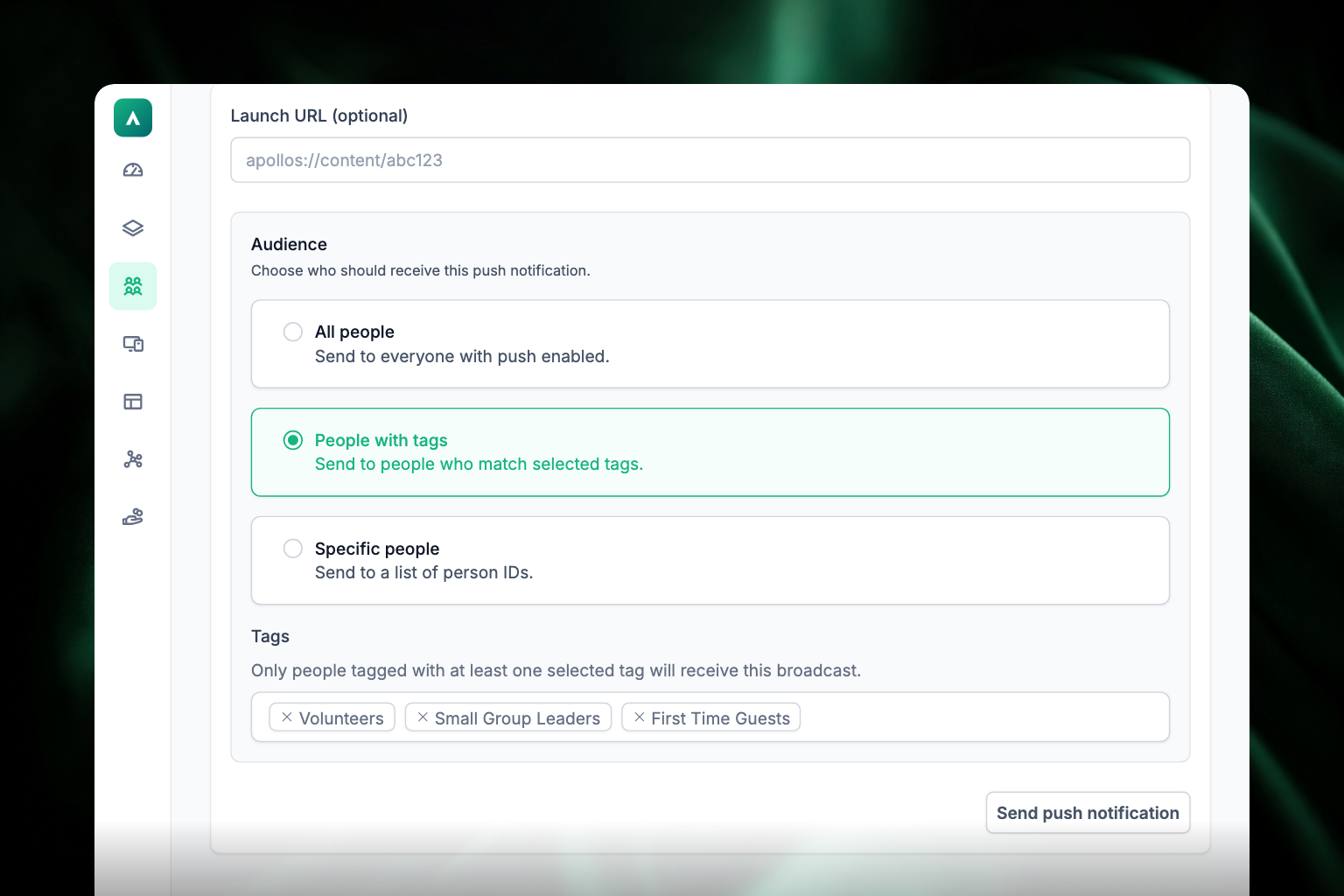
- In Admin, go to Audience → Push Notifications. (This tab isn't turned on for every church; if you don't see it, ask your Apollos contact.)
- Fill in Title — the bold line members see first.
- Fill in Body — the message itself.
- Optionally add a Launch URL to send people to a specific screen when they tap the notification. Leave it blank and the notification just opens the app.
- Under Audience, pick who receives it:
- All people — everyone with push enabled.
- People with tags — pick one or more tags. Anyone with at least one of them receives it.
- Specific people — paste a list of individual member IDs, separated by commas or spaces. This one is for narrow, deliberate sends; it's not a member picker you can browse.
- Click Send push notification.
Large broadcasts are delivered in batches behind the scenes, so a churchwide send can take a few minutes to reach everyone.
Target a campus
There's no campus option in the broadcast composer. To reach one campus, use tags:
- Tag members by campus, then choose People with tags and select that campus's tag. For Rock RMS churches, campus tags sync into member tags automatically, so the audience stays aligned with members' current campus assignments. See Personalization: tags & audiences.
- Rock RMS churches can also send campus-targeted push from Rock itself using the apollos-onesignal plugin. It has to be installed and configured — ask your Apollos contact. This is Rock-specific and isn't available with other ChMS integrations.
- Campus records in Apollos come from your ChMS and are read-only here. Keep them complete and active in your ChMS (name, address, image, online vs. physical) for accurate targeting and the best app experience.
Best practices
- Don't over-notify. Disable notification types your church doesn't use to prevent notification fatigue.
- Encourage opt-in. Members are prompted to enable notifications during onboarding — emphasize the value (prayer updates, community messages) to lift opt-in rates.
- Use tag targeting to keep notifications relevant and reduce noise for members at other campuses.
- Monitor engagement. Notification delivery and taps are tracked in your analytics tools, so you can see which types drive the most app opens — see Engagement metrics.
Troubleshooting
Can members control which prayer notifications they get?
Yes. Prayer has its own settings alongside a member's other notification preferences, so each member decides whether to hear about prayer activity — someone praying for their request, a new update, or a prompt to share how a prayer is going. You don't manage this for them; point members to Manage notification preferences.
Why isn't a member receiving any notifications?
Work through these in order:
- Is their global notification toggle on? They can check in their app profile settings.
- Did they grant notification permission on their phone? On their device: Settings → [your app] → Notifications must be set to allow. This is the phone's setting, not the app's.
- Is their device registered? Have them log out and back in. If that doesn't work, reinstall the app and accept the notification permission prompt.
- Is the notification type disabled church-wide? If your church disabled that type, this is working as intended.
- Is OneSignal configured for your app? If nobody at your church gets notifications, the OneSignal keys are the likely culprit — see "Set up OneSignal" above.
- Still stuck? Contact Apollos support with the member's name, the notification they expected, and roughly when.
Why isn't a member getting chat notifications?
- Check their per-conversation setting — "Only mentions" and "Nothing" suppress most or all messages. See Chat & moderation.
- Blocked senders never trigger notifications for the person who blocked them.
- Were they actively using the app? Online members see messages in real time and may not get a push.
- Otherwise, run the general checklist above.
Why did a daily reminder stop arriving?
- Is the daily reminder toggled on in the member's app settings?
- Has your church disabled DAILY_HABIT_REMINDER church-wide?
- Is their device registered? (Log out/in, or reinstall.)
- If all of those check out, contact Apollos support with the member's name and timezone.
Why didn't my broadcast arrive?
- Allow a few minutes — large broadcasts are delivered in batches.
- Check your targeting — did the tags you chose actually include the members you expected?
- Spot-check a recipient against the general checklist above (permissions, registration).
- If the broadcast still seems lost, contact Apollos support with the send time and the audience you targeted.
Why are members getting duplicate notifications?
Usually a broadcast was sent more than once — often from retrying a send that actually succeeded, or an automation running twice. Check your send history before resending. If duplicates happen without a duplicate send, contact Apollos support with the member's name, the notification type, and the times the duplicates arrived.
Why does tapping a notification open the wrong screen?
- Daily habit reminders always open the daily tab — that's by design.
- For any other type, note the notification type and the screen the member expected, and contact Apollos support — incorrect destinations are a bug we want to know about.
A member got a new phone — why did notifications stop?
They need to open the app on the new device (and accept the notification prompt) so the new device registers. The old device's registration stops working on its own.
Why is the red badge number on the app icon stuck?
The badge count increments with each notification and resets when the app is opened. A stuck-high badge usually just means the app hasn't been opened recently. If badges stay wrong even after opening the app, contact Apollos support — persistent badge issues typically need an app update.