

Connect Claude or ChatGPT to Apollos
Connect an AI assistant such as Claude or ChatGPT to Apollos, and you can ask it to find your church's content, write drafts in your church's voice, and schedule them, without leaving the assistant.
How it works
Apollos offers a connector (an MCP server) that AI assistants can add. Each person on your team connects their own assistant by signing in with their Apollos account, and the assistant then works in Apollos as that person. It works with Claude, ChatGPT, and other assistants that support custom MCP connectors, such as Cursor and Grok.
Two settings decide what an assistant can do:
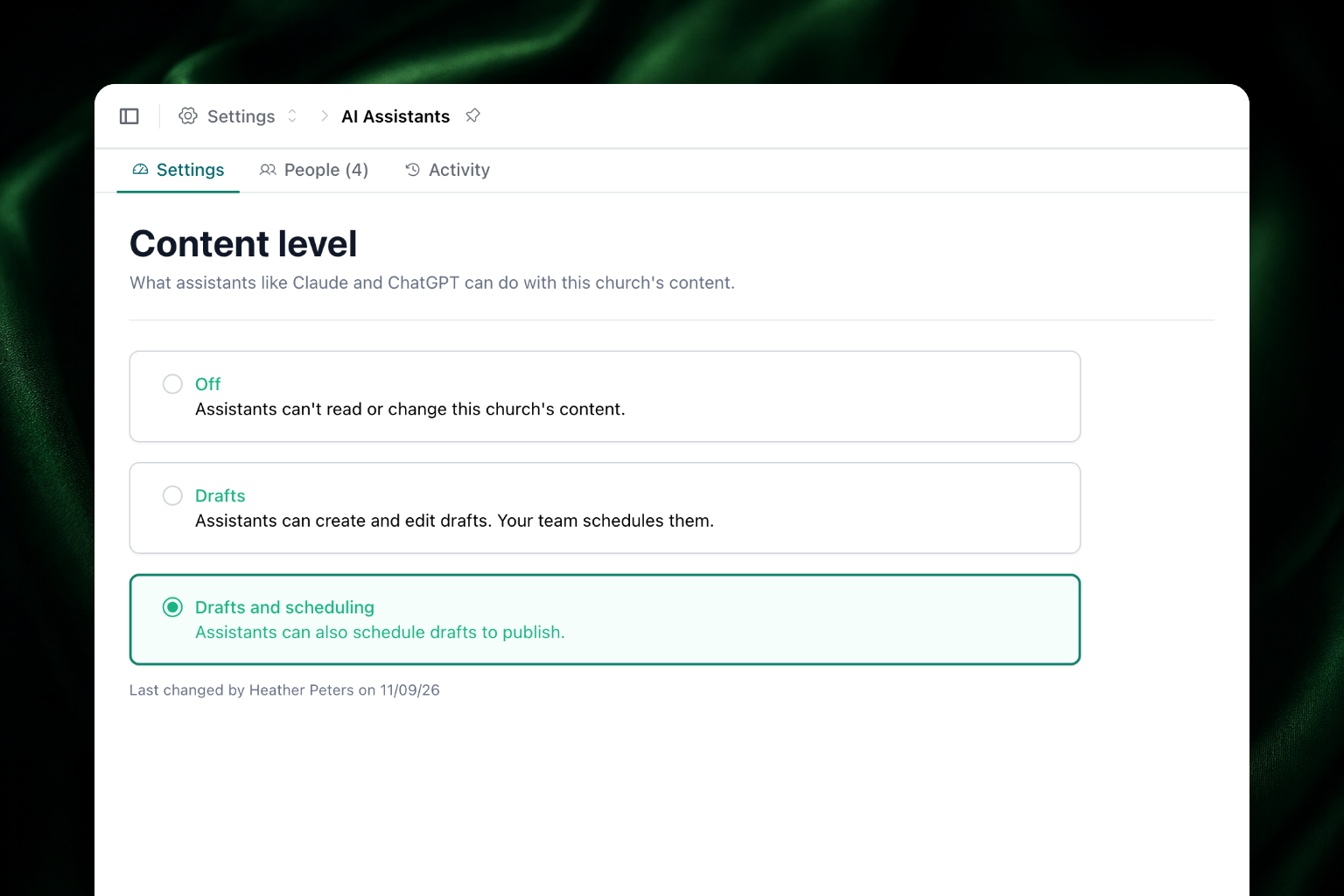
- Your church's Content level, set by an Organization Admin on the AI Assistants page. It applies to every assistant connected to your church:
- Off: Assistants can't read or change this church's content. This is where every church starts.
- Drafts: Assistants can create and edit drafts. Your team schedules them.
- Drafts and scheduling: Assistants can also schedule drafts to publish.
- The permissions each person approves when they connect. An assistant can always read content, and the person chooses whether it may also Write drafts and Schedule content.
An assistant can only do what both allow. For example, if your church is set to Drafts and scheduling but someone connected without Schedule content, their assistant can draft but not schedule.
A few things are always true:
- Nothing reaches members without a person. An assistant never publishes anything right away. It writes drafts, and it only schedules a draft when the person asks it to.
- Assistants can't change published content. They can only change drafts and scheduled items.
- Everything an assistant changes is recorded. You can see each change on the AI Assistants page.
- Your content is treated as data, not instructions. If the text of a content item tells the assistant to do something, it ignores it.
Apollos is turning this on for churches gradually. If you don't see AI Assistants in Admin, ask your Apollos contact.
Turn on AI assistants for your church
You need to be an Organization Admin to do this.
- In the bottom-left corner of Admin, click your profile icon, then click AI Assistants.
- On the Settings tab, under Content level, choose Drafts or Drafts and scheduling.
The change saves right away. Below the choices, Admin shows who last changed the level and when.
Connect your assistant
Anyone on your team who can work on content in Admin can connect an assistant once your church's Content level is on.
- In Admin, open AI Assistants and copy the address under How to connect. If you can't open that page, ask an Organization Admin for the address.
- Add the address to your assistant as a custom connector:
- Claude: go to Customize, then Connectors, then + Add, then Add custom connector. On a Team or Enterprise plan, an owner adds it in Organization settings. See Claude's guide.
- ChatGPT: go to Plugins, click +, then Add custom MCP server. See ChatGPT's guide.
- Other assistants: follow your assistant's steps for adding a custom MCP server.
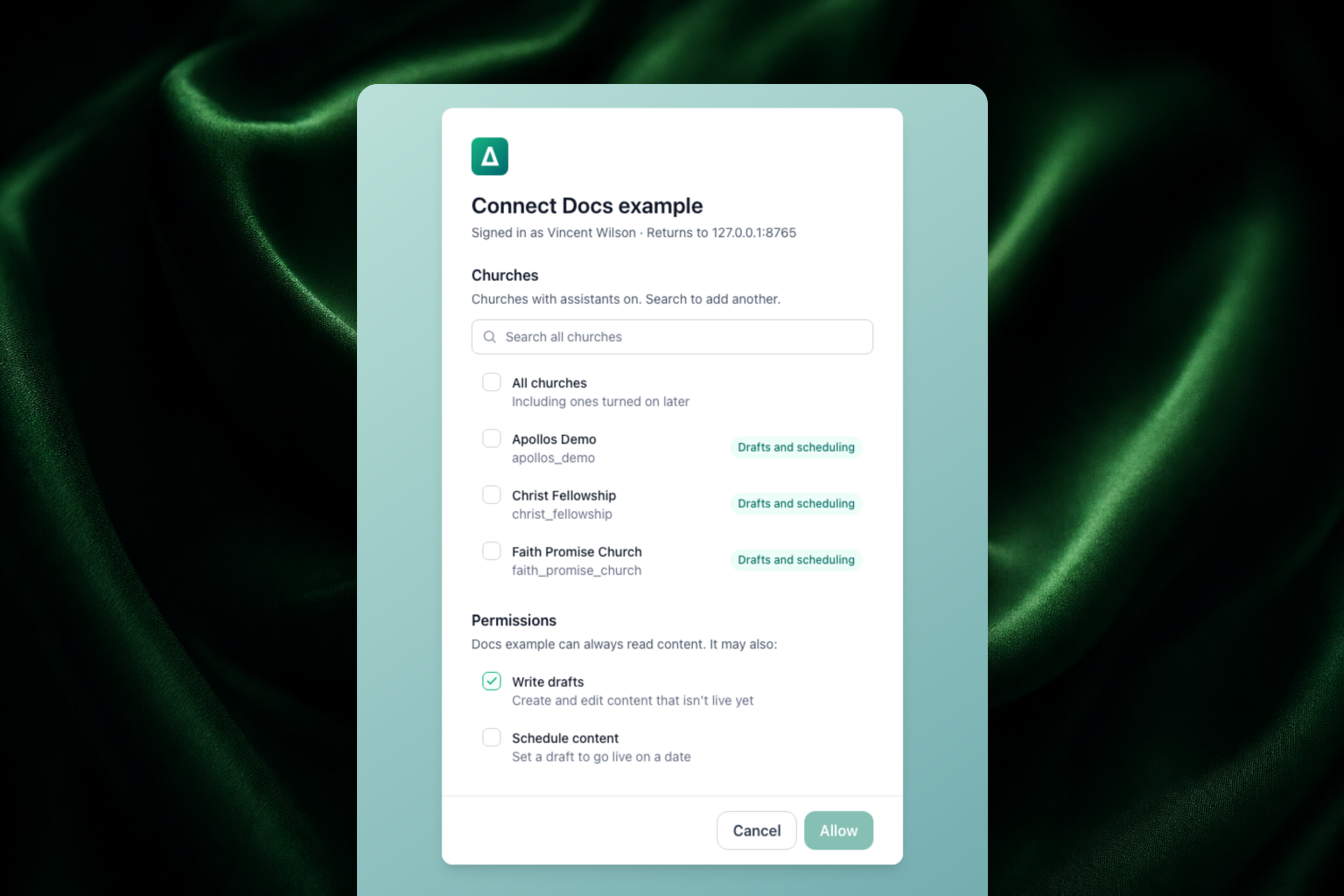
- When the assistant sends you to Apollos, sign in with your Apollos account. Apollos shows a page titled Connect assistant name, with the name you're signed in as and the site you'll return to.
- Pick your church (see Choose your churches and permissions).
- Choose the permissions you want to give the assistant.
- Click Allow. Apollos sends you back to your assistant.
If you change your mind, click Cancel instead. Nothing is connected.
Choose your churches and permissions
Churches. If you're on the team at one church, it's the only one shown. If you work with several, Apollos lists the ones where assistants are already on. Search to find another, then check each church you want this assistant to reach. The button shows how many you picked, such as Allow for 2 churches.
A church whose Content level is Off can't be picked. If you're an Organization Admin there, you can pick a level for it right on this page to turn assistants on. Otherwise you'll see Ask an admin at church to turn this on.
Permissions. The page says the assistant can always read content, and it may also:
- Write drafts: Create and edit content that isn't live yet. This starts checked.
- Schedule content: Set a draft to go live on a date. This starts unchecked, so scheduling is always a deliberate choice.
To change these choices later, disconnect the assistant and connect it again.
Ask your assistant for help
Once you're connected, ask for what you want and name your church, such as "Find this week's sermon at Grace Church and draft a devotional from it." If you work with more than one church, the assistant checks which one you mean before it writes anything.
The assistant can:
- Find and read content: search your content by title, date, collection, or status (including drafts), read an item's blocks and settings, find your video, audio, and images, and check which blocks your church can use.
- Learn your church's voice: read your church's profile, including its voice, Bible translation, collections, tags, and recent items, so its drafts sound like you.
- Write drafts: create up to 7 drafts at a time, such as one for each day of a week, each with up to 12 blocks. A draft can have text, questions, buttons, scripture, events, polls, timers, expandable sections, recall blocks, link embeds, webviews, connect buttons, images, video, and audio. It can also write guides with separate pages, and set a summary, tags, discussions, an end date, a series, video or audio, and a cover.
- Edit drafts and scheduled items: change the title, settings, and blocks. It can rewrite plain text, question, and button blocks, and add, remove, or replace other blocks. Before it changes a scheduled item, it tells you when it goes live and asks you to confirm.
- Schedule drafts: schedule up to 7 drafts at a time to go live on their dates. It shows you each title and date and asks you to confirm first. It never schedules anything to go live right away.
If someone edits the same draft in Admin while the assistant is working, their edits are kept. The assistant shows you what changed and asks before it writes over anything.
Limits
- Each connection can make up to 60 requests a minute. That's high enough that you'll only reach it if something has gone wrong. The assistant is told how many seconds to wait.
- An assistant can't change published content, items that weren't made in the content editor, or blocks with links or formatting. Edit those in Admin.
- Drafts can only use the blocks your church has turned on.
- Scheduling needs a plan that includes publishing.
See who's connected and what changed
Organization Admins can see every connection and change on the AI Assistants page.
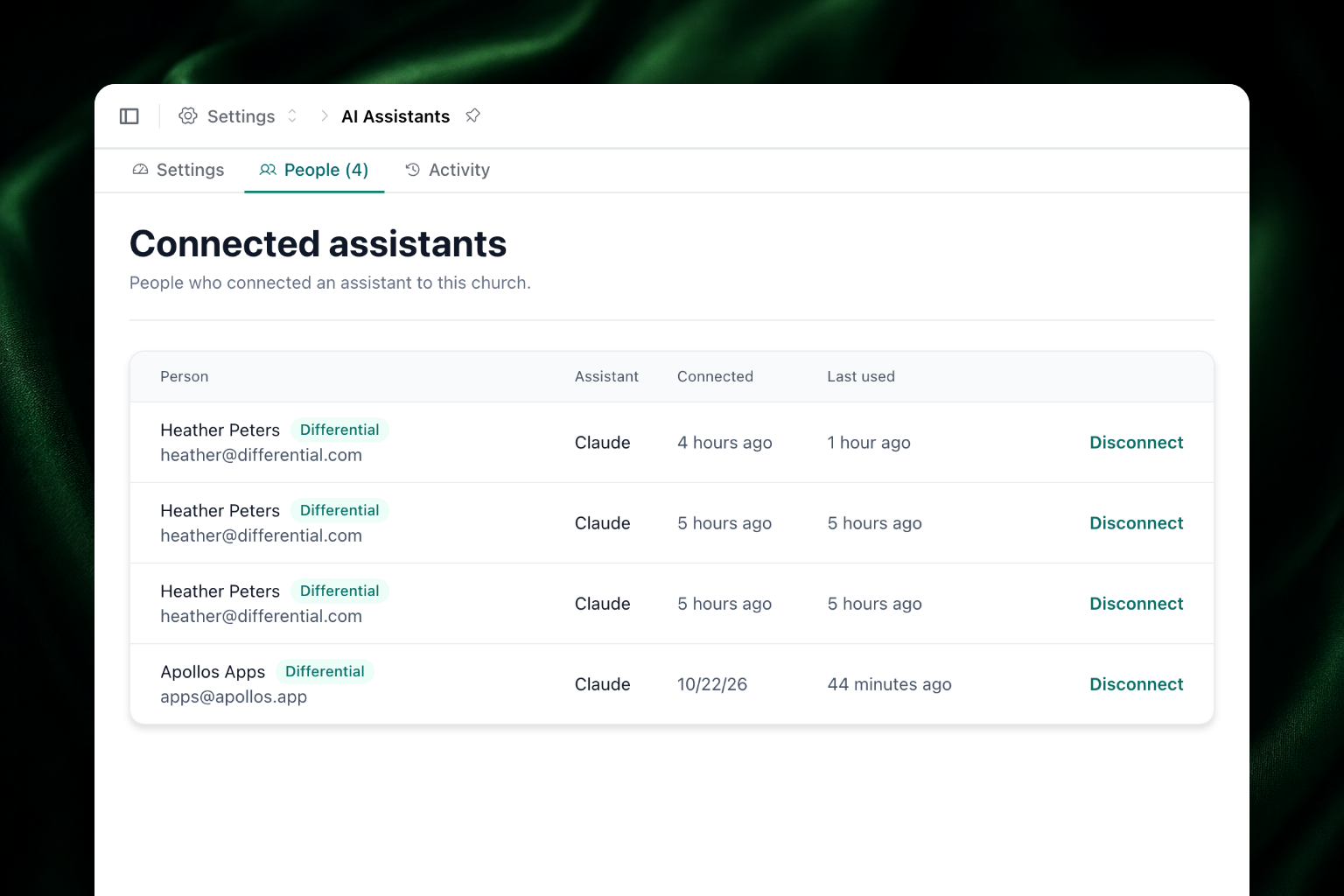
- People tab: Connected assistants lists each person who connected an assistant to your church, with the assistant, when they connected, and when they last used it. Apollos staff are marked Differential.
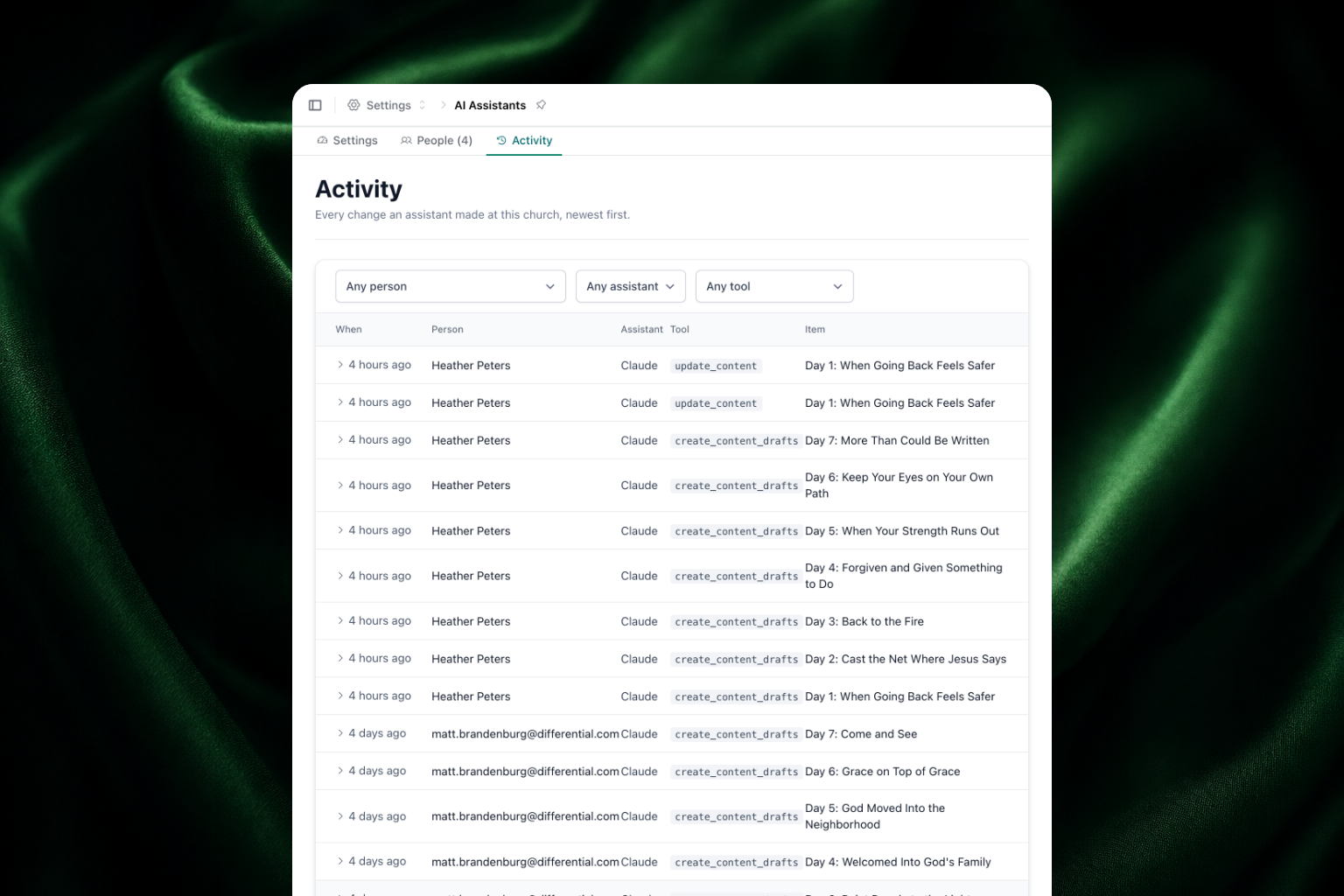
- Activity tab: every change an assistant made at your church, newest first, with when, the person, the assistant, the tool it used, and the item. Click a row to see each field before and after the change. Filter by person, assistant, or tool, and click Show older to see more.
Disconnect an assistant
To remove one person's assistant:
- Open AI Assistants and go to the People tab.
- Click Disconnect on their row.
- Confirm. The button and message depend on the connection:
- Disconnect: the assistant loses access to your church. The person can connect it again later.
- Remove from this church: the person connected this assistant to other churches too. It loses access to yours and keeps the others.
- Disconnect everywhere: the connection covers every church, so it loses access to all of them.
To stop every assistant at once, set Content level to Off on the Settings tab. Admin asks you to confirm with Turn off AI assistants? and says how many people will lose access. Everyone loses access right away, but their connections stay, so switching the level back on restores access without anyone connecting again.
You can also remove Apollos from your assistant's own connector settings.
Troubleshooting
Why don't I see AI Assistants in Admin?
Only Organization Admins see the page, and only once Apollos has turned the feature on for your church. Ask your Apollos contact if you think it should be on.
Why does my assistant say "Assistants are turned off at this church"?
Your church's Content level is Off. An Organization Admin can turn it on from the Settings tab on the AI Assistants page.
Why does my assistant say "This connection was not allowed to schedule content"?
You didn't check Schedule content when you connected. Disconnect the assistant and connect it again, and check Schedule content when Apollos asks.
Why does my assistant say "This church allows drafts only"?
Your church's Content level is Drafts, so assistants can't schedule. An Organization Admin can change it to Drafts and scheduling, or someone on your team can schedule the draft in Admin.
Why does my assistant say "This item is published, so it cannot be changed here"?
Assistants can only change drafts and scheduled items. Make the change in Admin.
Why does my assistant say "This person no longer has access to that church in Admin"?
The person who connected the assistant no longer has access to that church. An Organization Admin can check their role on the Team page.
Why can't I pick my church when I connect?
The church's Content level is Off. If you're an Organization Admin there, pick a level next to the church. Otherwise, ask an admin at that church to turn assistants on. If the church still can't be picked, Apollos hasn't turned the feature on for it yet; ask your Apollos contact.
Why does the Connect page say "You cannot connect an assistant for any church"?
Your Apollos account can't connect an assistant to any church yet. Make sure you have access to content in Admin, and that your church has turned on assistants.
Why does the Connect page say "This sign-in has ended" or "This sign-in link is not complete"?
The sign-in took too long or the link was cut short. Go back to your assistant and connect again.
Why does my assistant say "This connection made too many calls in the last minute"?
The connection reached the limit of 60 requests a minute. Wait the number of seconds the message gives, then try again.