


Migrate donors to Apollos
When your church moves to Apollos Giving from another provider, your recurring donors need to re-establish their gifts in Apollos. This page explains what donors do, how to track their progress, and what to expect along the way — using a Pushpay migration as the worked example.
Migrating is one of two paths. If your church isn't ready to leave its current provider, the Apollos Pay package adds Apple Pay and Google Pay express giving to your app while your existing provider keeps handling traditional gifts — no donor migration required. The rest of this page covers the full migration path to Apollos Giving.
How it works
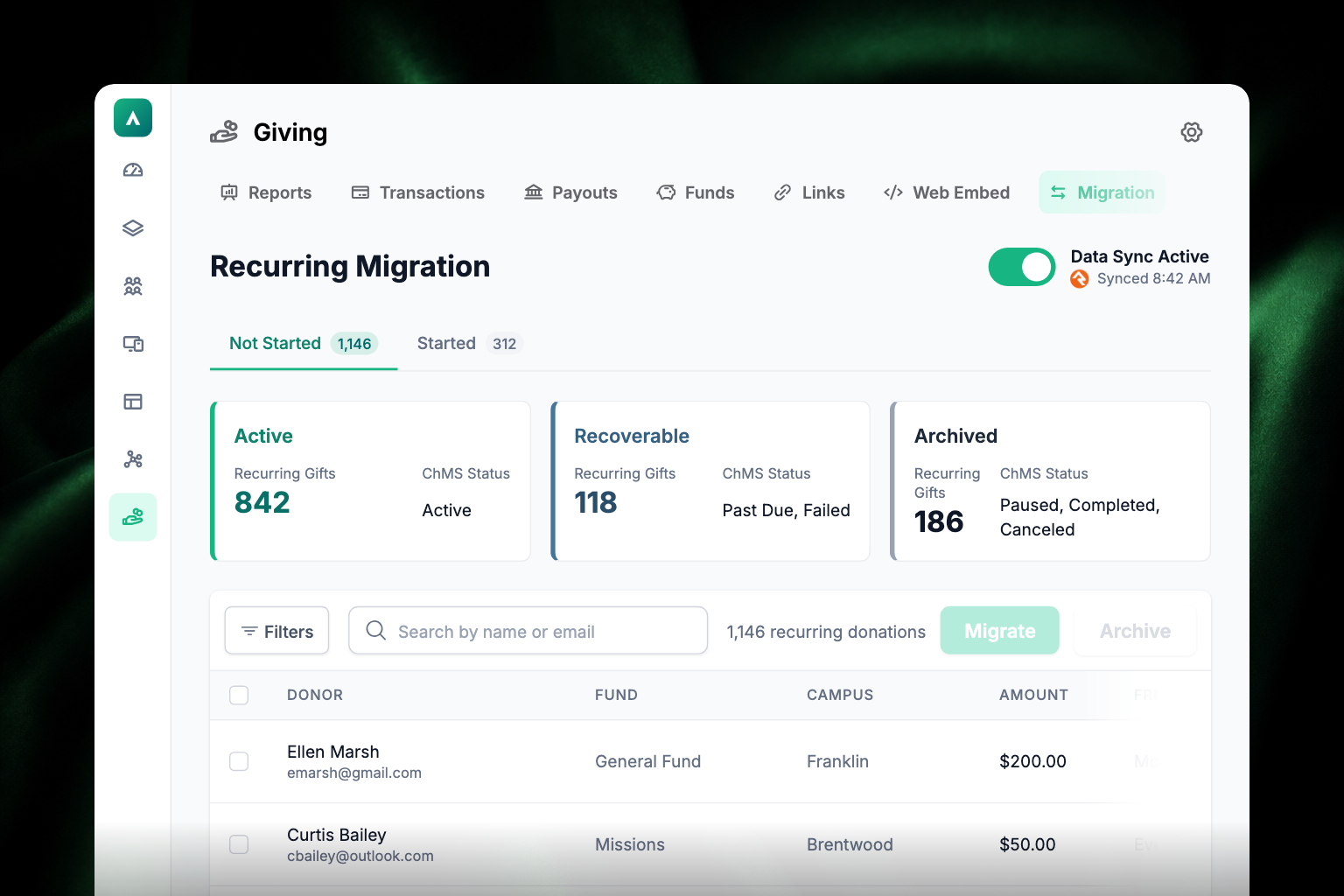
The migration dashboard is called Recurring Migration, and it has two subtabs. Not Started — the one it opens on — holds everyone you haven't invited yet, grouped into three panels:
| Panel | What's in it |
|---|---|
| Active | Recurring gifts running normally in your old provider |
| Recoverable | Gifts that are past due or failing — worth reaching out about |
| Archived | Gifts that are paused, completed, or canceled |
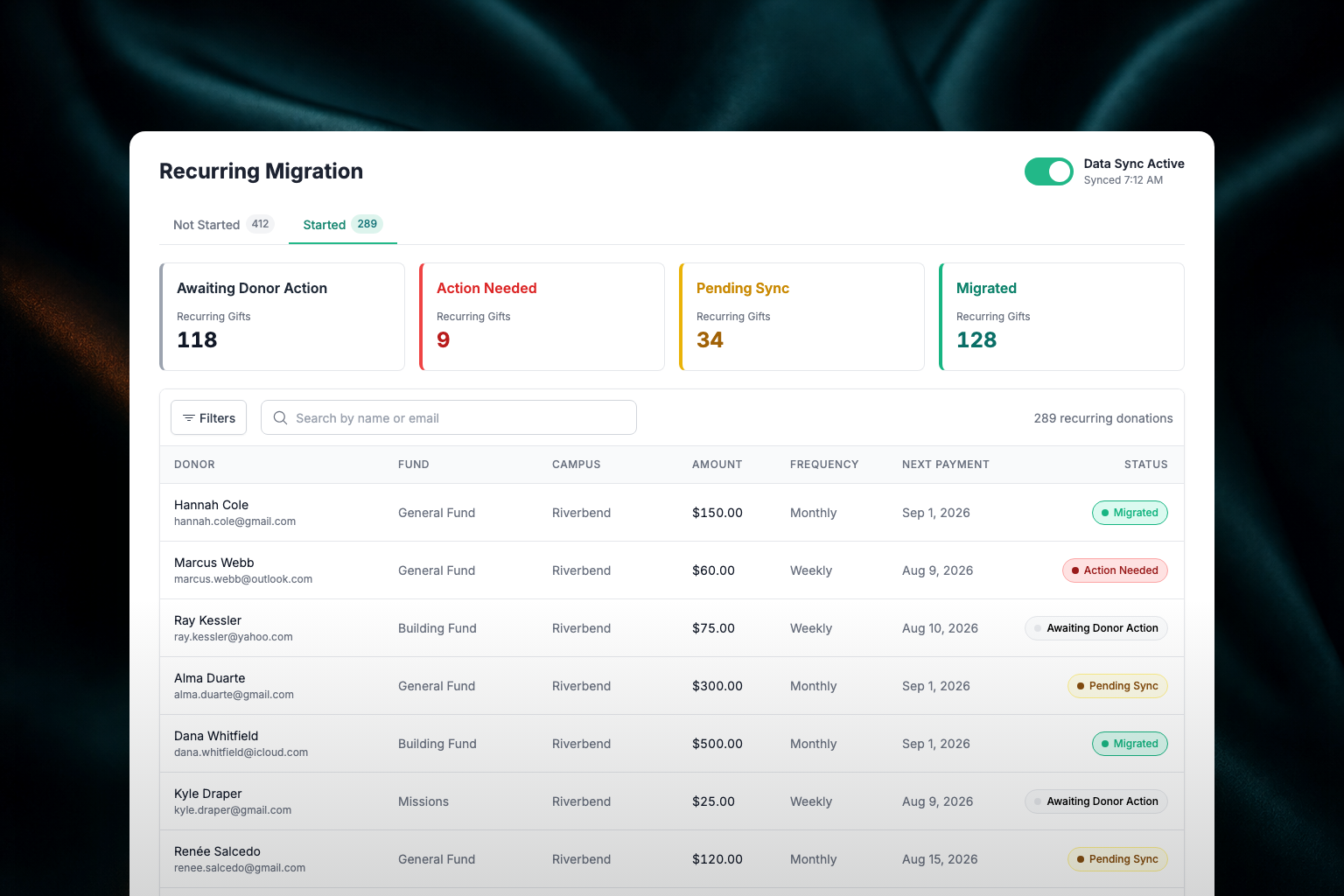
Once you've invited a donor, they move to the Started subtab, where they work through four stages:
| Stage | What it means |
|---|---|
| Awaiting Donor Action | The donor has been notified but hasn't started yet |
| Action Needed | The donor started but hasn't finished — most commonly, bank account verification is still pending |
| Pending Sync | Payment method is set up; Apollos is confirming the donor's giving syncs correctly to your records |
| Migrated | Fully transitioned to Apollos Giving |
The dashboard shows a syncing state while the first import of your Pushpay data finishes, then switches to the live view. If Apollos can't reach Pushpay for a moment after donors have already started, the dashboard stays on the live view so your team can keep helping donors.
How donors hear about it
Donors are prompted in more than one place, so someone who misses the email still gets asked where they already are.
The migration email. When you click Migrate, each selected donor moves to Started and gets an email with a personal link to set up their payment method and confirm their gifts. Apollos sends one automatic reminder about 3 days later if they still haven't acted. Both emails can carry your church's verified sender domain, support email, and FAQ link — set those in Giving → Settings before your first send. See Giving emails.
A text message, when there's no email to use. When a donor starts migration on their own rather than from your invitation, Apollos sends the link to their email address if they have a usable one and texts it to them if they don't. It's a fallback for donors you can't reach by email, not a second message on top of the email.
The reminder on your church's website. If you have website embeds installed, a signed-in donor with gifts left to migrate sees a small reminder in the corner of the page — "Reminder to update your gift!" with an Update button that opens the migration flow. It walks them through signing in, or claiming their account for the first time, before they confirm their gifts. Dismissing the reminder quiets it for that visit only; it returns on their next visit until they finish migrating.
The website reminder only knows which visitor it's looking at because your site passes the signed-in person's ID to the embed. If donors report never seeing it, that's the first thing to check with whoever installed your embeds.
Their giving history in Apollos. Gifts still waiting on the donor appear in their giving history with the action to finish, so a donor who opens giving on their own runs into the migration without needing to find the email.
What each donor needs to do
- Set up a payment method in Apollos — credit card, bank account (ACH), or Apple Pay. Donors should save one selected payment method before adding another. During migration, they can edit or remove saved payment methods in place without leaving the migration flow. See Payment methods.
- Confirm their recurring gifts in Apollos — each gift card shows the amount, fund, frequency, next gift date, campus when available, and selected payment method. For migrated gifts from Pushpay, the campus follows the gift's own campus-scoped fund when one is available, rather than the donor's home campus. If the donor has multiple saved payment methods, they can choose the method for each gift before confirming. After confirmation, the success screen can show your church's support email when one is configured. See Recurring giving.
- Cancel their Pushpay recurring gift manually. Apollos cannot cancel a subscription with another provider — the donor must do this in Pushpay themselves. Make this step prominent in your communications, or donors may be double-charged for a cycle.
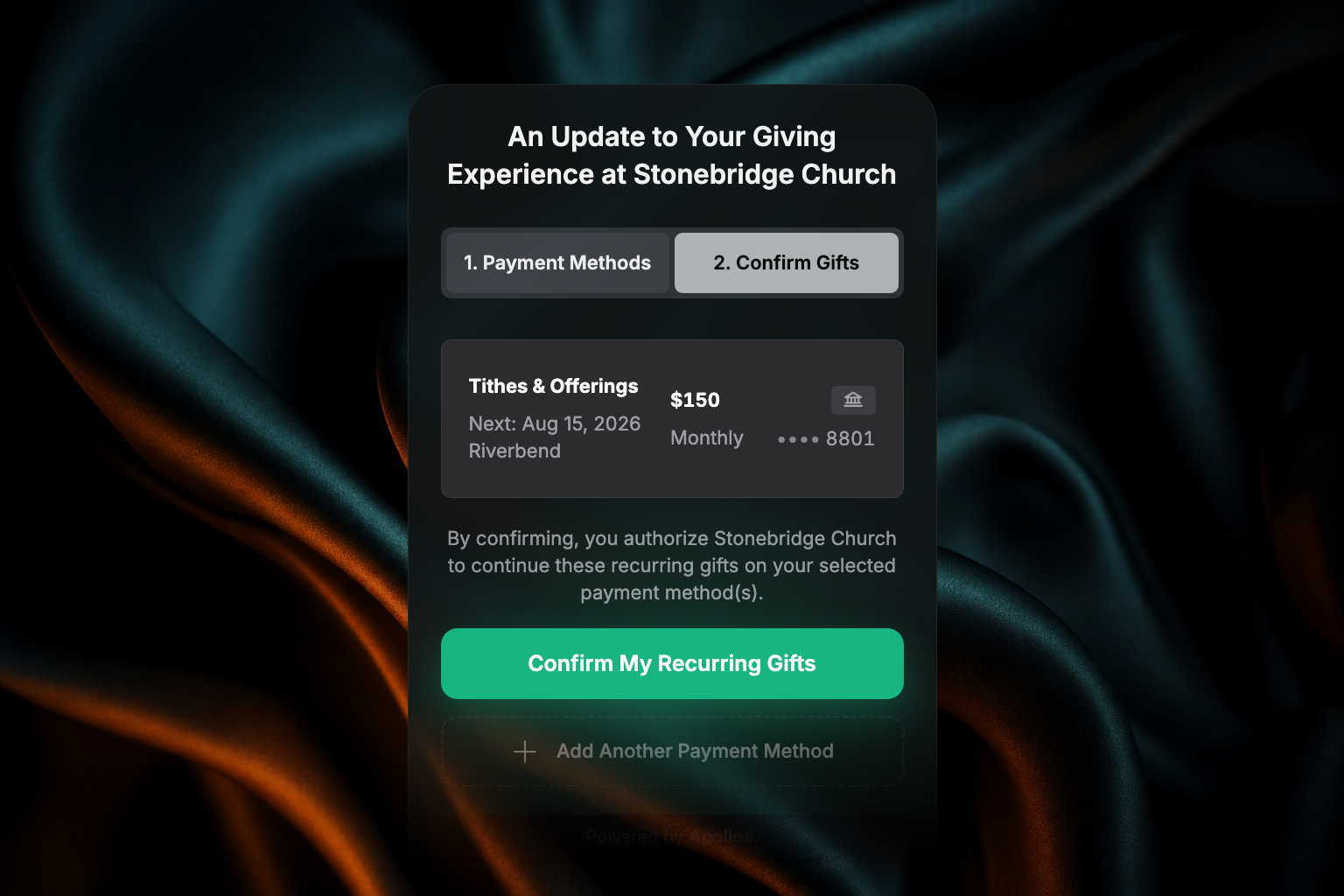
Encourage ACH donors to start early. Bank account verification is instant for most banks, but manual micro-deposit verification can take 1–2 business days. A donor who waits until the cutover date may have a gap, so build verification time into your migration timeline.
Track migration progress
- In Admin, go to Giving → Migration. (You need an Organization Admin or Giving Admin role plus the migration permission — ask your Apollos contact if you don't see the tab.)
- On Not Started, review the Active, Recoverable, and Archived counts. Switch to Started to see how far along the donors you've already invited are. Each panel shows the number of recurring gifts and, alongside it, the matching status in your old provider.
- Search by name or email, then use row selection to choose the donors or gifts you want to act on. The header checkbox selects all gifts matching the current filters across all pages; you can uncheck individual rows to exclude them.
- Before sending migration emails, confirm the support email and FAQ URL in Giving → Settings point donors to the right help.
- Click Migrate to send or resend the initial migration email to the selected donors. Clicking Migrate again resends the email instead of ending in a no-changes state. Archive sets aside gifts you don't intend to move.
- Follow up with donors who appear stuck — especially those still in Awaiting Donor Action. Apollos sends one automatic reminder about 3 days after the initial migration email to donors who still need to act.
The migration dashboard labels its lifecycle times separately. Started shows when migration began, Synced shows the latest completed update, and Paused shows when an inactive migration stopped. Staff can tell the difference between a paused migration and recent sync activity.
If a donor still has recurring gifts in Pushpay, open their row and use the Pushpay link to jump straight to that donor's recurring gifts in Pushpay.
Troubleshooting
Why isn't a donor's newest card attached to their migrated gift?
A migrated gift keeps the payment method the donor picked when they confirmed it. A card they add later isn't attached to that gift automatically, so a gift never quietly switches to a different account. If they want to give with the newer card, have them open the gift in the app and change its payment method. See Recurring giving.
Who do our migration emails come from?
Once you've registered and verified your church's sender domain in Giving → Settings, migration emails go out from your own address rather than a generic one, so donors recognize them and are less likely to miss them. Until the domain is verified, Admin won't let you save the sender address. See Giving emails.
Why does Admin ask me to confirm before refreshing our sender domain?
Refreshing the domain issues new records for you to add with your domain provider, and migration emails can't send until those records verify. Admin asks you to confirm first so a refresh doesn't happen by accident mid-migration. Confirm only when you're ready to update the records. See Giving emails.
Why are so many donors stuck in "Awaiting Donor Action"?
They haven't started the process. This is the most common stall. Apollos sends one automatic reminder about 3 days after the initial migration email, and you can also send your own follow-up communications with a direct link to set up giving. Donors mid-bank-verification can also briefly appear here until verification completes.
Why does the migration dashboard say sync is inactive?
The migration sync has been paused. Admin shows when the sync was paused instead of treating later background updates as fresh migration activity. When you turn sync back on, the dashboard returns to showing the latest update time.
Why is a donor stuck in "Action Needed"?
Usually their bank account verification hasn't completed yet, or they still need to cancel the old gift in Pushpay. Manual ACH micro-deposit verification can take 1–2 business days — this is expected, not an error. If it's been longer than a few business days, ask the donor to check the app for a pending verification step and confirm the old gift has been canceled.
Why did a migrated gift show the wrong campus?
For Pushpay migrations, Apollos uses the campus tied to the gift's fund when that fund is campus-specific. If the fund is not campus-specific, Apollos falls back to the donor's home campus. If a donor changes the campus on an in-progress gift in Pushpay, the migration dashboard and donation reports should follow the updated gift campus after the next sync.
Why did a donor open an in-progress gift from Give History?
In-progress migrated gifts open the gift detail view so the donor can see the current amount, frequency, fund, schedule, and provider link. The "You're all set!" screen appears only after the donor finishes the migration confirmation flow.
A migrating donor already gave once before — will they get a duplicate profile?
No — if a donor already has a payment record with your church (for example, from a previous one-time gift), Apollos links to the existing record rather than creating a duplicate. If you do spot a duplicate giving profile, contact your Apollos representative — see Giving troubleshooting.
A donor got charged by both Pushpay and Apollos. What happened?
The donor set up their Apollos gift but didn't cancel their Pushpay subscription (or canceled it after Pushpay's next charge ran). The donor should cancel in Pushpay right away and can request a refund from Pushpay for the overlapping charge.