

Mobile app
Your mobile app is the heart of your church's Apollos platform — and you control its structure by configuring tabs in Admin under Apps → Mobile, choosing what features and content your members see.
How it works
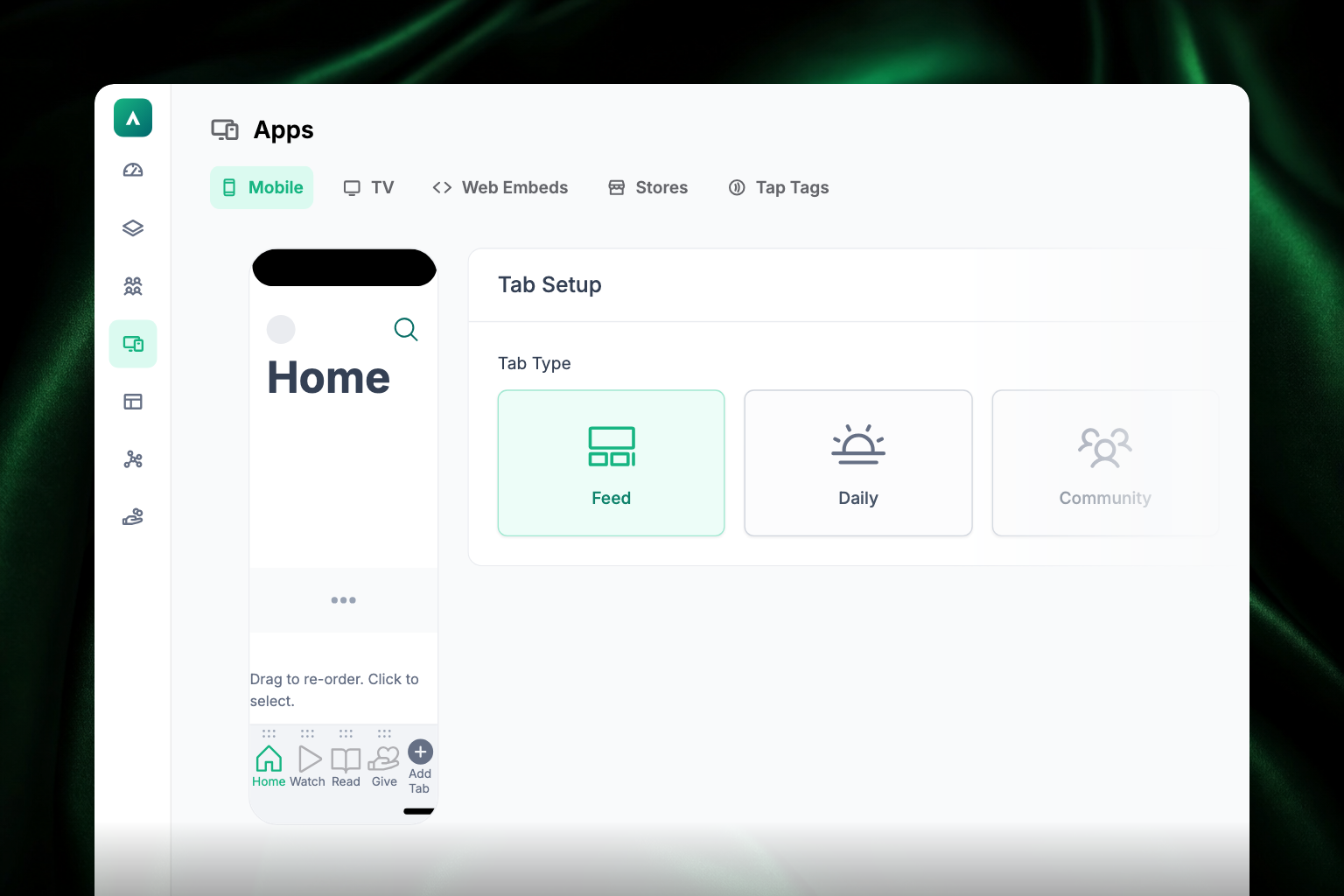
Your app is organized into tabs — the navigation items along the bottom of the screen. You can have up to five tabs (Apple recommends apps have 3–5; more risks rejection during App Store review). Each tab is one of these types:
- Feed — displays a content feed you build in Admin: sermons, events, articles, anything. Most apps use a feed as the home tab. See Feeds: building your app's home screen.
- Daily — connects to daily reading content for building habits, with gratitude prompts and inspirational quotes. See Daily Habits.
- Community — opens communities and groups for member interaction. See Communities & groups.
- Webview — embeds a web page inside the app. Great for custom experiences or partner tools. Webview tabs aren't on every plan; if the card shows a padlock, ask your Apollos contact about upgrading.
- Give — opens your giving experience. This one only appears for churches with giving turned on. See How giving works.
Every tab also has a configurable header — toggle Search, your brand logo, the Activity Center, and the member's profile on or off per tab — and optional personalization, which shows the tab only to specific audience segments. See Personalization: tags & audiences.
Give tabs show only the setup controls that apply to giving. In the app, the Give tab opens the church's web giving experience and keeps members in the app. On Android, it uses the full tab area without an extra app header.
Add a tab
- In Admin, go to Apps → Mobile.
- In the phone preview on the left, click Add Tab beneath the existing tabs. (On a brand-new app it reads Add Default Tabs instead, which sets up a starting arrangement for you.) The tab is created with the name "New Tab" — you'll rename it in a moment. The add option disappears once you have five tabs.
- In the Tab Setup panel on the right, choose the Tab Type: Feed, Daily, Community, Webview, or Give.
- Configure it using the steps for that type below.
- Click Save. Save stays greyed out until you've changed something.
Set up a Feed tab
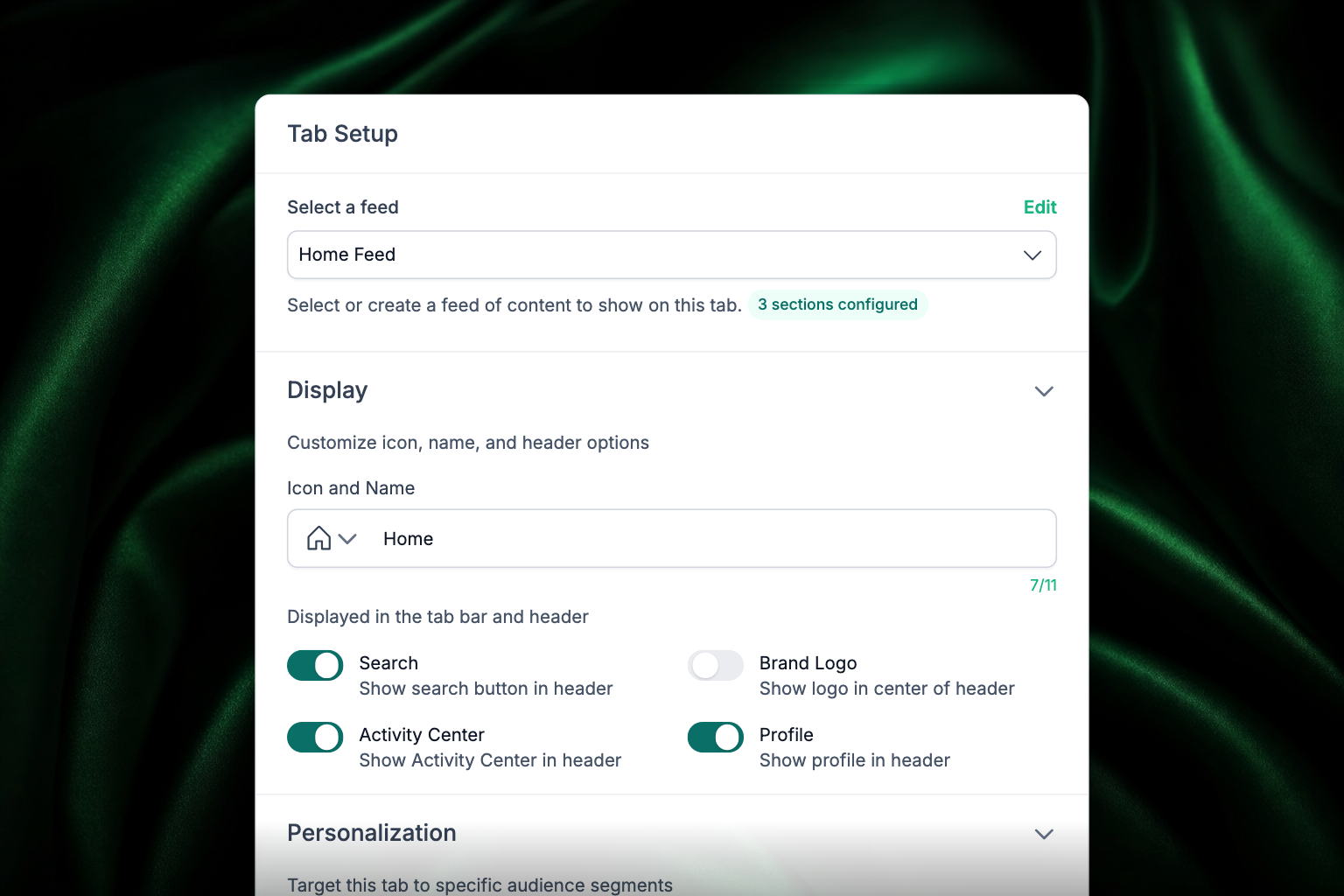
- Under Select a feed, choose an existing feed or create a new one. The badge underneath tells you how many sections that feed has; if it reads No sections configured in red, the tab will be empty. Edit opens the feed so you can fill it.
- Open the Display section and set the Icon and Name. Pick the icon from the dropdown on the left, then type the label on the right. Labels are capped at 11 characters — a counter shows how many you have left.
- Still under Display, toggle the four header options on or off:
- Search — show search button in header
- Brand Logo — show logo in center of header
- Activity Center — show Activity Center in header
- Profile — show profile in header
- Open Personalization and pick Segments to show the tab only to those audiences. Leave it empty and everyone sees the tab.
- Click Save.
To control what appears inside the feed itself — sections, content sources, layouts, and "View More" buttons — see Feeds: building your app's home screen.
Set up a Daily tab
- Choose where your daily reading content is located.
- Apply filters (such as tags) so the right readings appear.
- Select an icon and name for the tab.
- Under Display, configure the header options (Search, Brand Logo, Activity Center, Profile).
- Add gratitude prompts, such as "What are you grateful for today?" or "How has today inspired you?"
- Add quotes to encourage members.
- Click Save.
For how Daily Habits and streaks work end to end, see Daily Habits.
Set up a Community tab
- Add an icon and name for the tab.
- Under Display, choose what appears in the header (Search, Brand Logo, Activity Center, Profile).
- Optionally limit the tab to specific audience segments.
- Click Save.
Reorder or remove tabs
- Reorder — drag the tabs in the phone preview into the order you want, using the handle above each one. The order matches the bottom navigation in the app.
- Remove — click the tab in the preview, then click Delete at the bottom-left of the Tab Setup panel. Removing a tab doesn't delete the feed or content behind it.
Preview your changes
Use the Apollos Preview app to see your tab configuration on a real device before it goes live — scan the QR code from the Launchpad.
Troubleshooting
Why does the back button look different on iOS 26?
On iOS 26 the app uses the iPhone's own back control on content and people screens, so going back looks and feels like the rest of the phone — including the swipe-from-the-edge gesture. Your tabs and content are unaffected.
Do I still need to enable these features in Organization Profile?
Link embeds, Web Embeds, eligible Webview tabs, the new editor, and polls are generally available. Their former Organization Profile switches have been removed.
Why did a shared link open in a browser instead of the app?
A link only opens your app directly when it uses the web address your app is registered to. Apollos keeps those addresses lined up with your church's own links, so shared content opens in the app for members who have it installed. If a shared link still opens in a browser on a device with the app, send the exact link to Apollos support.
Why can't some members see a tab?
Check whether personalization is enabled on that tab. A personalized tab only appears for members in the selected audience segments — everyone else won't see it. See Personalization: tags & audiences.
Why was my app flagged for too many tabs?
Apple recommends 3–5 tabs, and apps with more risk rejection during App Store review. Trim your tab count under Apps → Mobile before submitting. See App store listings.
Why is my new tab not showing content?
For Feed tabs, confirm the feed has published sections and content — an empty feed renders an empty tab. See Feeds: building your app's home screen and Content troubleshooting.