


Welcome to Apollos
Apollos gives your church a branded mobile app, TV apps, website embeds, and physical Tap tags — all managed from one place, the Apollos Admin. This page is a five-minute tour of what you get and where everything lives.
How it works
Your church's Apollos platform has two sides:
- What your congregation sees — the mobile app, TV apps, content embedded on your website, and Tap tags placed around your building.
- What your team sees — the Admin at admin.apollos.app, where you create content, manage people, configure giving, and launch your apps.
Everything you publish in Admin flows out to every surface automatically. Publish a sermon once and it can appear in your app's home feed, on your TV app, in a feed embedded on your website, and behind a Tap tag at your welcome desk.
Where your congregation meets Apollos
- Mobile app — your church's own app on the Apple App Store and Google Play, with content, communities, giving, prayer, daily habits, and more. See Mobile app.
- TV apps — a big-screen experience for Apple TV, Fire TV, and Roku, built around your video content. See TV apps.
- Website embeds — drop your content feeds, search, and giving form directly onto your church website. See Website embeds.
- Apollos Tap — physical NFC tags (with QR codes) that open giving or any feed when someone taps their phone. See Apollos Tap.
A tour of the Admin
Sign in at admin.apollos.app. The navigation covers these areas:
- Dashboard — a quick snapshot of how your church is engaging: how many people are using the app, what content is popular, and giving trends. Not every role has it; if you don't see it, Admin opens on Content instead. See Dashboard.
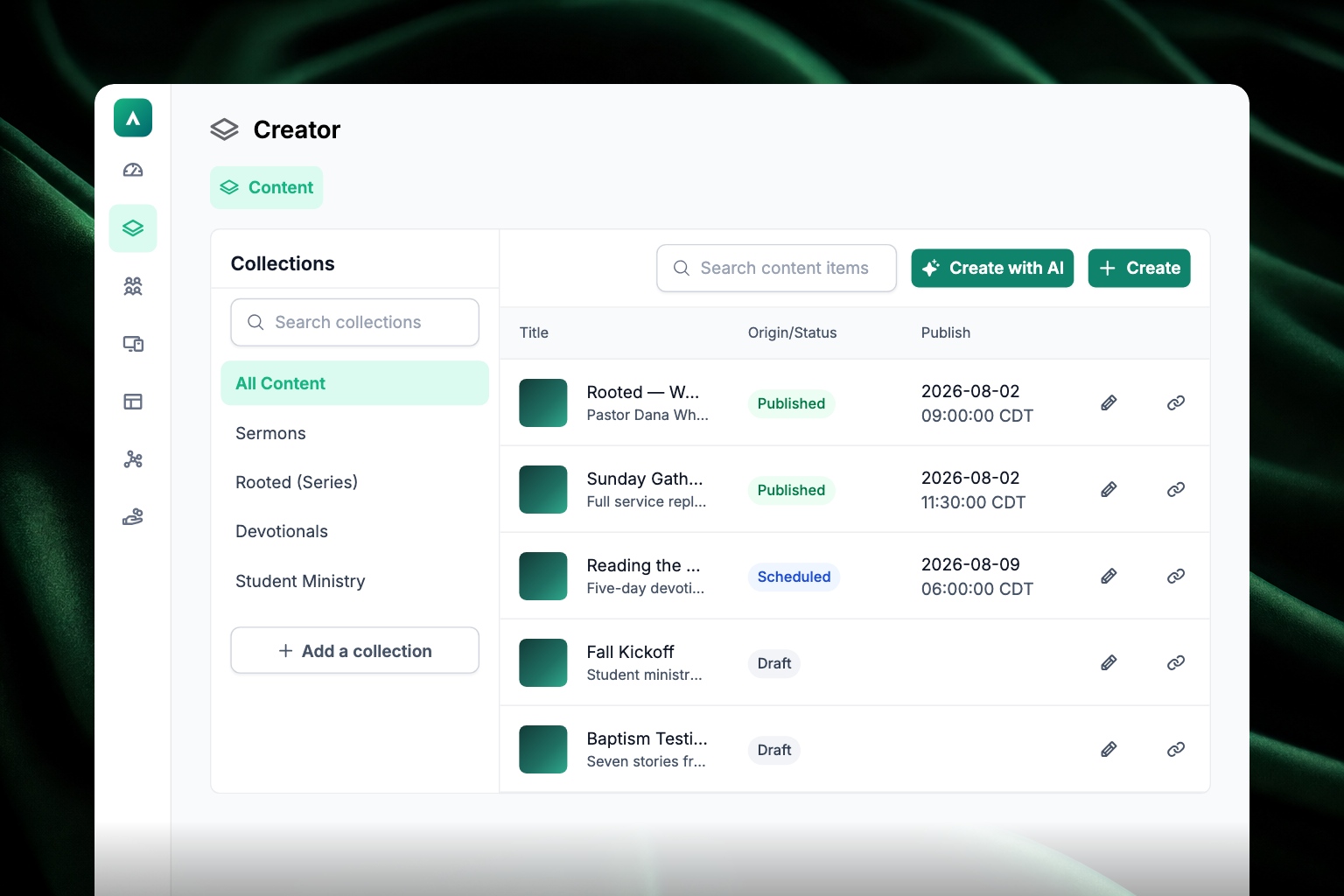
- Content — create, edit, and publish everything that appears in your apps: sermons, articles, devotionals, and videos. The editor includes Creator AI tools that help you draft descriptions and summaries. See How content works.
- Feeds — build the screens your members see. A feed is an ordered set of sections — card rows, lists, prayer lists, and more — used for app tabs, TV screens, web embeds, and Tap tag destinations. See Feeds.
- Audience — view and manage your members: profiles, filters by tags, campus, and activity. Communities, campuses, tags, and push notifications live here too. See Audience and Communities & groups.
- Apps — configure your mobile app tabs, TV app, web embeds, Tap tags, and app store listings.
- Data — connect Rock RMS, Planning Center, CCB, and other services, and check sync health. See Integrations overview.
- Giving — set up funds, view transactions, run reports, and manage your payment processing. See How giving works.
Two more things sit in the profile menu in the lower-left corner rather than in the sidebar: Organization Profile, for your church's branding and settings, and Your Profile, for your own name, email, and password. Church-specific configuration settings are covered in the Configuration reference.
What you see depends on your role. Items you don't have access to sort to the bottom of the sidebar rather than disappearing.
Your church's own space
Every church on Apollos has a completely separate environment — your own content, members, settings, and branding. Your church is identified by a short name called a church slug (for example, first_baptist), which you'll see in Admin web addresses like admin.apollos.app/{churchSlug}/audience. It's assigned when your church joins Apollos.
Team access and roles
Admin access is role-based, so you can give a volunteer access to manage content without giving them access to giving data. Invite teammates and assign roles from the Team page — see Invite your team & roles.
Where to go next
Ready to set up? Follow the Launch checklist — it walks you through every step from branding to app store release.