


Get the app & sign in
Your church has its own app where you can watch messages, give, pray with others, and stay connected — this page walks you through downloading it, creating an account, and signing in.
How it works
Your church's app doesn't use passwords. Instead, when you sign in, the app sends a short verification code to your email or phone. Enter the code and you're in — there's no password to remember, reset, or have stolen. Once you've signed in, the app keeps you signed in for a long time (over a year), so you won't need to do this often.
Download your church's app
- Open the App Store (iPhone or iPad) or Google Play Store (Android).
- Search for your church's name. The app is published under your church's own name and icon — if you're not sure what to search for, check your church's website or bulletin.
- Tap Get or Install.
- Once it finishes downloading, tap the app icon to open it.
Create an account
Open the app. On the welcome screen, tap Create Account.
Choose whether to use your email address or phone number, enter it, and tap Next.
A verification code will be sent to the email or phone number you entered. Type the code into the app and tap Verify.
Fill in your profile — first name, last name, gender, and birthday — and tap Next.
You'll see a welcome message with your name. Tap Next.
The app may ask you to pick your local campus. Tap Yes, find my local campus to choose one, or Skip.
The app will ask if you'd like to turn on notifications. Tap Yes, enable notifications to stay in the loop, or Skip.
Finally, you can search for people you know to follow, or pick from the suggestions. Tap Finish.
That's it — you're all set up.
Sign in to an existing account
- Open the app and tap Sign In.
- Enter the email address or phone number you used when you created your account.
- Check your email inbox or text messages for a short verification code.
- Enter the code in the app. You're in.
Delete your account
If you ever want to permanently delete your account:
Tap your profile picture (the circle in the upper-left corner of the screen).
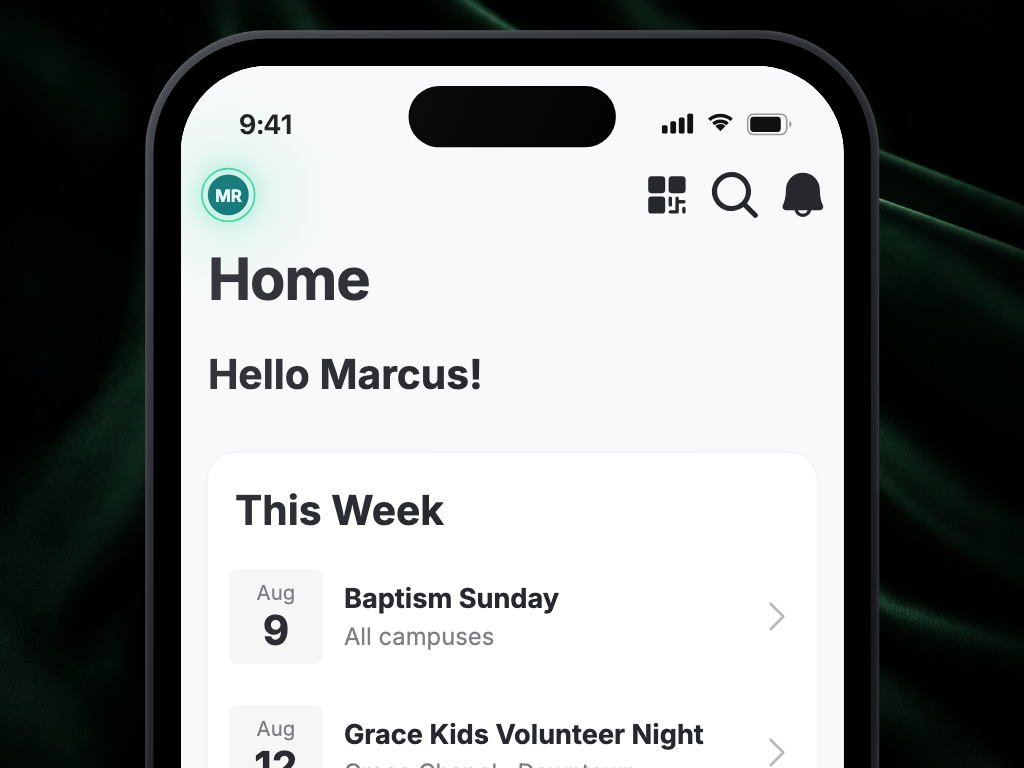
Scroll to the bottom of your profile and tap Delete Your Account.
A prompt will appear letting you know this can't be undone. Tap Delete My Account to confirm, or Cancel if you change your mind.
Once you confirm, your account is permanently deleted.
FAQ
Does the app cost anything?
No — your church's app is free to download and free to use.
I didn't receive my verification code. What do I do?
If you signed in with email, check your spam or junk folder. If you signed in with your phone number, make sure you entered it correctly. You can always request a new code from the sign-in screen — codes expire after a short time, so use the newest one.
Can I sign in with my phone number instead of my email?
Yes. You can use either one. You can also add the other later, so both work for signing in.
Do I need a password?
No. Your church's app never uses passwords — just a fresh verification code each time you sign in.
Why do I have to enter my name to finish signing up?
If the app can't match you to a profile your church already has, it creates a new one — and that needs your first and last name. Enter your name when the app asks and you'll go straight into the app. Until there's a name, your profile can't be created, so the sign-up can't finish.
Can I stay signed in when I open the app from my church's website?
Sometimes, yes. If you're already signed in on your church's own website and you follow a link from there into the app, your church can have that sign-in carried over so you don't need to request a new verification code. Not every church's website is set up this way — if you're asked for a code, enter it as usual.
What happens if the app can't find my profile?
It asks for your first and last name, creates a new profile for you, and takes you into the app. There's nothing else to fill in, and nothing to set up with your church first.
What if my church already has a profile for me?
When you sign in with your phone number or email, the app looks for a profile that already matches you before creating a new one, so you don't end up with two. If more than one profile could be yours, the app shows you what it has so you can pick the right one.
Why does the app ask “Is This You?” when I sign in?
That screen confirms you were matched to the right profile. It shows the name and contact details your church has on file so you can accept the match or say it isn't you — the same step you'd see signing in on your church's website.