


Communities & groups
Communities are groups within your church where members connect, chat, and share — small groups, Bible studies, volunteer teams, youth groups, prayer circles, or any other gathering your church organizes. Each community gets its own chat, member list, and prayer space, giving your congregation a dedicated place to stay connected between Sundays.
How it works
A community follows a simple lifecycle:
- An admin or host creates a new community. It starts out Pending — visible only to its creator — so there's time to add a description and image before anyone sees it.
- The creator activates the community, making it Unlisted. Members can now join through an invite link.
- If you want the whole church to find it, change the visibility to Public.
- Members join on their own (Public) or through an invite from a host (Unlisted).
- Every community includes a built-in chat. When someone joins the community, they're automatically added to its chat — no extra steps. When they leave, they're removed from the chat too.
Members interact through chat, prayer requests, and discussions. Every community has exactly one chat and it can't be switched off on its own — for moderation tools and the church-wide chat settings, see Chat & moderation.
Visibility settings
Every community has one of three visibility settings that controls who can find and join it.
| Visibility | Who can see it | How members join |
|---|---|---|
| Public | Everyone in the app | Anyone can find it through search or browsing and join immediately — no approval required. Great for open groups like churchwide prayer circles or newcomer communities. |
| Unlisted | Only existing members and people with an invite | Members join via an invite link or QR code shared by a host. The community never appears in search or discovery. Ideal for small groups, leadership teams, or sensitive groups (like grief support) where you want to control who joins. |
| Pending | Only the creator | A newly created community that hasn't been activated yet. No one else can see or join it until it's activated. |
Roles and member status
Each person in a community has one of two roles:
Host — the leaders and moderators of a community. Hosts can:
- Edit community details (name, description, cover image)
- Invite new members via link or QR code
- Moderate the community — remove chat messages, manage prayer requests
- Designate other members as hosts
- Add a Host Message that appears at the top of the community
A community can have multiple hosts, and we recommend it — active communities benefit from consistent moderation coverage.
Member — everyone else. Members can view community content, participate in chat, share and pray for prayer requests, join discussions, and respond to polls embedded in community content.
There's no approval queue: anyone with the join link joins straight away, and public communities are open to everyone in the app. Control who gets in by controlling who gets the link, and use Unlisted visibility for groups that shouldn't be discoverable.
From Admin you can remove someone from a community and promote or demote them between Host and Member. Adding people to a community isn't done from Admin — they join through the link, or through your ChMS for synced groups.
Create a community
- In Admin, go to Audience → Communities.
- Click New Community.
- Give the community a name and a host message (the description members see).
- Optionally upload a cover image. The image appears at the top of the community page and in discovery listings for public communities.
- Choose Unlisted or Public visibility.
- Click Create.
After creating the community, you can change its visibility, edit its details, and designate hosts at any time from the same screen.
Invite members
For unlisted communities (and as a head start for public ones), share the community's join link:
- In Admin, go to Audience → Communities.
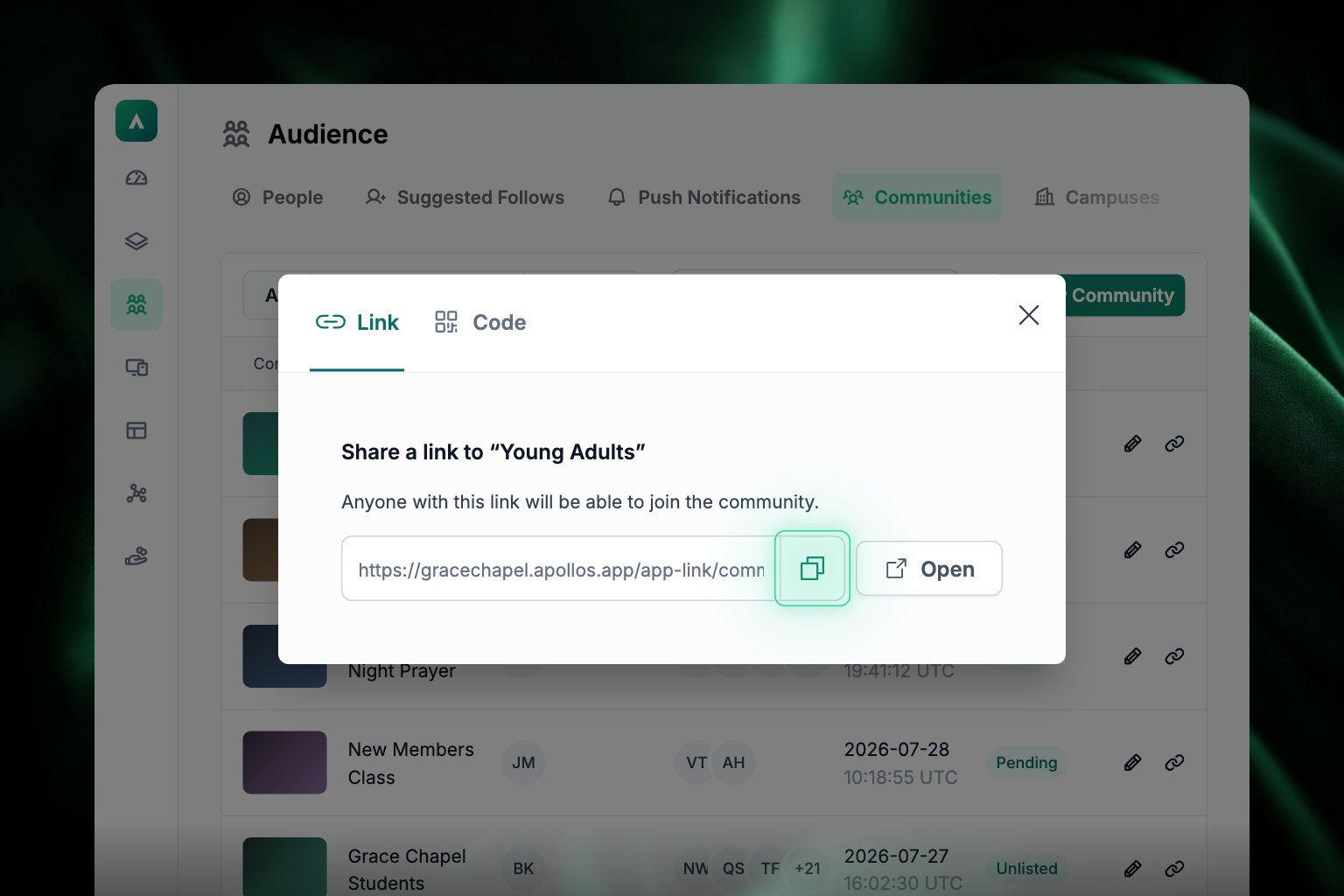
- Find the community in the list and click the link icon at the end of its row. (You can also open the community's edit panel and choose Invite members.)
- A share dialog opens with two tabs: Link and Code. Use Link to copy the join link, or Code to get a QR code for print and screens.
- Share it by email, text, or your church's communication channels. Hosts can also share an invite link or QR code directly from the app.
Anyone with the link can join the community, so treat it like a key.
Invitations sent from within the app arrive as push notifications, so recipients need notifications enabled to see them — see Push notifications & messaging.
Syncing communities from your ChMS
Note: automatic group sync from your ChMS is available on the Max plan.
If your communities sync from your church management system (Rock RMS, Planning Center, etc.), keep these things in mind:
- Sync runs on a 60-minute cycle. Changes in your ChMS can take up to an hour to appear in the app.
- Only people with an "Active" status in your ChMS sync to Apollos.
- Changes made directly in Apollos are overwritten on the next sync cycle. If you add a member manually in Apollos but they're not in the group in your ChMS, the sync will remove them.
- Synced groups are read-only in Apollos. Manage their members, hosts, and group details in your church management system. Members removed by sync are also removed from the linked community chat.
- Synced leader roles can become hosts. For supported integrations, group leaders sync as community hosts so they can moderate the community.
- For Rock RMS, group visibility settings in Rock control which groups appear in Apollos.
- For Ministry Platform, choose which group types sync in Data → Catalog so only the right groups become communities.
Because of this, manage synced group membership in your ChMS and let Apollos mirror it — don't make changes in both places. See Data sync for how syncing works overall.
Measuring community engagement
Apollos tracks key community interactions as analytics events you can review in your connected analytics tools (Amplitude or your data warehouse):
- Community Joined — a member joins a community
- Community Engaged — a member interacts with a community beyond just viewing it (including chat participation)
- Community Shared — a member shares a community with others
These events help you see which communities drive the most engagement and which might need more host attention or promotion. See Engagement metrics.
Troubleshooting
Why is a re-added group member missing from the community chat?
They shouldn't be for long. A member re-added or reactivated in your church management system regains chat access and their correct role on the next sync, so you don't need to delete and recreate the community. Allow up to an hour, then check that they're Active at the source.
Why isn't my community showing in the app?
Check these in order:
- What's the visibility setting? Unlisted communities are hidden from search and discovery on purpose — members can only reach them through an invite link. Pending communities are visible only to their creator.
- Has the community been activated? A newly created community stays in Pending until it's activated. Activate it, then set it to Public if you want it discoverable.
- Is the member browsing the right church app? Communities only appear in the church they belong to.
Why can't a member join a community?
- Is the community Unlisted? Unlisted communities require an invite — members can't join on their own. A host needs to send them the join link.
- Are they already a member? If so, a fresh open of the app usually resolves it.
- Has the community been activated? A community still in Pending visibility can't be joined by anyone but its creator.
- Do they have a verified phone number? Members joining for the first time may be asked to verify their phone before the join completes.
Why can't a host edit or moderate their community?
- Confirm they actually have the Host role in that community (not just Member). Another host or an admin can promote them from Audience → Communities.
- Is this a synced group? Synced groups are read-only in Apollos — host roles come from your ChMS, so promote them there instead.
- Confirm they're in the right community. Host permissions only apply to the specific communities where they hold the role.
Why aren't community invites arriving?
Invites are delivered as push notifications, so the usual notification checklist applies:
- The recipient may have notifications turned off — on their device or in the app.
- Push delivery may not be configured for your app — see Push notifications & messaging.
- If invites still aren't arriving after checking those, contact Apollos support.
Why isn't my ChMS group syncing into Apollos?
- Allow up to an hour — the sync runs on a 60-minute cycle.
- Check the group and its members are Active in your ChMS. Inactive members don't sync.
- For Rock RMS, check the group's visibility settings in Rock.
- For Ministry Platform, check that the group's type is selected in Data → Catalog.
- If the group is synced, manage it in your church management system. Synced groups are read-only in Apollos, and direct edits are overwritten.
- If the group still isn't appearing, your integration credentials may have expired — see Integrations troubleshooting or contact Apollos support.
Why isn't a community's chat working?
See Chat & moderation — its troubleshooting section covers messages not sending, missing chat access, and moderation problems.